
The Logitech C920 hd pro Webcam is a top choice for content creators, streamers, and professionals who need crystal-clear video for video calls, live streaming, or online meetings. Known for its sharp 1080p video quality, reliable autofocus, and built-in stereo microphones, the C920 offers excellent performance. This guide will walk you through the process of setting up your Logitech C920 webcam, troubleshooting common issues, and adjusting settings for the best possible video quality.
Installing the Logitech C920 Webcam
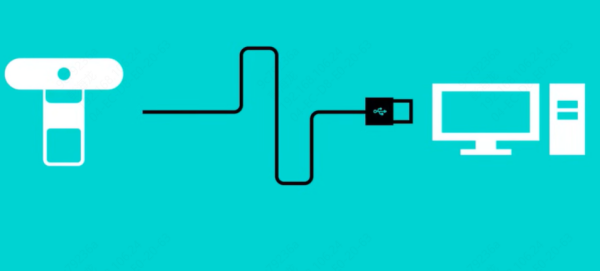
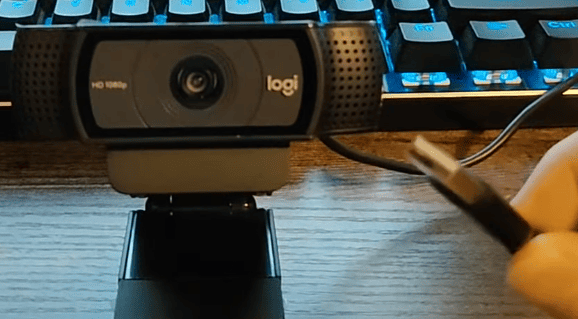
Plugging in the USB Cable
Connect the USB cable to your computer
Plug the other end into an available USB 2.0 or USB 3.0 port on your PC. It's recommended to use a USB port directly on your computer rather than a hub to ensure a stable connection
Installing Additional Software (Optional)
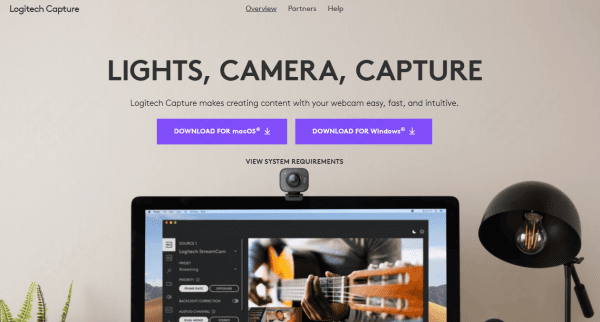
While Windows installs basic drivers automatically, you may want to install additional Logitech software to unlock advanced features and settings:
Logitech Capture: This software is great for streamers and content creators who want to record or stream with additional features like scene transitions, filters, and custom layouts
Logitech Camera Settings: This software allows you to control settings like autofocus, resolution, and zoom
You can download these tools from the official Logitech website
Accessing Camera Settings in Windows
To adjust the video quality and settings for your Logitech C920:
Open Cameras
Select the Logitech C920 HD Pro Webcam
Here, you can adjust video settings like:
Resolution: Choose between 720p and 1080p.
Frame Rate: Set to 30fps or 60fps, depending on your needs
Microphone: Set your preferred audio input source if using the camera's built-in microphone
Troubleshooting Common Setup Issues
Issue 1: Webcam Not Detected
If your Logitech C920 webcam is not detected:
Try plugging the USB cable into a different port
Restart your PC and check if the webcam is detected after rebooting
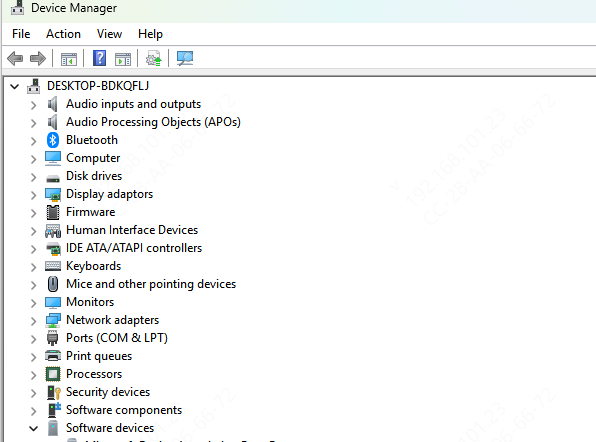
Check Device Manager to ensure that the webcam is listed under Imaging Devices
Issue 2: Webcam Image is Blurry
If the webcam image appears blurry:
Adjust the autofocus by gently moving the camera to allow it to focus
Clean the lens with a microfiber cloth
Check the video resolution and make sure it's set to 1080p
Try a different cable
Issue 3: Webcam Mic Not Working
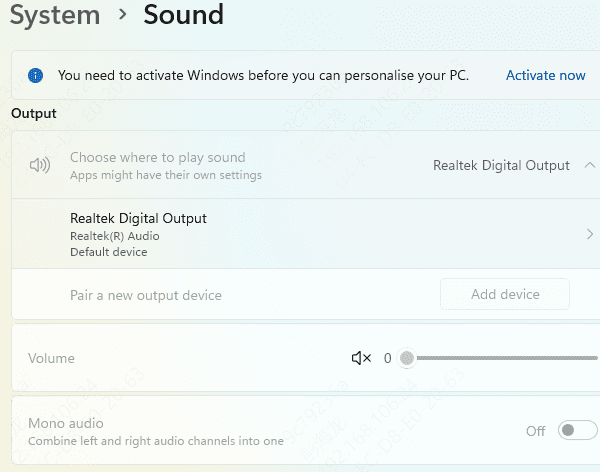
The C920 has a built-in microphone, but it may not work if it is not set as the default audio input device:
Right-click the speaker icon in the taskbar
Select Sounds → Recording tab
Set Logitech C920 Audio as the default device
Ensure your microphone permissions are enabled in Privacy Settings
Maintaining and Updating Your Logitech C920
Step 1: Checking for Driver Updates
To ensure that your Logitech C920 works smoothly:
Get Driver Talent X from the official website and install it
Open the software and go to Drivers → Scan to check for outdated or missing drivers, including your Logitech C920 webcam
Once the scan is complete, find the Logitech C920 driver under Imaging Devices and click Repair Now or Update
Restart your computer to apply the updates, then test your webcam
Using Driver Talent X is a fast and effective way to update your Logitech C920 webcam driver and resolve any issues

Step 2: Cleaning and Maintaining the Camera
To keep your Logitech C920 in optimal condition:
Regularly clean the lens with a microfiber cloth to remove fingerprints or dust
Make sure the camera is stored in a safe place when not in use to avoid physical damage
Conclusion
Setting up the Logitech C920 HD Pro Webcam is easy and straightforward, and with the right adjustments and maintenance, you can ensure it works perfectly for video calls, streaming, or content creation. Follow the steps above to troubleshoot any issues and enjoy your new webcam to the fullest. Whether you're a casual video caller or a dedicated content creator, the C920 is a fantastic choice for clear, high-quality video.









