
Logitech wired earbuds are widely used for online meetings, gaming, and everyday audio playback. However, it can be frustrating when your earbuds are properly plugged in, recognized by the system, yet produce no sound at all. Unlike wireless earbuds, this issue is usually related to audio ports, driver conflicts, or incorrect sound settings. In this guide, we'll focus exclusively on wired Logitech earbuds and walk you through practical solutions to restore sound output on Windows systems.
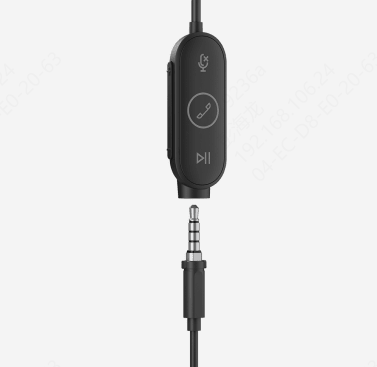
Check the Physical Connection First
Since wired earbuds rely entirely on a physical connection, start with these checks:
Make sure the earbuds are fully inserted into the correct audio jack
If your PC has separate jacks, confirm you are using the headphone (green) port
Try plugging the earbuds into another audio port if available
Avoid using damaged extension cables or adapters
Test the earbuds on another device to rule out hardware damage
If the earbuds work elsewhere, the problem is likely system-related
Select the Correct Playback Device in Windows
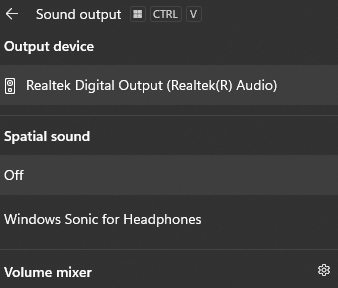
Even with wired earbuds connected, Windows may still send sound to speakers or another device.
Right-click the speaker icon on the taskbar
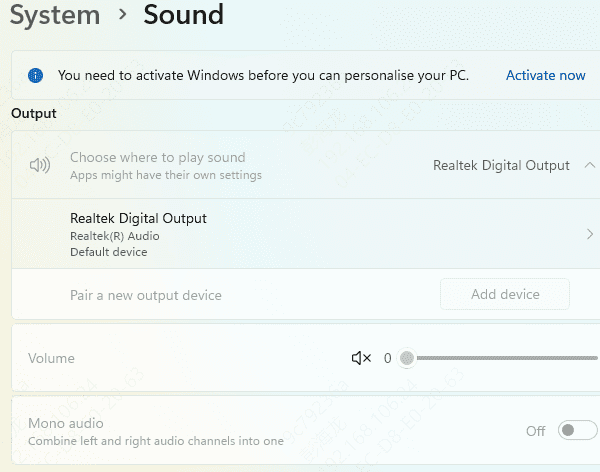
Open Sound settings
Under Output, choose Headphones or Logitech Earbuds
Set it as the default output device
Disable unused audio devices to prevent conflicts
Play a test sound to confirm whether audio is restored.
Inspect Volume and Sound Enhancements
Basic sound settings can sometimes cause silent audio:
Ensure system volume is not muted
Check in-app volume levels
Open Sound > Device properties
Disable audio enhancements
Make sure balance levels are equal for left and right channels
Apply the changes and test sound again
Update Audio Drivers with Driver Talent X (Recommended Fix)
Outdated, missing, or corrupted audio drivers are one of the most common reasons why Logitech wired earbuds produce no sound on Windows. If the system audio driver is damaged or incompatible, Windows may fail to route sound correctly to the headphone jack—even when the earbuds are properly connected. Driver Talent X provides a fast and reliable way to automatically detect audio-related driver issues and install the correct, system-compatible versions.
Download and Install Driver Talent X
Click the Download button to get the installer
Run the setup file
Follow the on-screen instructions to complete installation
Run a Full Driver Scan
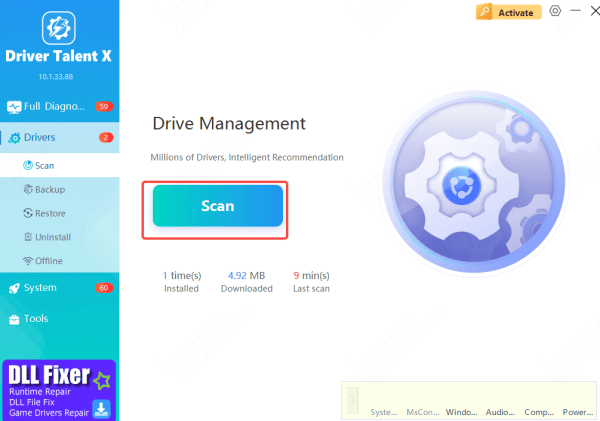
Launch Driver Talent X
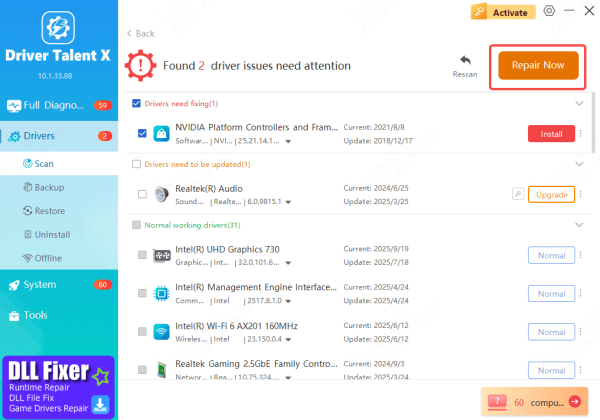
Navigate to Drivers → Scan
The software will scan all critical drivers, including: Sound card drivers (Realtek / Intel HD Audio, System and chipset drivers, and USB and audio drivers. These drivers directly affect wired headphone and earbud sound output
Apply Driver Fixes
Review the scan results
Locate audio-related driver issues
Click Update or Repair Now
Driver Talent X will automatically install the correct drivers for your system
Restart Your Computer
Restart Windows to apply the new drivers
Plug in your Logitech wired earbuds again
Test audio playback—sound is often restored immediately after reboot
Restart Windows Audio Services
Sometimes, essential audio services can stop functioning, causing your wired earbuds to produce no sound. To restart them:
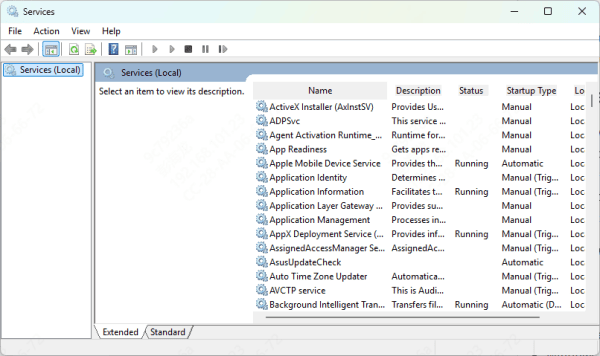
Press Win + R, type services.msc, and press Enter
Locate the following services:
Windows Audio
Windows Audio Endpoint Builder
Right-click each service and select Restart
Ensure the Startup Type for both is set to Automatic
Test your earbuds to see if sound has been restored
Fix No Sound After Windows Updates
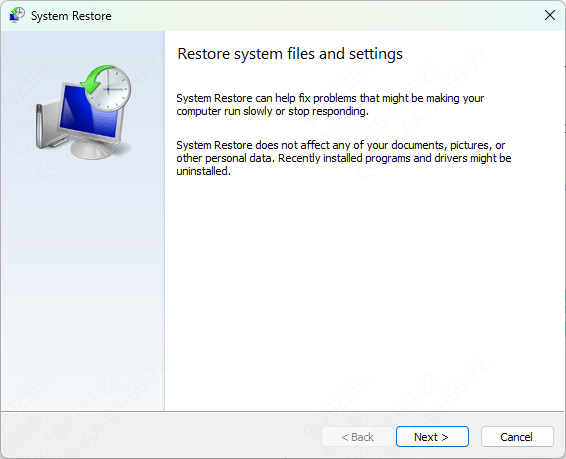
If the problem appeared after a recent system update:
Run the Windows Audio Troubleshooter
Roll back the audio driver if available
Restart Windows Audio services
These steps often resolve update-related audio failures.
Conclusion
When Logitech wired earbuds are connected but have no sound, the issue is usually caused by incorrect audio output selection, driver problems, or jack detection errors. By checking physical connections, setting the correct playback device, and updating or reinstalling audio drivers, most users can restore sound quickly. Keeping your audio drivers up to date is one of the most effective ways to prevent similar issues in the future.









