
Alienware laptops and desktops are known for their premium build quality and responsive RGB keyboards. However, your Alienware keyboard may suddenly stop working, become unresponsive, or fail to register certain keys.
This can be caused by incorrect settings, corrupted drivers, firmware issues, or hardware faults. This guide provides detailed troubleshooting methods, including how to pdate your keyboard and system drivers using Driver Talent X, which should be done early in the repair process.
Update Keyboard and System Drivers Using Driver Talent X
Driver issues are one of the most common reasons why an Alienware keyboard stops working. Updating or reinstalling drivers helps restore functionality quickly. Driver Talent X provides a straightforward and automated method.
Download and Install:
Click the "Download" button to download the software package.
Follow the on-screen instructions to complete installation.
Perform a Full System Scan:
Open the software from your desktop or Start menu, go to "Drivers" > "Scan", click "Scan".
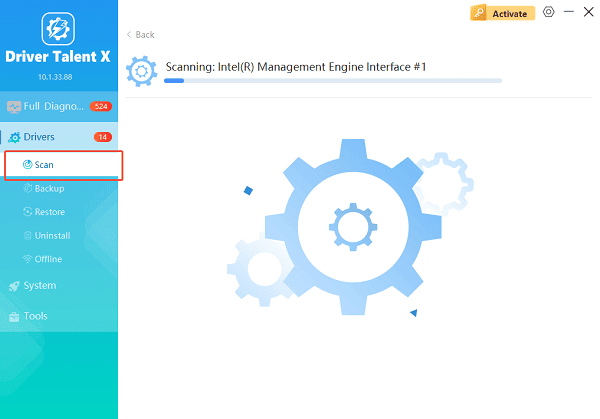
Wait for Driver Talent X to detect outdated, missing, or corrupted keyboard, chipset, HID, or system drivers.
Update All Drivers:
After the scan is complete, the software will display a list of all drivers that need attention. Select the necessary drivers and click the "Repair Now" button.

Driver Talent X will reliably download the correct, latest certified driver for your pc, and execute a completely clean installation automatically.
Restart your laptop:
Restart your computer to apply the changes.
If the problem is caused by a driver conflict, the keyboard should start working after rebooting.
Causes of Alienware Keyboard Not Working
Several factors may cause the keyboard to malfunction:
Corrupted or outdated keyboard drivers
Disabled keyboard in BIOS
Faulty Alienware Command Center or AlienFX components
Windows update conflicts
Physical damage or loose internal connections
USB power settings disabling the keyboard (for wired models)
The following sections provide effective solutions.
Fix 1: Check for Physical or Connection Issues
For external Alienware mechanical or RGB keyboards:
Disconnect the keyboard from the USB port.
Plug it into another USB port, preferably USB 3.0.
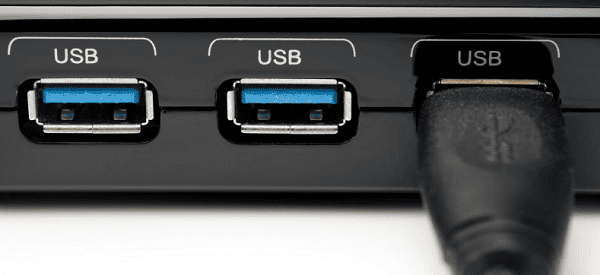
Avoid using USB hubs or splitters.
Test the keyboard on another PC to confirm hardware functionality.
For laptops:
Perform a simple power reset.
Shut down the laptop.
Disconnect power adapter.
Press and hold the power button for 20 seconds.
Restart and test the keyboard again.
Fix 2: Restart or Repair Alienware Command Center
The Alienware keyboard relies on Dell's lighting and control software. If the software becomes corrupted, the keyboard may stop responding.
Steps:
Open Settings, select Apps.
Locate Alienware Command Center, choose "Advanced Options".
Select "Repair", then Relaunch.
If the issue persists, select "Reset".
If still not working:
Uninstall Alienware Command Center completely.
Restart the PC.
Download the latest version from Dell's support website.
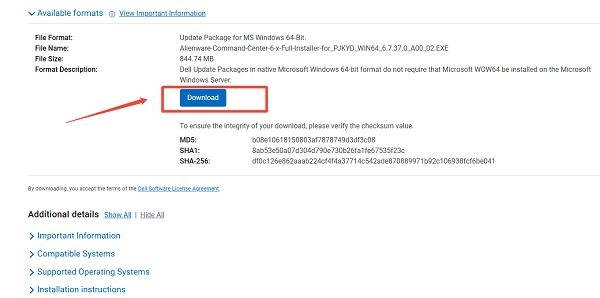
Reinstall the software.
Fix 3: Check Keyboard Settings in Windows
Ensure Filter Keys or Sticky Keys Are Not Blocking Input
Open Settings. Select "Ease of Access".
Choose "Keyboard", turn off Filter Keys, Sticky Keys, and Toggle Keys.
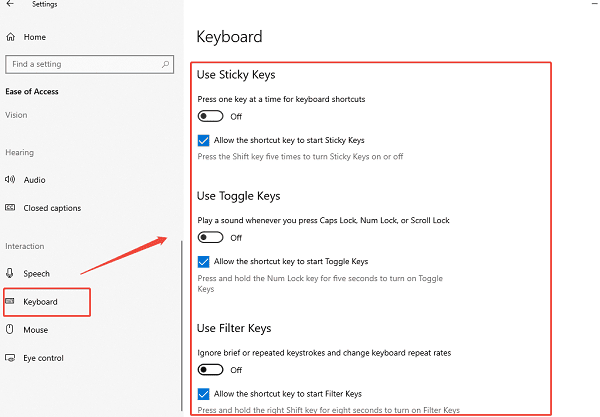
These features sometimes cause keys to malfunction or delay input.
Fix 4: Reinstall Keyboard Driver Manually (Device Manager)
Right-click Start, select "Device Manager".
Expand "Keyboards", right-click on "HID Keyboard Device", select "Uninstall Device".
Restart your system and let Windows reinstall the driver automatically.
If Device Manager shows multiple HID devices, uninstall them one by one to ensure clean driver restoration.
Fix 5: Disable USB Selective Suspend
Open Control Panel. Go to "Power Options".
Select "Change plan settings" next to your active plan.
Choose "Change advanced power settings".
Expand USB settings, expand "USB selective suspend setting", set to "Disabled", click "Apply".
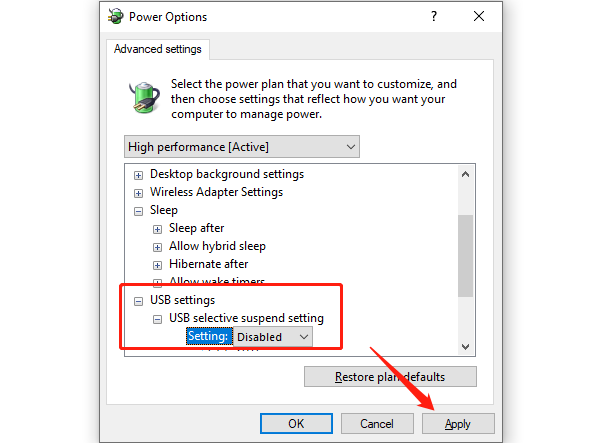
This prevents Windows from powering off the USB keyboard.
Fix 6: Check Keyboard Status in BIOS
If the keyboard does not work at startup:
1. Restart your Alienware PC.
2. Press F2 repeatedly to enter BIOS.
3. Check if the keyboard responds inside BIOS.
If yes, Windows is the issue.
If no, it may be hardware failure.
Inside BIOS:
Locate Advanced or Integrated Peripherals menu.
Ensure Internal Keyboard and USB Keyboard support are enabled.
Save and exit.
Fix 7: Perform a System Restore (If Issue Started After Update)
If the keyboard stopped working after a Windows or driver update:
Press Win + R. Type "rstrui.exe" and press Enter.
Select "Choose a different restore point".
Choose a restore point before the issue occurred.
Restart the PC.
Fix 8: Reset Windows Without Losing Files
If all other fixes fail:
Open Settings.
Go to "Update & Security" > "Recovery".
Select "Reset this PC" > "Get started".
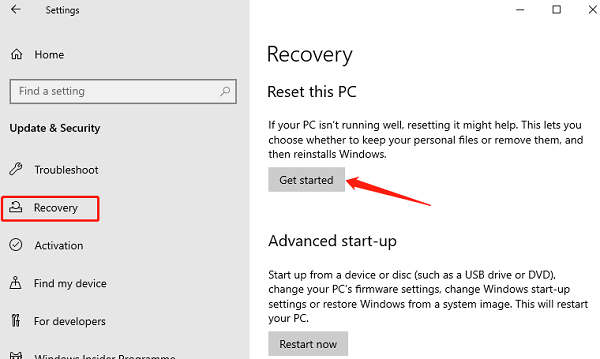
Choose "Keep my files", follow the instructions.
This resets system configurations and removes conflicting settings.
When to Consider Hardware Repair
You may need professional repair if:
The keyboard does not work in BIOS
Individual keys remain dead
Backlight turns off permanently
Laptop keyboard ribbon cable is damaged
For Alienware laptops, internal keyboard replacements must be done by a qualified technician.
Final Thoughts
An Alienware keyboard not working can be caused by software issues, incorrect settings, or hardware failures. Start with the essential step of updating your drivers using Driver Talent X, then proceed through the troubleshooting solutions listed above. With the right steps, most keyboard issues can be resolved without requiring repair.
See also:
How to Fix AMD FreeSync Not Working Issue
How to Fix Bluetooth Not Working Issues









