When AMD Adrenalin refuses to open after a driver update, the issue is usually caused by corrupted files, incomplete installation, leftover driver components, or incompatible software. This guide provides multiple reliable solutions and includes detailed steps to update or repair your graphics driver using Driver Talent X, placed in an appropriate early position for better optimization.
Update Your AMD Driver Using Driver Talent X
A damaged or incomplete GPU driver installation is one of the most common reasons AMD Adrenalin fails to start. Using Driver Talent X helps ensure your AMD graphics driver is clean, stable, and correctly installed.
Step-by-Step: Update AMD Drivers with Driver Talent X
Download and Install:
Click the "Download" button to download the software package.
Install the software on your Windows PC.
Run a full system scan:
Open the program after installation, go to "Drivers" > "Scan", click "Scan".
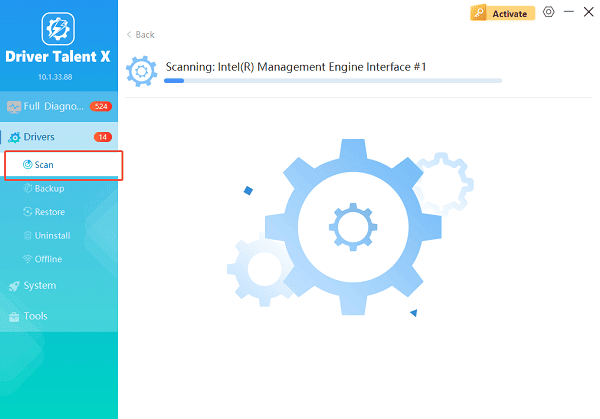
The tool will detect missing, outdated, or corrupted AMD graphics drivers.
Update Your Driver:
You will see your AMD Radeon driver listed if it need update. Choose the "Upgrade" or "Repair Now" button.
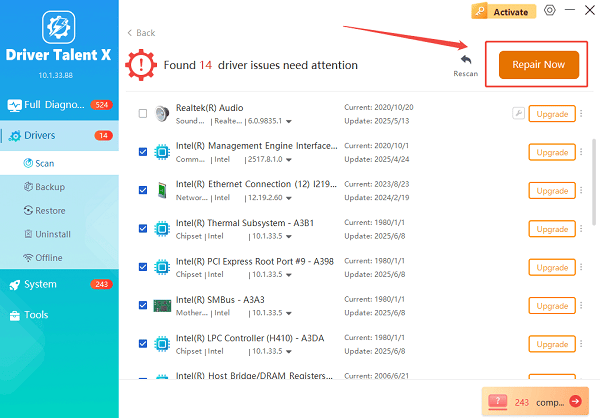
Driver Talent X will automatically fetch and install the correct WHQL or OEM-approved driver.
Restart your system:
A reboot is necessary for the new driver to take effect.
If AMD Adrenalin still does not open, continue with the additional solutions below.
Solution 1: Perform a Factory Reset of the AMD Software
The AMD Adrenalin installer allows a factory reset, which removes all old components and reinstalls clean files.
Download the latest AMD Adrenalin package from AMD's official website. Run the installer.
Choose "Factory Reset (Optional)" when prompted.
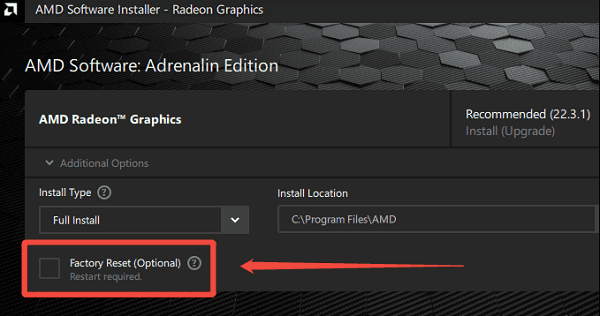
Wait for the driver package to remove previous files, then complete installation.
Restart your PC and attempt to open AMD Adrenalin again.
Solution 2: Remove Old AMD Driver Files
Leftover files often prevent Adrenalin from launching.
Download the AMD Cleanup Utility. Boot into "Safe Mode" for higher success.
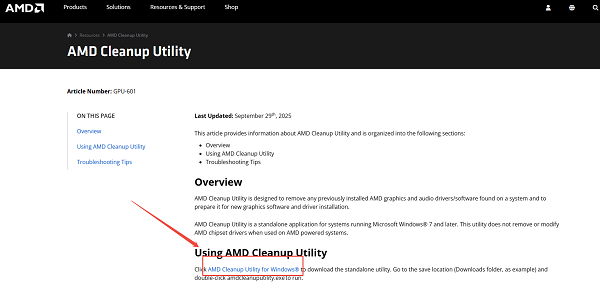
Run the utility and allow it to remove all AMD GPU components. Reboot your system.
Reinstall the latest Adrenalin software.
Solution 3: Disable Third-Party Overlays or Monitoring Tools
Some applications conflict with AMD Adrenalin, blocking the interface from loading.
Common problematic apps include:
MSI Afterburner
RivaTuner Statistics Server
Discord overlay
Steam overlay
NVIDIA GeForce Experience (if installed accidentally)
Disable these applications, then restart your PC.
Solution 4: Repair Microsoft Visual C++ Runtime Packages
Adrenalin depends on Visual C++ redistributables to run properly.
Go to Windows Settings.
Open "Apps" > "Apps & features".
Locate all Microsoft Visual C++ Redistributables.
Select "Modify" > "Repair".
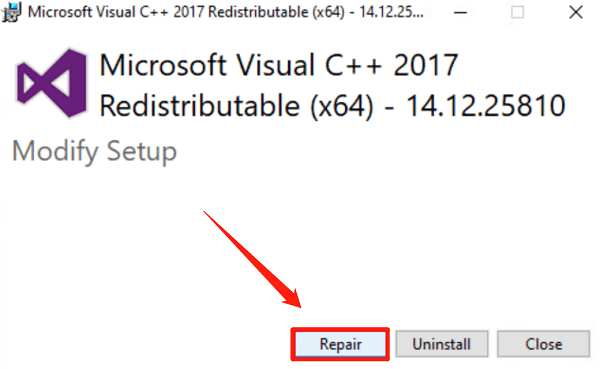
Restart Windows.
Solution 5: Reset Windows Graphics Settings
Corrupted graphics settings can also cause launch failures.
Open Windows Settings. Go to "System" > "Display" > "Graphics Settings".
Scroll to "Graphics Performance Preference".
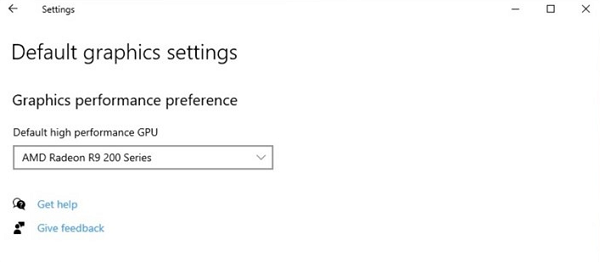
If AMD Software is listed, remove it.
Add AMD Software again and set it to High Performance.
Restart your PC.
Solution 6: Check for Windows System File Corruption
Use built-in Windows tools to repair critical system components.
Run SFC:
Open Command Prompt as Administrator.
Enter: sfc /scannow
Run DISM:
In the same window, enter: DISM /Online /Cleanup-Image /RestoreHealth
Restart once both scans complete.
Solution 7: Roll Back to a Stable Driver Version
Some newer drivers may be unstable for specific GPU models.
Open Device Manager. Expand "Display Adapters".
Right-click your AMD Radeon GPU.
Select "Properties" > "Driver tab" > "Roll Back Driver".
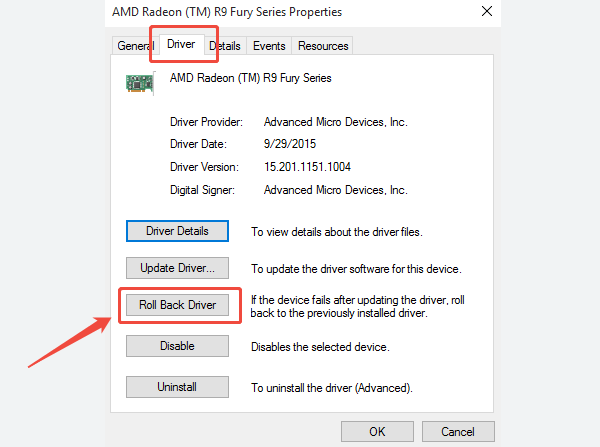
Restart your PC.
Solution 8: Create a New Windows User Profile
Corrupted user-specific configurations may prevent the Adrenalin app from launching.
Go to "Settings" > "Accounts" > "Family & Other Users".
Create a new local account.
Log into the new profile.
Try launching AMD Adrenalin.
Final Thoughts
AMD Adrenalin not opening after an update is usually caused by corrupted drivers or conflicting system settings. Using Driver Talent X to update or repair your AMD graphics driver is often the fastest and most effective fix. If the issue persists, the additional methods above provide a complete troubleshooting approach to restore full functionality to your AMD software.
See also:
Epson L3250 Driver Download & Installation Guide for Windows 10/11
How to Update BIOS on MSI Motherboard – Step-by-Step Guide









