
The question of whether to update AMD CPU drivers (specifically the Chipset Driver) is crucial for any Ryzen processor owner. The CPU chipset driver is less frequently highlighted but is absolutely vital for system stability, component communication, and unlocking key features like AMD Smart Access Memory (SAM), power efficiency, and optimal performance across your motherboard.
Ignoring chipset driver updates can lead to issues such as poor memory performance, incorrect CPU boost clocks, slower transfer speeds from SSDs, and system instability. This comprehensive guide explains why these updates are necessary and provides the systematic steps to ensure your AMD Ryzen system is running at peak efficiency.
Part I: Driver Integrity and System Synchronization
The AMD Chipset driver acts as the communication layer between your Ryzen CPU and the motherboard components (USB, storage, power phases, etc.). Ensuring this layer is clean and stable is the first priority.
Automated Driver Update with Driver Talent X
Manually troubleshooting and updating the various chipset, SATA controller, and other specialized system drivers can be complex, especially if you have a unique motherboard configuration. A specialized utility streamlines this process by identifying and installing the correct, compatible, and most recent chipset driver version for your specific AMD platform.
Download and Install:
Click the "Download" button to download the software package.
Install it on your Windows PC.
Run Scan:
Launch the application and go to "Drivers" > "Scan", click "Scan".
The software will perform a deep analysis of your system, focusing specifically on the AMD processor and motherboard components.
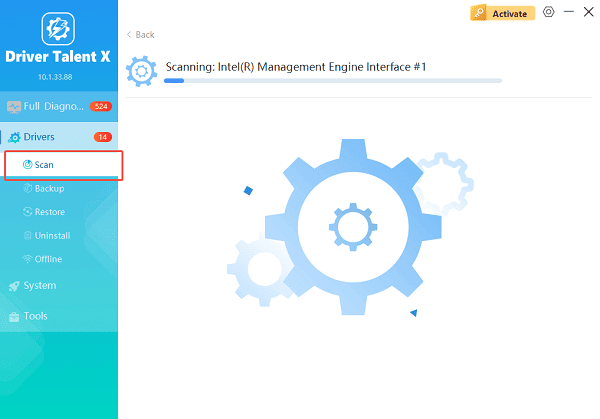
Execute Clean Installation:
After the scan is complete, the software will display a list of all drivers that need attention. Select the necessary chipset drivers and click the "Upgrade" or "Repair Now" button.
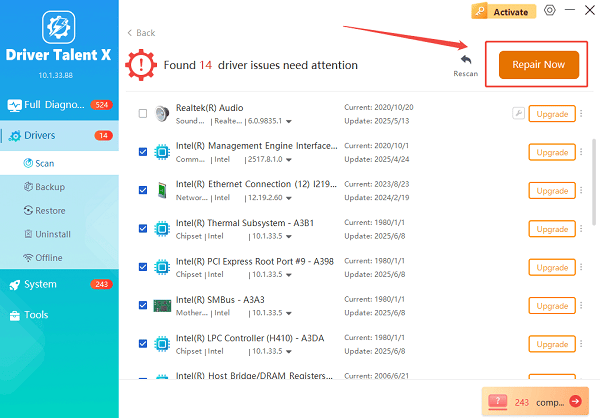
Driver Talent X will reliably download the latest certified chipset driver and execute a clean installation, critical for performance enhancements and stability fixes.
Finalize:
After the installation is complete, restart your computer to fully integrate the new drivers.
Part II: Official AMD and Windows Update Methods
These methods rely on official AMD tools for users who prefer direct downloads from the source.
Method 1: Update Using the Official AMD Website
This method ensures you get the absolute latest, dedicated chipset driver package directly from AMD.
Identify Platform: Determine your AMD CPU Series (e.g., Ryzen 5000 Series) and your Chipset (e.g., X570, B550, B650).
Navigate to AMD Support: Visit the official AMD support website's "Drivers & Support" section.
Download Driver: Select the correct platform (e.g., "Chipsets", then your chipset series) and download the latest AMD Chipset Drivers package for your version of Windows 10/11.
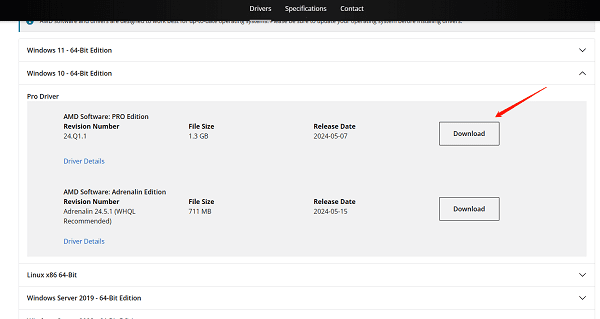
Install: Run the installer. It will typically prompt you to choose which components to install (select all) and often performs a cleanup of the old driver first.
Restart: Restart your PC to complete the installation.
Method 2: Update via Windows Update (Optional Updates)
Windows Update often carries verified and stable, though potentially slightly older, versions of the AMD Chipset drivers.
Press Windows Key + I to open Settings.
Go to "Update & Security" > "Windows Update" > "Advanced options".
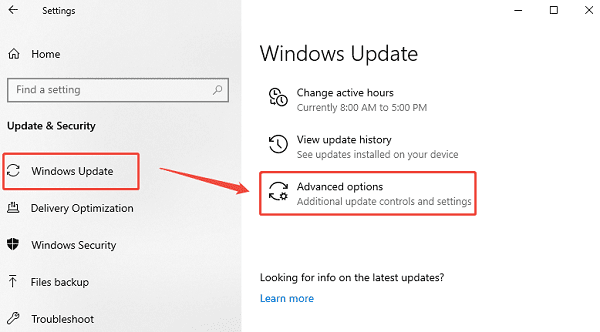
Click on "Optional updates" > "Driver updates".
If an AMD System or AMD Chipset driver is listed, select and install it. This is a very safe method, but not always the fastest way to get performance boosts.
Part III: Post-Installation Optimization and Checks
These steps ensure that your system settings are aligned with the new chipset driver capabilities.
Method 1: Configure Windows Power Plan
After a chipset driver update, Windows may revert your power plan. The AMD Ryzen Balanced/High Performance plan is necessary to ensure the CPU can reach its maximum boost clocks.
Press Windows Key + R and type "powercfg.cpl".
Check the available power plans. After a clean installation of the AMD chipset driver, you should see the "AMD Ryzen Balanced" power plan. Select this plan.
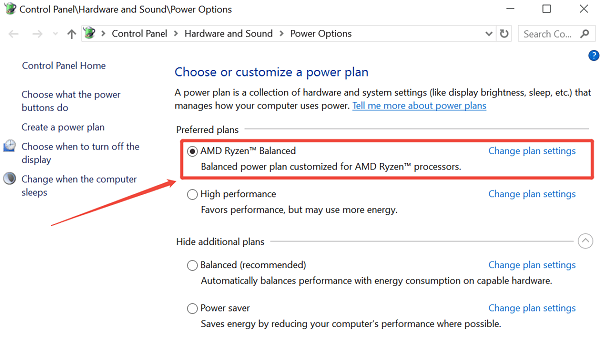
If this plan is missing, use the High Performance plan instead, and ensure that the Minimum processor state is set to a low value (e.g., 5%) to allow the CPU to downclock when idle.
Method 2: Check and Update BIOS/UEFI
The Chipset driver often works in tandem with the motherboard BIOS firmware.
Check your motherboard manufacturer's website (ASUS, MSI, Gigabyte, etc.) for the latest BIOS/UEFI version for your specific motherboard model.
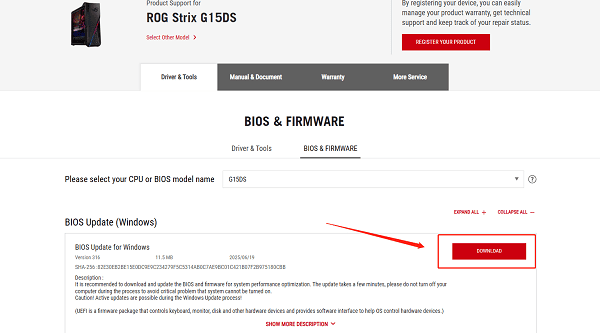
If an update is available, follow the manufacturer's instructions for flashing the new firmware (this is often critical for features like SAM/ReBAR).
Conclusion
Yes, updating your AMD CPU (Chipset) drivers is essential for unlocking maximum stability, power efficiency, and optimal clock speeds from your Ryzen processor. The most reliable strategy for sustained performance is to first ensure system-wide synchronization and stability with Driver Talent X.
By combining this foundational fix with using the official AMD website download and verifying that you are using the AMD Ryzen Balanced power plan, you guarantee that your system's foundation is optimized for high-performance computing.
See also:
Epson L3250 Driver Download & Installation Guide for Windows 10/11
How to Update BIOS on MSI Motherboard – Step-by-Step Guide









