
AMD driver download failures are a common problem on Windows systems and can prevent your graphics card from performing properly. Users may see errors such as download stuck at 0%, installation failed, or compatibility warnings.
In most cases, the root cause is an outdated, corrupted, or mismatched driver environment. This guide explains why AMD driver downloads fail and provides multiple proven fixes.
Update AMD Drivers with Driver Talent X
Using a professional driver management tool is the fastest way to resolve AMD driver download issues, especially when manual installation repeatedly fails. Driver Talent X automatically detects your AMD graphics card and installs the correct, fully compatible driver version.
Download and Install:
Click the "Download" button to download the installer. Save the setup file to your computer.
Double-click the installer and follow the on-screen instructions to complete the installation process.
Scan Your System:
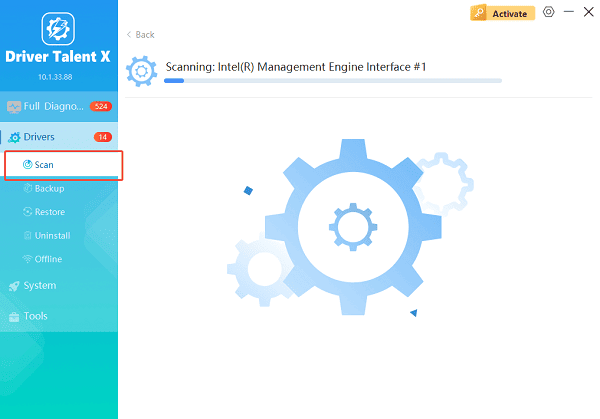
Open Driver Talent X from the desktop shortcut or the Windows Start menu, go to "Drivers" > "Scan", click "Scan".
Driver Talent X will scan for outdated, missing, or corrupted drivers, including AMD graphics drivers, chipset drivers, and system components.
Update All Drivers:
Locate AMD-related drivers in the scan results, especially graphics adapters and chipset drivers. Click the necessary drivers and click the "Upgrade" or "Repair Now" button.
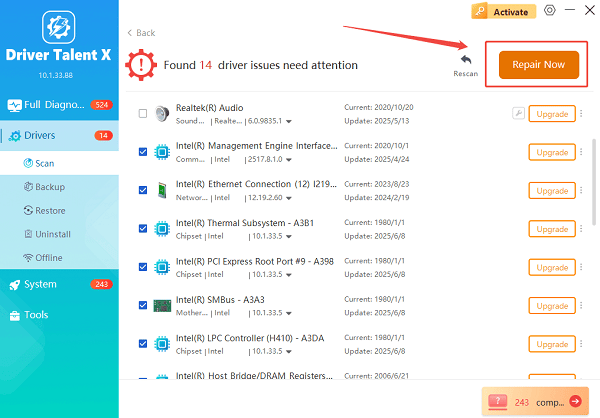
Driver Talent X will reliably download the latest drivers and execute a clean installation, critical for performance enhancements and stability fixes.
Restart Your Computer:
Follow the on-screen instructions until installation completes.
Reboot the system to apply changes and ensure the AMD driver loads correctly.
Common Causes of AMD Driver Download Failed Errors
Understanding the causes helps prevent repeated failures.
Incompatible Driver Version: Installing a driver that does not match your GPU model or Windows version can cause download or installation failure.
Corrupted Previous Driver Files: Leftover files from earlier driver installations may conflict with new AMD drivers.
Unstable Network Connection: Interrupted internet connections can cause incomplete driver downloads.
Windows Update Conflicts: Pending Windows updates may block driver installation or replace drivers automatically.
Insufficient System Permissions: Driver installation requires administrator privileges. Without them, the process may fail.
Fix 1: Download AMD Drivers Manually from Official Sources
If automated tools are unavailable, manual installation is another option.
How to Manually Install AMD Drivers:
Identify your AMD GPU model: Open Device Manager and expand Display adapters.
Check your Windows version: Go to Settings, select System, and open About.
Visit the official AMD driver page: Choose the correct GPU model and operating system.
Download the recommended driver: Avoid beta drivers if stability is required.
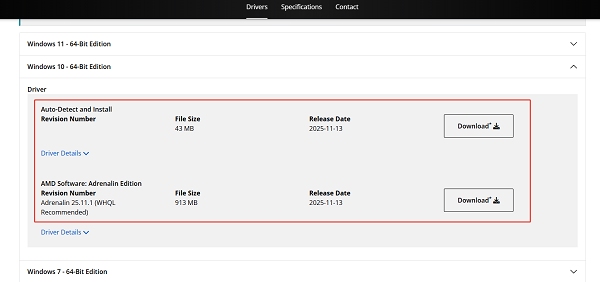
Run the installer as administrator: Follow the installation instructions and restart the system.
Fix 2: Perform a Clean AMD Driver Installation
A clean installation removes corrupted files that block downloads.
Steps for a Clean Install:
Open Apps and Features.
Uninstall all AMD software and drivers.
Restart your computer.
Use Driver Talent X or official AMD tools to reinstall the latest driver.
Fix 3: Update Windows Before Installing AMD Drivers
Windows system components must be current.
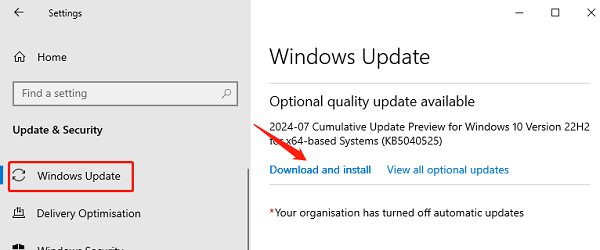
Open Settings > Update & Security.
Go to "Windows Update".
Click "Check for updates".
Install all available updates.
Restart the computer.
Fix 4: Disable Antivirus Temporarily During Installation
Some security programs mistakenly block driver installers.
Temporarily disable antivirus software.
Install the AMD driver.
Re-enable antivirus protection after completion.
Fix 5: Use Device Manager to Update AMD Driver
Device Manager can install basic drivers if full packages fail.
Open Device Manager.
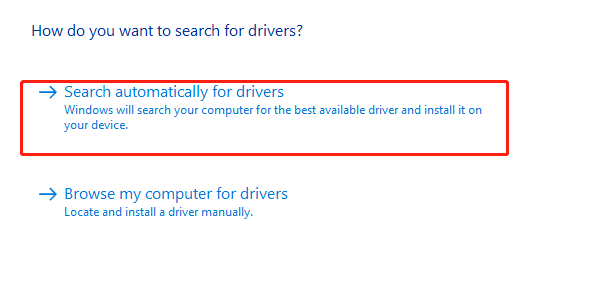
Expand "Display adapters", right-click the AMD graphics card, select "Update driver".
Choose "Search automatically for drivers".
Fix 6: Reset Windows Network Settings
Network issues can interrupt AMD driver downloads.
Open Settings.
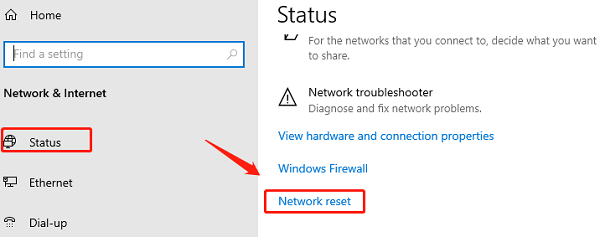
Go to Network & Internet > Status.
Find Advanced network settings.
Click "Network reset" > "Reset now".
Restart the system.
Conclusion
When AMD driver downloads fail, the issue is usually related to incompatible versions, corrupted files, or system conflicts. Updating drivers with Driver Talent X should be the first step, as it eliminates manual errors and installs the correct AMD driver automatically. Combined with manual installation, clean installs, and system updates, these solutions can reliably fix AMD driver download failures and restore optimal graphics performance on Windows.
See also:
How to Fix CoD Vanguard Not Launching on PC
How to Resolve Crashing Issues in Warframe









