
AMD driver crashes are a common issue that can lead to black screens, system freezes, game crashes, or unexpected restarts. These problems often occur after Windows updates, driver upgrades, or system configuration changes. The most common causes include corrupted drivers, incompatible driver versions, outdated system components, and software conflicts.
Before applying any advanced troubleshooting methods, it is strongly recommended to update and repair your drivers using Driver Talent X. This helps eliminate driver corruption and compatibility issues, which are the leading reasons AMD drivers keep crashing.
Update AMD Drivers First with Driver Talent X
Using Driver Talent X ensures your AMD graphics driver and related system drivers are correctly installed and fully compatible with your Windows system.
Download and Install:
Click the "Download" button to download the installer. Save the setup file to your computer.
Double-click the installer and follow the on-screen instructions to complete the installation process.
Scan Your System:
Open Driver Talent X from the desktop shortcut or the Windows Start menu, go to "Drivers" > "Scan", click "Scan".
Driver Talent X will scan for outdated, missing, or corrupted drivers, including AMD graphics drivers, chipset drivers, and system components.
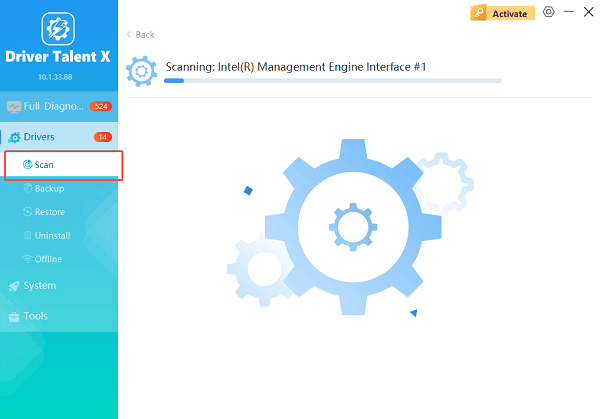
Update All Drivers:
Locate AMD-related drivers in the scan results, especially display adapters and chipset drivers. Click the necessary drivers and click the "Upgrade" or "Repair Now" button.
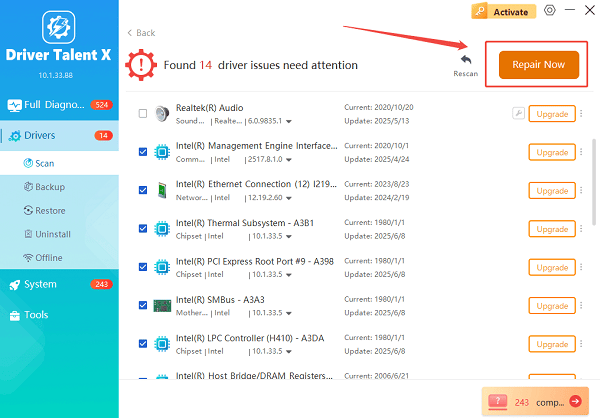
Driver Talent X will reliably download the latest drivers and execute a clean installation, critical for performance enhancements and stability fixes.
Restart Your Computer:
Reboot your system to apply the changes properly.
After updating drivers, test your system to see if AMD driver crashes persist.
Common Causes of AMD Driver Crashes
Understanding the root cause helps you apply the correct fix:
Corrupted or incomplete driver installation
Incompatible driver version with Windows updates
Outdated chipset or BIOS
Overclocking or unstable GPU settings
Conflicts with third-party software
Overheating or insufficient power supply
How to Fix AMD Drivers That Keep Crashing
Method 1: Perform a Clean AMD Driver Installation
Press Windows + X and select Device Manager.
Expand "Display adapters", right-click your AMD graphics card and select "Uninstall device".
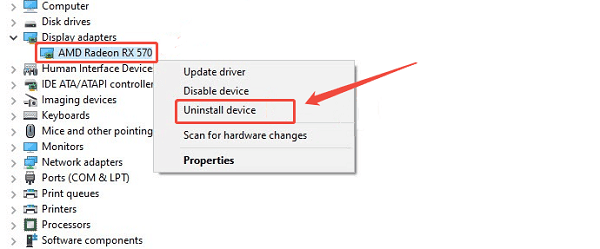
Check "Delete the driver software for this device" and confirm.
Restart your PC.
Reinstall the driver using Driver Talent X to ensure a clean and stable version.
Method 2: Disable AMD Software Overlay Features
Open AMD Adrenalin Software.
Go to Settings > Preferences.
Disable features such as in-game overlay, performance metrics, and instant replay.
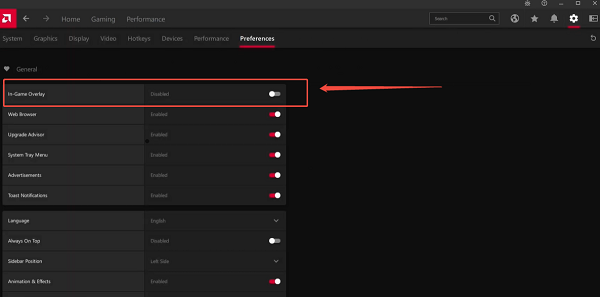
Restart your system and test stability.
These features can conflict with certain games or applications.
Method 3: Roll Back to a Stable AMD Driver Version
Open Device Manager.
Right-click your AMD graphics card and select "Properties".
Go to the "Driver" tab and click "Roll Back Driver" if available.
Restart your computer.
If rollback is not available, use Driver Talent X to install an older stable version.
Method 4: Update Windows and Chipset Drivers
Press Windows + I and go to Update & Security > Windows Update.
Click "Check for updates", install all available updates.
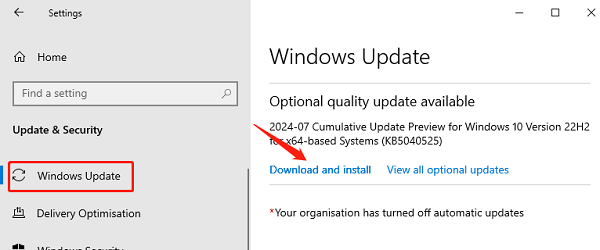
Use Driver Talent X to update AMD chipset drivers and system drivers.
Outdated chipset drivers can cause communication issues between the GPU and the system.
Method 5: Check GPU Temperature and Power Supply
Monitor GPU temperature using reliable hardware monitoring software.
Ensure temperatures remain within safe operating ranges.
Verify that your power supply meets AMD GPU power requirements.
Remove any GPU overclocking and revert to default settings.
Method 6: Disable Hardware Acceleration in Applications
Open applications like browsers or video editors.
Navigate to settings and disable "Hardware Acceleration".
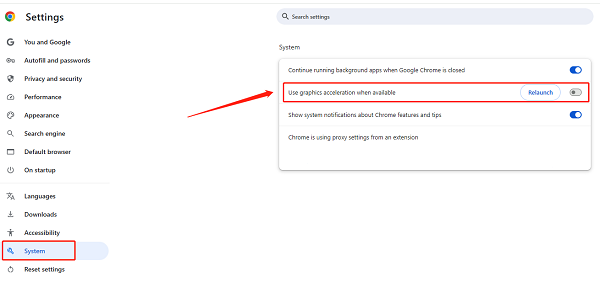
Restart the application and test for crashes.
This can help if crashes occur during video playback or streaming.
Additional Stability Tips
Avoid installing beta AMD drivers unless necessary
Keep BIOS updated if recommended by the motherboard manufacturer
Use Driver Talent X regularly to maintain driver health
Create a system restore point before major driver updates
Conclusion
AMD drivers crashing is usually caused by corrupted installations, incompatible updates, or unstable system configurations. By first updating and repairing drivers using Driver Talent X and then applying multiple targeted solutions, you can effectively stop AMD driver crashes. Regular driver maintenance is the key to long-term performance and system reliability.
See also:
Solutions to Fix Monster Hunter Wilds Crashes
How to Fix Split Fiction Not Launching on Windows
[Fixed] Whoa! Cyberpunk 2077 Flatlined Error
Solutions for 'DirectX 12 Not Supported' Error on Windows 10









