
Setting up and optimizing an AMD GPU in a laptop (especially those utilizing AMD SmartShift or dual graphics) is essential for achieving peak gaming frame rates and maintaining efficient battery life. An improper setup can result in thermal throttling, poor performance, or applications failing to utilize the powerful dedicated graphics card.
This guide provides a comprehensive, step-by-step approach to setting up and optimizing your AMD GPU laptop, ensuring you unlock the full potential of your hardware. We start with the most critical foundational step: driver integrity.
Part I: Driver Installation and Optimization
The stability and performance of your AMD GPU rely entirely on having the correct, non-conflicting drivers for both the graphics card and the core system chipset.
Method 1: Automated Driver Update with Driver Talent X
Managing drivers for an AMD laptop often requires coordinating updates for the dedicated Radeon GPU, the integrated Radeon graphics, and the AMD Chipset. A specialized utility is the most efficient way to synchronize these components and prevent conflicts.
Download and Install:
Click the "Download" button to download the software package.
Install it on your laptop.
Run Scan:
Launch the application and go to "Drivers" > "Scan", click "Scan".
The software will perform a deep analysis, focusing on the Graphics Processing Unit(s) and the core AMD Chipset.
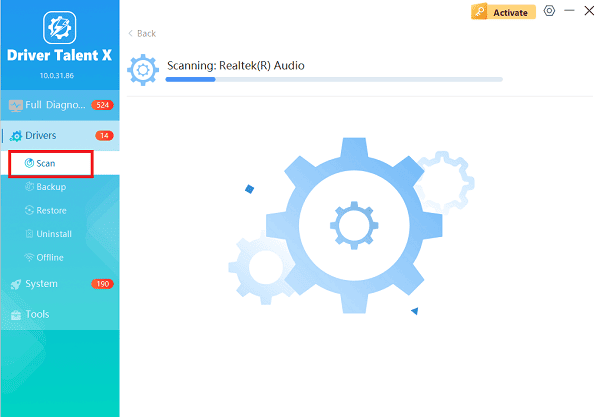
Execute Clean Update:
After the scan is complete, the software will display a list of all drivers that need attention. Select the necessary AMD drivers and click the "Upgrade" or "Repair Now" button.
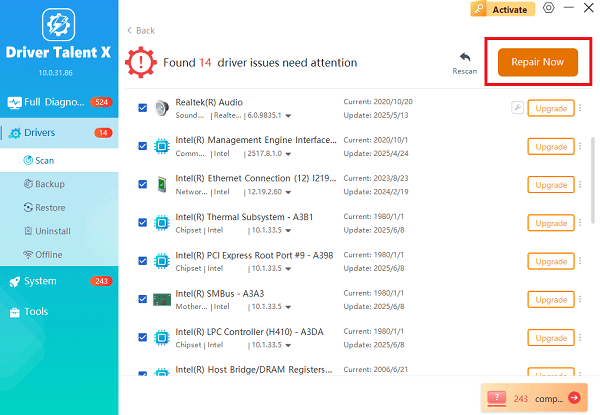
Driver Talent X will download the latest, certified versions, crucial for features like AMD SmartShift to work correctly.
Finalize:
After the installation is complete, restart your computer to load the new, optimized drivers.
Method 2: Clean Manual Driver Installation via AMD Adrenalin Software
For users who prefer the official AMD tool, always perform a "factory reset" installation to clear old settings and files.
Open AMD Adrenalin: Right-click on your desktop and select "AMD Software: Adrenalin Edition".
Check for Updates: Navigate to the "System" > "Drivers & Software" tab.
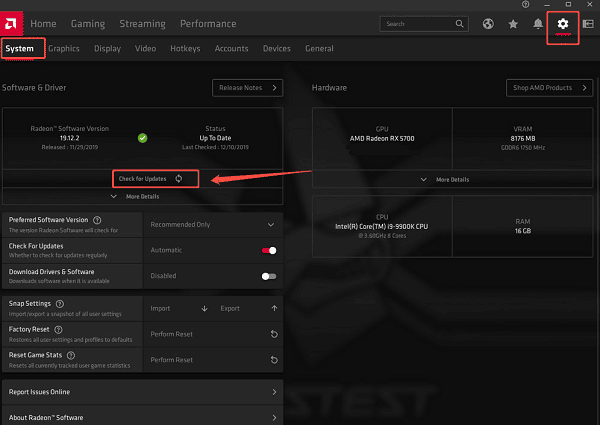
Perform Factory Reset Install: Click "Check for Updates", and when a new driver is found, choose "Custom Install". Select the option to "Perform Factory Reset". This clears all previous driver remnants and ensures a clean installation.
Follow the on-screen instructions to complete the process and restart your PC.
Part II: Software and Power Configuration
After driver stability is confirmed, you must instruct Windows and the AMD software which GPU to use and ensure the laptop is delivering maximum power.
Method 1: Configure Graphics Performance in Windows Settings
You must explicitly tell Windows to use the high-performance dedicated AMD GPU for your most demanding games and applications.
Press Windows Key + I to open Settings.
Go to "System" > "Display" > "Graphics settings".
Click "Browse" to locate the executable file (.exe) for your game or demanding application.
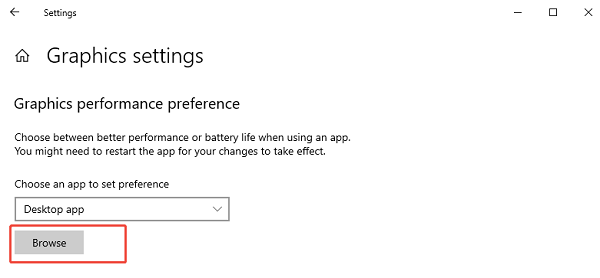
Once the application is added, click on it, select "Options", and choose "High performance".
Windows will now prioritize running that specific application on the dedicated AMD Radeon GPU.
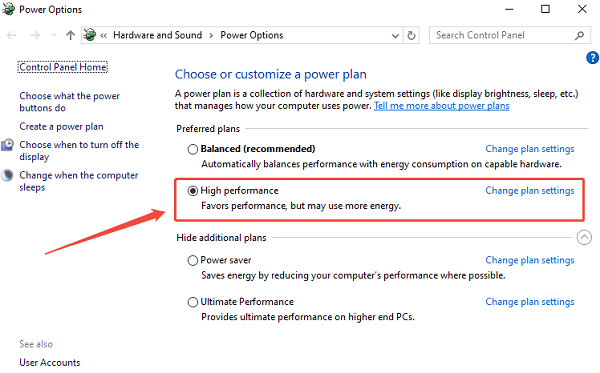
Method 2: Set Power Plan to High Performance
Running a demanding application while the laptop is set to a battery-saving power plan will severely throttle the GPU's clock speed.
Plug your laptop into the AC power adapter.
Search the Windows Start Menu for "Choose a power plan".
Select the "High performance" power plan. (If not available, use the "Balanced" plan and proceed to Step 4).
In the AMD Adrenalin Software, go to "Gaming" > "Graphics". Ensure the global profile is set to "Gaming" or "Standard" (not Power Saving).
Part III: Advanced Optimizations
These steps fine-tune the GPU for maximum frame rate and thermal efficiency.
Method 1: Enable AMD Features in Adrenalin Software
AMD offers powerful features that can significantly boost frame rates with minimal quality loss.
Radeon Anti-Lag: Found in the Gaming section, enable this globally or per-game to reduce input latency, especially in CPU-bound scenarios.
Radeon Chill: This feature saves power and lowers temperatures by limiting frame rates when the mouse input stops, or the scene is static. Customize the minimum/maximum FPS limits for balance
Radeon Image Sharpening (RIS): Enable RIS to sharpen details in games where image quality might be slightly lower due to FSR (FidelityFX Super Resolution) scaling.
Method 2: Monitor Temperatures and Clear Vents
Thermal throttling is the enemy of laptop performance. Ensure your cooling is optimal.
Use a monitoring utility to check your GPU temperature during gaming. If temperatures consistently exceed 90°C, performance will drop.
Place the laptop on a hard, flat surface to ensure the intake fans have full access to air. Consider using a laptop cooling pad for extended gaming sessions.
Use compressed air to clean any dust from the intake and exhaust vents.
Conclusion
Successfully setting up and optimizing your AMD GPU laptop requires precise coordination across drivers, software, and power settings. The crucial initial step is securing driver stability and compatibility using Driver Talent X.
By combining this with setting the High performance profile in Windows Graphics Settings and enabling Radeon Anti-Lag in Adrenalin Software, you ensure your laptop delivers maximum sustained performance for all demanding tasks.
See also:
Elden Ring: Nightreign Highlights and System Requirements Overview
[Fixed] 'xinput1_3.dll Was Not Found' Error on Windows









