Keeping your AMD graphics drivers up to date is essential for stable performance, smooth gaming, and proper compatibility with Windows. Outdated or corrupted drivers can lead to crashes, FPS drops, black screens, and system instability. This complete guide explains how to correctly update AMD graphics drivers, including a fully detailed method using Driver Talent X, along with multiple alternative solutions.
Update AMD Graphics Drivers Using Driver Talent X
Driver Talent X allows you to update your AMD graphics drivers automatically, safely, and without downloading files manually. Follow these detailed steps:
Step 1: Download and Install
Click the "Download" button to download the software package.
Double-click the setup file and follow the on-screen instructions.
Step 2: Scan Your System Drivers
Launch the application and go to "Drivers" > "Scan", click "Scan".
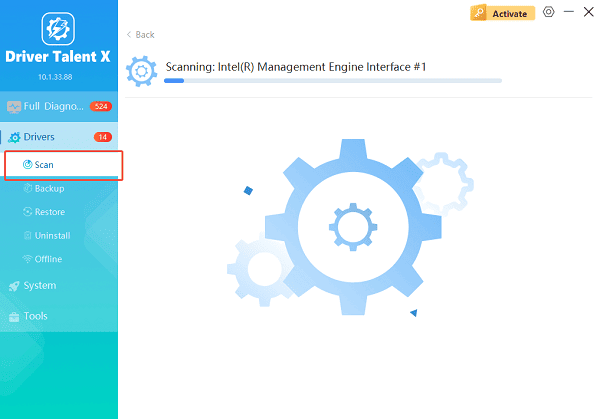
The tool will check your system for outdated, missing, or corrupted AMD graphics drivers. Wait for the scan to complete.
Step 3: Update the AMD Graphics Driver
After the scan is complete, the software will display a list of all drivers that need attention. Click the necessary drivers and click the "Upgrade" or "Repair Now" button.
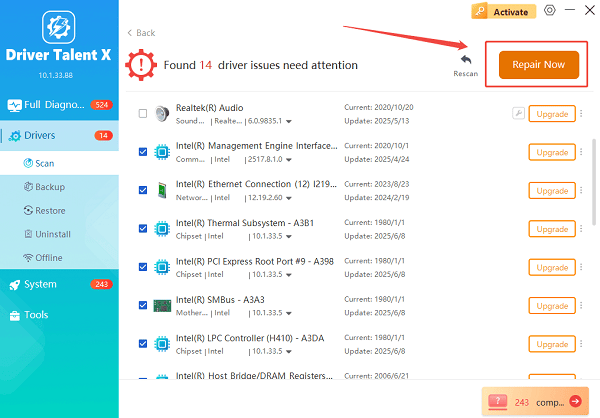
Driver Talent X will reliably download the latest drivers and execute a clean installation, critical for performance enhancements and stability fixes.
Step 4: Restart your computer
After downloading, the program will install the driver automatically.
Restart your computer to apply changes.
Step 5: Use the Backup Features (Optional)
Before updating drivers, you can go to "Drivers" > "Backup", click "Backup Now" to save a copy of your current graphics driver.
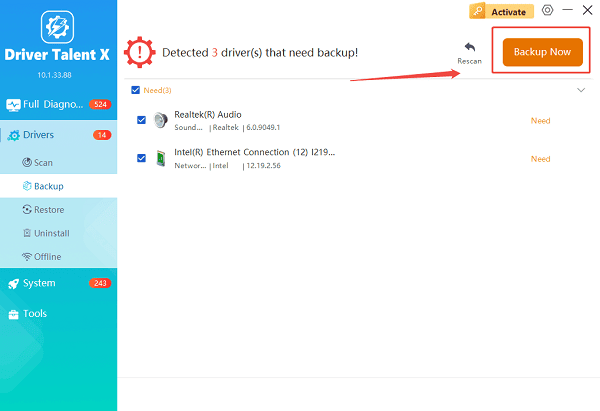
If the new driver causes problems, open Driver Talent X again and select Restore to revert to the previous driver.
This method ensures safe and reliable driver updates without dealing with manual downloads or version mismatches.
Method 2: Update Drivers Using AMD Adrenalin Software
If you prefer the official AMD method, you can update through AMD Software: Adrenalin Edition.
Steps:
Right-click your desktop and select AMD Software: Adrenalin Edition.
Go to "Settings" > "System", select "Check for Updates".
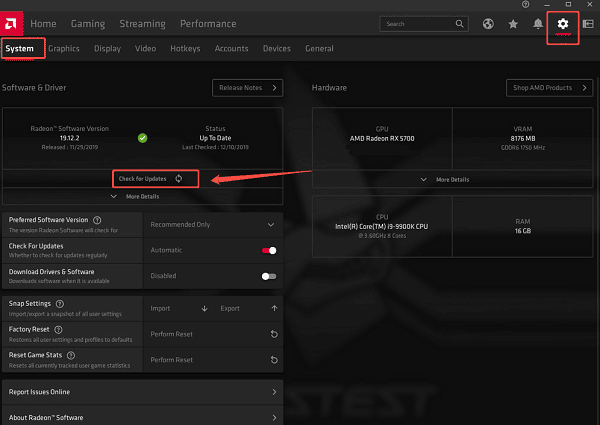
If a new version appears, click "Download".
Wait for the installation wizard to complete, then restart your system.
Method 3: Download Drivers from AMD's Website
You can also manually download drivers directly from AMD.
Steps:
Visit the official AMD Drivers and Support page.
Select your GPU series and model (for example, Radeon RX 6000 Series).
Choose your Windows version.
Click "Download" next to the latest driver package.
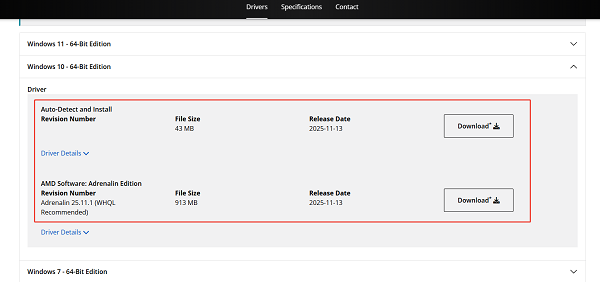
Run the downloaded installer.
Accept the license agreement and install the driver.
Restart your PC.
Manual installation is reliable but requires selecting the correct GPU model to avoid errors.
Method 4: Update AMD Drivers via Device Manager
Device Manager can update drivers using Windows Update.
Steps:
Press Windows + X and select "Device Manager".
Expand "Display adapters". Right-click your AMD graphics card and choose "Update driver".
Select "Search automatically for drivers".
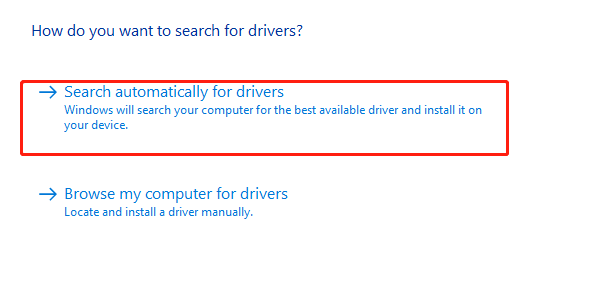
Windows will check for available updates and install them.
This method is simple but may not always provide the latest drivers.
Method 5: Perform a Clean Driver Reinstallation
If your system is experiencing crashes, black screens, or driver conflicts, a clean installation may fix the problem.
Steps:
Download the AMD Cleanup Utility or DDU (Display Driver Uninstaller).
Boot your computer into Safe Mode.
Run the cleanup tool to remove all AMD driver components.
Restart your PC normally.
Install fresh drivers using Driver Talent X or AMD's official installer.
A clean installation helps resolve corrupted or conflicting driver files.
Method 6: Check for Windows Updates
Windows updates often include graphics compatibility improvements.
Steps:
Press Windows + I to open Settings.
Go to "Update & Security" > "Windows Update".
Click "Check for updates".
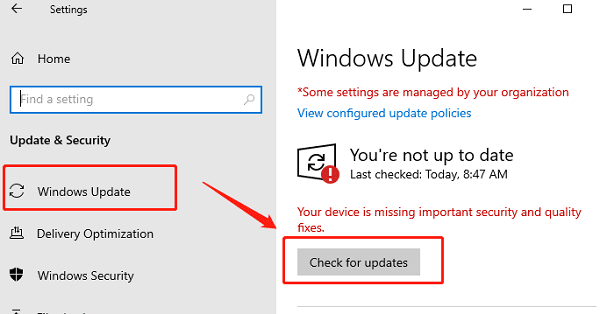
Install any optional updates related to display or graphics.
Method 7: Ensure Your GPU Is Enabled and Recognized
If your system does not detect the GPU properly, driver installation may fail.
Steps:
Open Device Manager.
Check if AMD GPU appears under Display adapters.
If it is disabled, right-click and choose "Enable device".
If it appears with an error icon, uninstall the device and restart Windows.
When Should You Update AMD Graphics Drivers?
You should update drivers when:
Newly installed games are stuttering or crashing
The system experiences blue screens related to display drivers
AMD Adrenalin shows update notifications
Windows updates cause compatibility issues
You upgrade your hardware or install a fresh copy of Windows
Final Thoughts
Updating AMD graphics drivers regularly ensures maximum performance, stability, and compatibility with the latest games and applications. Driver Talent X provides the most convenient and reliable method for updating drivers with minimal effort and maximum safety.
If issues persist, alternative methods such as AMD Adrenalin, manual installation, clean reinstallation, and Windows updates provide additional solutions.
See also:
How to Fix AMD FreeSync Not Working Issue
How to Fix Bluetooth Not Working Issues









