
The AMD Radeon RX 7600 is an excellent mid-range graphics card, offering strong performance for high-refresh-rate 1080p gaming and solid entry-level 1440p experiences. To fully unlock the card's potential, access the latest features (like FSR 3.0), and ensure stability, installing the correct AMD Software: Adrenalin Edition driver is essential.
However, the installation process can sometimes be hindered by common issues such as installation failures, black screens, or conflicts with old driver files. A successful update requires not only installing the new driver but also performing a thorough cleanup of the old installation files. This guide provides a systematic, step-by-step approach to installing your RX 7600 drivers safely and correctly.
Part I: Driver Cleanup and Stability
Before installing the new RX 7600 driver, it is critical to remove all remnants of previous, potentially conflicting drivers (from either an older AMD card or a previous NVIDIA/Intel installation).
Automated Driver Update with Driver Talent X
Manually cleaning the driver cache and registry entries is complex and carries the risk of damaging system files. A specialized utility automates this entire procedure, guaranteeing a clean uninstall before installing the correct, latest AMD driver version.
Download and Install:
Click the "Download" button to download the software package.
Install it on your Windows PC.
Run Scan:
Launch the application and go to "Drivers" > "Scan", click "Scan".
The software will perform a deep analysis of your system, focusing specifically on your Graphics Processing Unit (GPU) and motherboard Chipset.
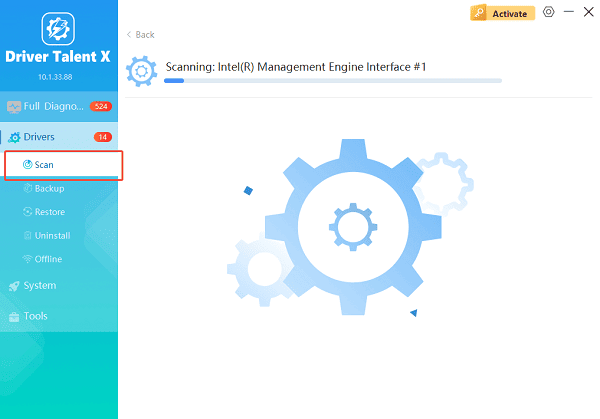
Execute Clean Installation:
After the scan is complete, the software will display a list of all drivers that need attention. Select the necessary AMD graphics drivers and click the "Upgrade" or "Repair Now" button.
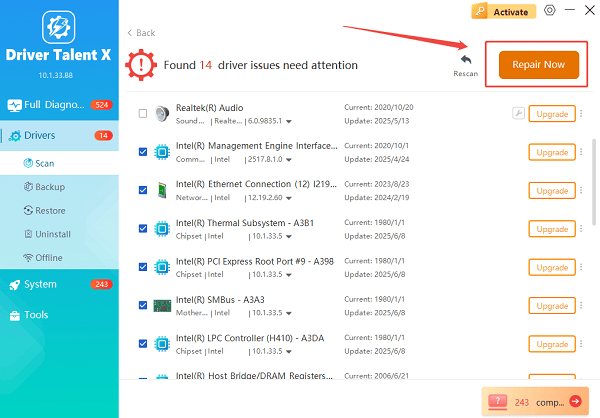
Driver Talent X will first perform a thorough uninstall and cleanup of any problematic old files, then reliably download the correct, latest certified driver for the RX 7600, and execute a completely clean installation automatically.
Restart:
Once the installation process is finalized, restart your PC to fully integrate the new driver and software.
Part II: Official AMD Download Methods
These methods rely on official AMD tools, ideal for users who prefer manual control and customization.
Method 1: Use the Official AMD Auto-Detect and Install Tool
This is the fastest and easiest way to ensure you get the latest, most compatible driver for your RX 7600.
Download Auto-Detect Tool: Visit the official AMD Drivers and Support website.
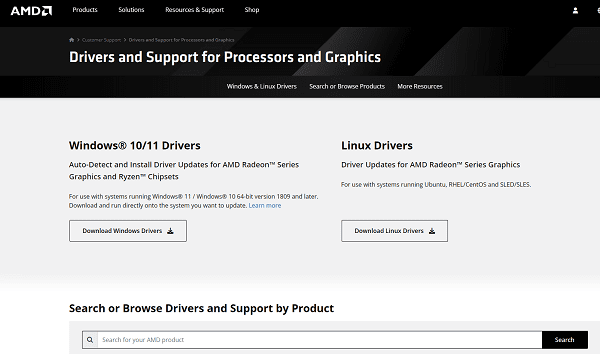
Locate and click the button to "Download Now" for the Auto-Detect and Install for Windows 10/11 driver utility.
Run Installer: Run the downloaded file. The utility will automatically scan your PC to identify your RX 7600.
Install with Factory Reset: Select the latest driver and choose the "Custom Install" option. During installation, always select the "Perform Factory Reset" option. This uses AMD's own cleaning utility to ensure a clean installation.
Complete the installation and restart your PC.
Method 2: Manual Search and Download by Model
If you prefer to search specifically for the driver file for the RX 7600.
Navigate on AMD Website: On the AMD Drivers and Support page, use the product selector to navigate to "Graphics" > "Radeon RX 7000 Series" > "AMD Radeon RX 7600".
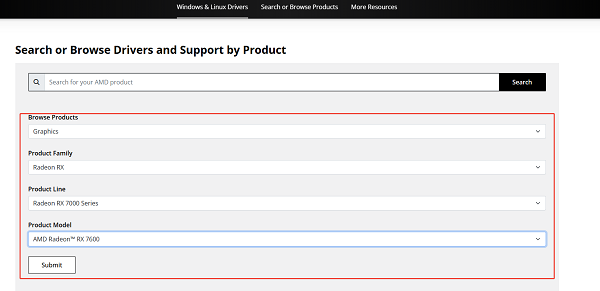
Download: Select your operating system (Windows 10 or 11) and click "Download" next to the most recent driver package (AMD Software: Adrenalin Edition).
Run the installer and perform a clean installation (see Method 2, step 4).
Part III: Troubleshooting Installation Failures
If the installation fails, these steps address common conflicts that block the driver setup.
Method 1: Check Windows Update Settings
Windows Update can sometimes interfere by automatically downloading an older, conflicting version of the AMD driver in the background.
Press Windows Key + I to open Settings.
Go to "Windows Update" > "Advanced options" > "Optional updates".
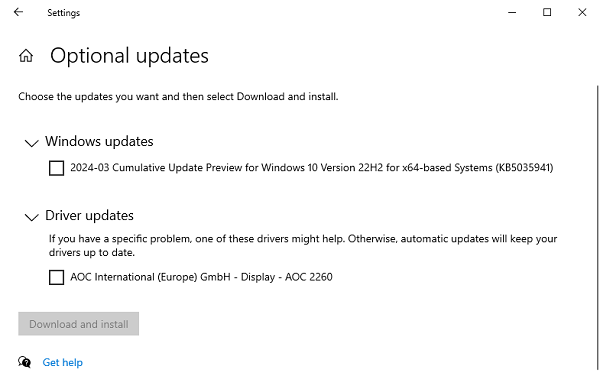
If any AMD driver updates are listed under "Driver updates", uncheck them or do not install them through Windows Update. Rely only on the official AMD or Method 1 in Part I installation.
Method 2: Disable Antivirus Temporarily
Security software can sometimes mistake the large file transfers and system access needed during a driver installation for a threat, causing the installation to fail or crash.
Disable Antivirus: Temporarily disable any third-party antivirus program or Windows Defender Real-time protection.
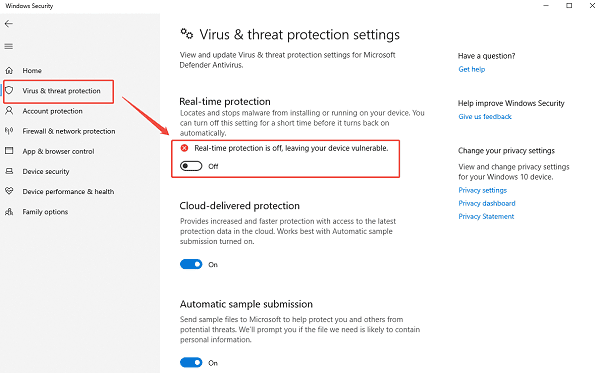
Run Installer: Attempt to run the downloaded AMD installer file again as administrator.
Re-enable: Crucially, re-enable your security software immediately after the installation is successful.
Conclusion
Successfully downloading and installing your AMD Radeon RX 7600 drivers hinges on meticulous preparation and a clean installation. The most reliable method is to first ensure a completely clean system foundation by using Driver Talent X to remove all driver remnants.
By combining this essential cleanup with the official AMD Auto-Detect and Install Tool and temporarily disabling security software during the update, you guarantee a stable, conflict-free driver installation that unlocks the full potential of your RX 7600.
See also:
Canon CanoScan LiDE 100 Not Recognized? Try These Fixes
How to Fix Knup Keyboard Connection Issues – Working Driver Solutions
Canon IR2520 UFRII LT Driver Not Recognized? Try These Fixes
Can't Print with HP LaserJet M1120 MFP? Complete Troubleshooting Guide









