
The AMD Ryzen 5 5500 is a capable 6-core, 12-thread processor designed for smooth multitasking, gaming, and everyday productivity. However, many users fail to unlock its full potential due to outdated drivers, improper BIOS settings, or unoptimized system configurations.
To maximize performance on the AMD Ryzen 5 5500, it is critical to start with proper driver updates and then apply targeted optimization techniques. This guide offers multiple proven methods to boost Ryzen 5 5500 performance on Windows systems.
Update Drivers First with Driver Talent X
Outdated chipset, CPU, graphics, and power management drivers can significantly limit Ryzen CPU performance. Driver Talent X ensures all critical drivers are correctly installed and optimized before advanced tuning.
Download and Install:
Click the "Download" button to download the Windows installer. Save the file to your computer.
Double-click the installer and follow the on-screen instructions. Choose the installation directory and complete the setup.
Run A Scan:
Launch the application and go to "Drivers" > "Scan", click "Scan".
The tool will check your system for outdated, missing, or corrupted AMD graphics drivers. Wait for the scan to complete.
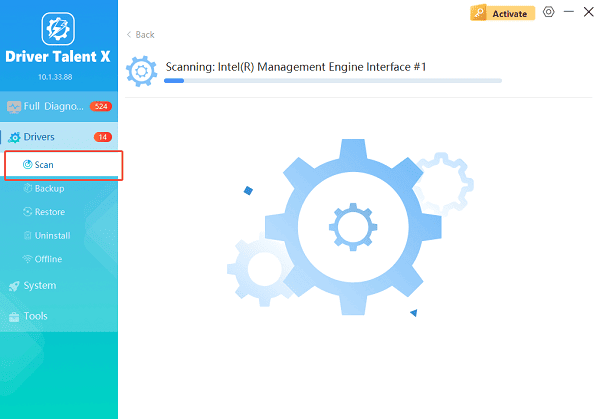
Update All Drivers:
After the scan is complete, the software will display a list of all drivers that need attention. Click the necessary drivers and click the "Upgrade" or "Repair Now" button.
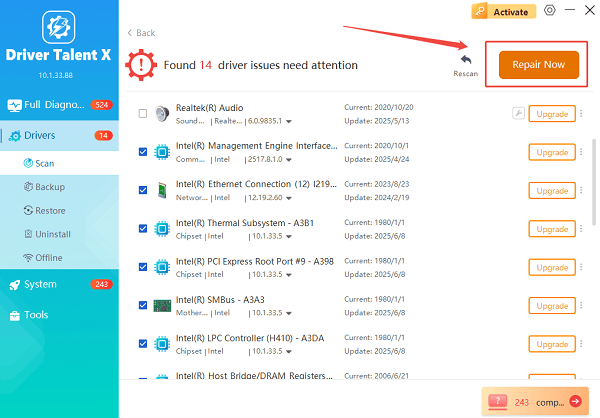
Driver Talent X will reliably download the latest drivers and execute a clean installation, critical for performance enhancements and stability fixes.
Restart Your PC:
Reboot the system to apply all driver updates properly.
With drivers updated, your Ryzen 5 5500 system is ready for further optimization.
Method 1: Install the Latest AMD Chipset Drivers
AMD chipset drivers directly affect CPU scheduling, power efficiency, and performance scaling.
Steps:
Open Device Manager and confirm chipset drivers are installed correctly.
Use Driver Talent X to ensure the latest AMD chipset drivers are active.
Restart the system after installation.
Updated chipset drivers improve boost behavior and reduce latency.
Method 2: Enable High-Performance Power Plan
Windows power settings can restrict CPU frequency if configured incorrectly.
Steps:
Press Windows + R, type "powercfg.cpl", and press Enter.
Select "High Performance" or "AMD Ryzen Balanced" power plan.
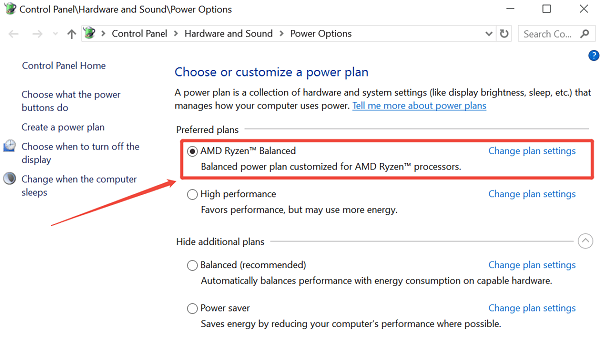
Click "Change plan settings" and ensure minimum processor state is set appropriately.
This allows the Ryzen 5 5500 to maintain higher clock speeds under load.
Method 3: Update BIOS for Better CPU Compatibility
Motherboard BIOS updates often improve CPU microcode, stability, and boost performance.
Steps:
Identify your motherboard model.
Visit the motherboard manufacturer's support page.
Download the latest BIOS version compatible with Ryzen 5 5500.
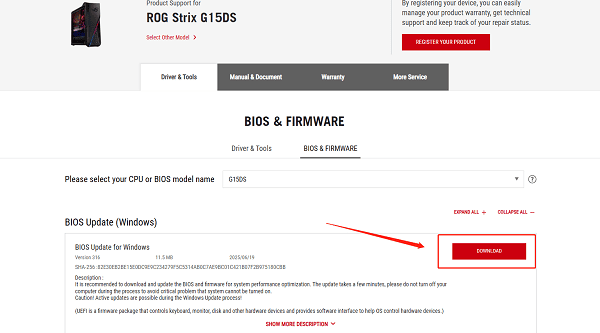
Follow the manufacturer's BIOS update instructions carefully.
Restart and load optimized defaults after updating.
A newer BIOS can unlock better performance and stability.
Method 4: Optimize Memory Settings (XMP / DOCP)
Ryzen CPUs benefit significantly from faster RAM speeds.
Steps:
Enter BIOS by pressing DEL or F2 during boot.
Enable "XMP" or "DOCP" for your RAM.
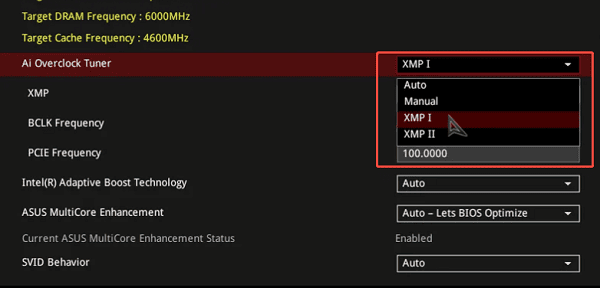
Set memory frequency to the rated speed (e.g., 3200 MHz).
Save and exit BIOS.
Proper memory configuration reduces latency and improves gaming and multitasking performance.
Method 5: Monitor Temperatures and Improve Cooling
Thermal throttling can limit Ryzen 5 5500 performance.
Steps:
Use system monitoring tools to check CPU temperatures under load.
Ensure the CPU cooler is properly mounted.
Clean dust from fans and heatsinks.
Improve case airflow with additional intake and exhaust fans.
Lower temperatures allow the CPU to sustain higher boost clocks.
Method 6: Optimize Background Applications
Unnecessary background processes can consume CPU resources.
Steps:
Press Ctrl + Shift + Esc to open Task Manager.
Disable unnecessary startup programs under the "Startup" tab.
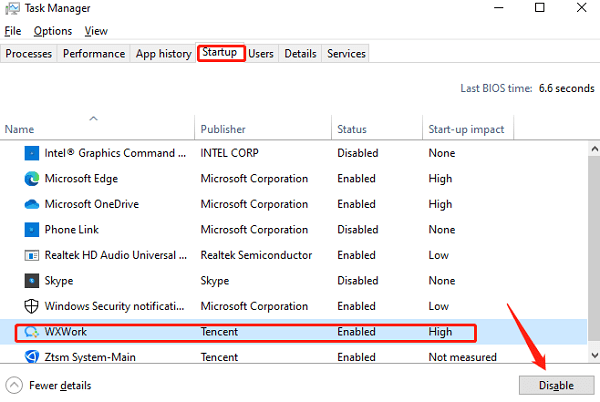
Close resource-heavy applications when not needed.
Reducing background load improves responsiveness and CPU availability.
Method 7: Update Graphics Drivers for Balanced Performance
If paired with a dedicated GPU, outdated graphics drivers can bottleneck overall system performance.
Steps:
Use Driver Talent X to update your GPU drivers.
Restart the system after installation.
Adjust graphics settings in games for optimal CPU-GPU balance.
Balanced GPU and CPU performance improves gaming frame rates.
Conclusion
Maximizing performance on the AMD Ryzen 5 5500 requires more than just powerful hardware. By first updating all system drivers using Driver Talent X and then applying multiple optimization methods, you can unlock the full potential of your Ryzen processor. Regular maintenance and driver updates ensure stable performance, smoother multitasking, and an enhanced computing experience.
See also:
Solutions to Fix Monster Hunter Wilds Crashes
How to Fix Split Fiction Not Launching on Windows
[Fixed] Whoa! Cyberpunk 2077 Flatlined Error
Solutions for 'DirectX 12 Not Supported' Error on Windows 10









