
Keeping ASUS drivers up to date is essential for stable performance, hardware compatibility, and system security on Windows. Outdated or incorrect drivers can lead to problems such as WiFi not working, no sound, display issues, keyboard or touchpad failures, and poor gaming performance. This guide explains the safest ways to download and update ASUS drivers, starting with the fastest and most reliable method.
Download and Update ASUS Drivers with Driver Talent X
Using an automatic driver updater helps avoid installing the wrong driver version and saves time. Driver Talent X scans your system, identifies ASUS hardware accurately, and installs compatible drivers for your Windows version.
Download and Install:
Click the "Download" button to download the latest version of the software. Save the installer to your desktop or downloads folder.
Double-click the installer and follow the on-screen instructions. Choose the installation directory and complete the setup process.
Perform a Full System Scan:
Open Driver Talent X from the desktop shortcut or Start menu, go to "Drivers" > "Scan", click "Scan".
Driver Talent X will detect outdated, missing, corrupted, or incompatible ASUS drivers.
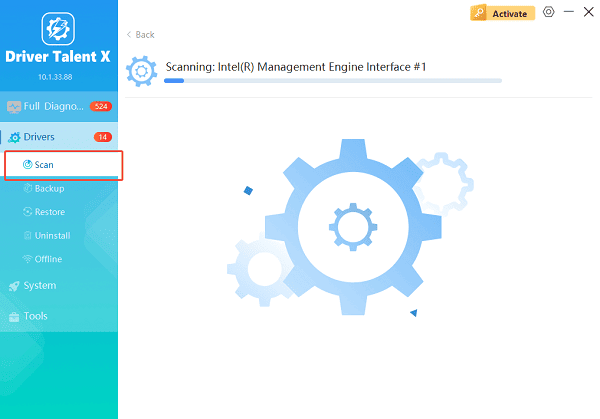
Update All Drivers:
Look for drivers such as ASUS chipset, graphics, audio, WiFi, Bluetooth, LAN, touchpad, keyboard, and USB controllers. Click the "Upgrade" or "Repair Now" button.
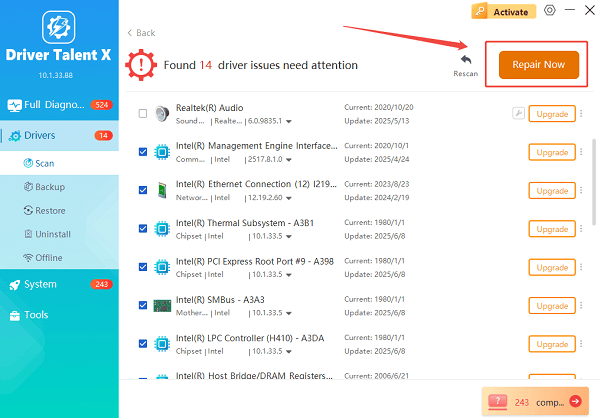
Driver Talent X will reliably download the latest drivers and execute a clean installation, critical for performance enhancements and stability fixes.
Restart the Computer:
Follow on-screen instructions and allow the installation to finish without interruption.
Reboot the system to apply the updated ASUS drivers successfully.
This method resolves most ASUS driver issues and reduces the risk of compatibility problems.
Common ASUS Drivers You May Need to Download
ASUS systems rely on multiple drivers to function properly, including:
ASUS chipset drivers
ASUS graphics drivers for Intel, AMD, or NVIDIA
ASUS audio drivers
ASUS WiFi and Bluetooth drivers
ASUS LAN and Ethernet drivers
ASUS touchpad and keyboard drivers
ASUS USB and card reader drivers
Method 1: Download Drivers from ASUS Official Website
Manual downloads are useful if you need a specific driver version.
Steps to Download ASUS Drivers Manually:
Identify your ASUS model number: Check the sticker on your device or press Windows + R, type "msinfo32", and find the system model.
Visit the ASUS support website: Navigate to the official ASUS support page and search for your model.
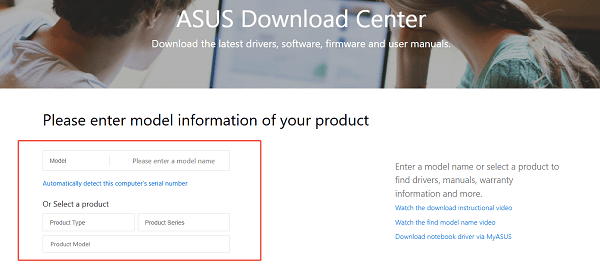
Select your Windows version: Choose Windows 10 or Windows 11 and the correct system architecture.
Download required drivers: Download drivers for chipset, graphics, audio, network, and input devices.
Install drivers in the correct order: Install chipset drivers first, followed by graphics, audio, and network drivers.
Restart your system: Reboot after installation to ensure all drivers load correctly.
Method 2: Update ASUS Drivers Using Device Manager
Device Manager can update drivers automatically, though it may not always provide the latest versions.
Steps Using Device Manager:
Right-click the Start menu and open Device Manager.
Expand the category for the ASUS device.
Right-click the device and select "Update driver".
Choose "Search automatically for drivers".
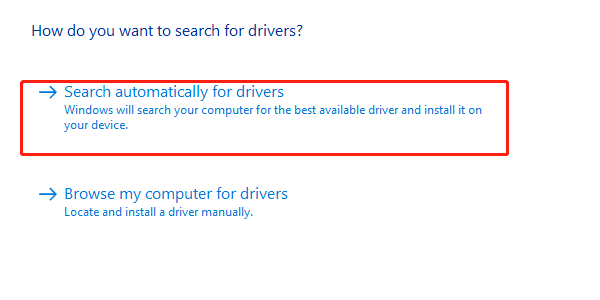
Restart your PC if prompted.
Method 3: Use ASUS Utilities for Driver Updates
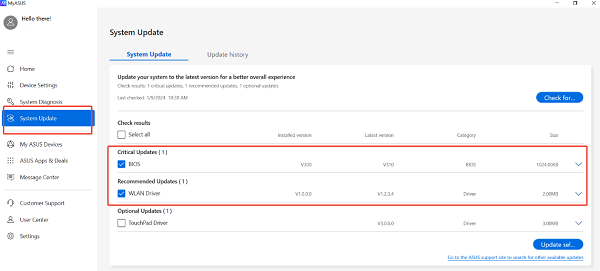
Some ASUS systems include built-in tools such as ASUS Live Update or MyASUS.
How to Use ASUS Built-In Tools:
Open MyASUS or ASUS Live Update.
Navigate to the Driver and Tools section.
Check for available driver updates.
Install updates and restart your computer.
Method 4: Fix ASUS Driver Installation Issues
If ASUS drivers fail to download or install, try the following:
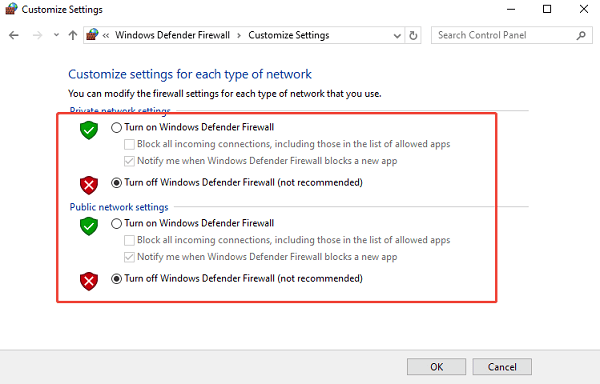
Disable antivirus software or Windows Defender Firewall temporarily
Ensure Windows is fully updated
Close background applications
Run installers as administrator
Clean uninstall old drivers before reinstalling
Best Practices for ASUS Driver Maintenance
Update chipset drivers before other drivers.
Avoid installing drivers from unknown sources.
Keep BIOS and firmware updated when required.
Restart your system after every driver update.
Use Driver Talent X regularly to prevent driver-related issues.
Conclusion
Downloading and updating ASUS drivers on Windows does not have to be complicated. Starting with Driver Talent X provides the fastest and safest solution by automatically installing compatible drivers. Manual downloads from the ASUS website, Device Manager updates, and ASUS utilities offer additional options when needed. By following this guide, you can keep your ASUS system stable, secure, and performing at its best.
See also:
How to Fix CoD Vanguard Not Launching on PC
How to Resolve Crashing Issues in Warframe









