
If your ASUS laptop keyboard is not responding, typing incorrectly, or only working intermittently, the issue can be caused by driver faults, disabled settings, firmware bugs, or hardware problems.
Before assuming the keyboard is damaged, you should perform a full software check, including updating the keyboard and chipset drivers. This guide provides detailed steps, starting with the most essential fix: updating drivers using Driver Talent X.
Update Drivers Using Driver Talent X
Faulty or outdated drivers are one of the most common reasons the ASUS keyboard stops working. Driver Talent X can automatically detect missing or problematic drivers and repair them.
Download and Install:
Click the "Download" button to download the software package.
Follow the on-screen instructions to complete installation.
Perform a Full System Scan:
Open the software from your desktop or Start menu, go to "Drivers" > "Scan", click "Scan".

The program will analyze all drivers, including the keyboard driver, chipset driver, and HID-related components.
Update All Drivers:
After the scan is complete, the software will display a list of all drivers that need attention. Select "Repair Now" button to automatically download and install the recommended drivers.
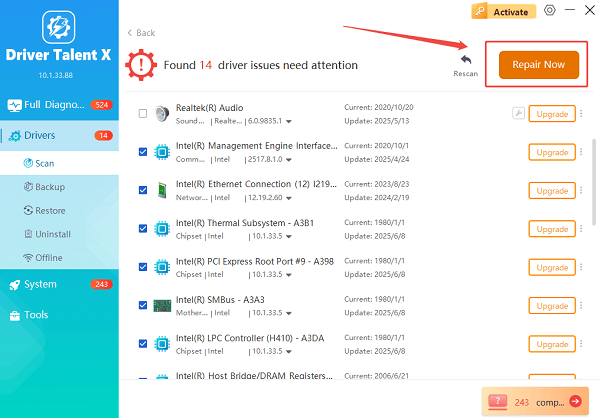
Driver Talent X will reliably download the correct, latest certified driver for your pc, and execute a completely clean installation automatically.
Restart your laptop:
Reboot your system to apply all driver changes.
If the issue was caused by corrupted or broken drivers, your keyboard should now function normally. If not, continue with the additional solutions below.
Fix 1: Make Sure the Keyboard Settings
Windows allows keyboards to be disabled accidentally.
Check Windows Keyboard Settings:
1. Open "Settings", select "Update & Security".
2. Click "Keyboard", find and ensure "Use Filter Keys" is turned off.
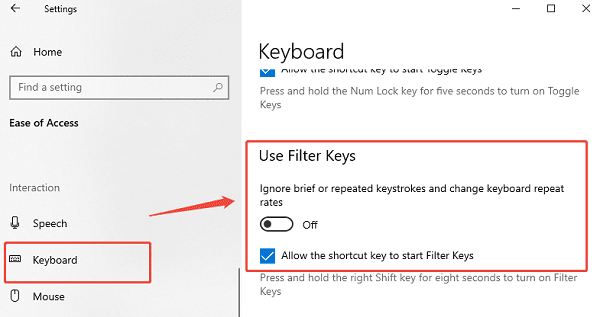
Filter Keys can block keystrokes.
3. Verify On-Screen Keyboard is not interfering with the physical keyboard.
Fix 2: Reset ASUS Keyboard Hotkey Service (ATK Package)
ASUS laptops rely on the ATK Package or ASUS System Control Interface driver.
Reset the service:
Press Win + R, type "services.msc" and press Enter.
Locate ASUS System Control Interface Service.
Right-click and select "Restart".
If the service is disabled, set Startup type to Automatic.
Fix 3: Reinstall the Keyboard Driver Manually
If Windows installed the wrong driver, a manual reinstall may help.
Steps:
Press Win + X and choose "Device Manager".
Expand "Keyboards", right-click your keyboard device, select "Uninstall device".
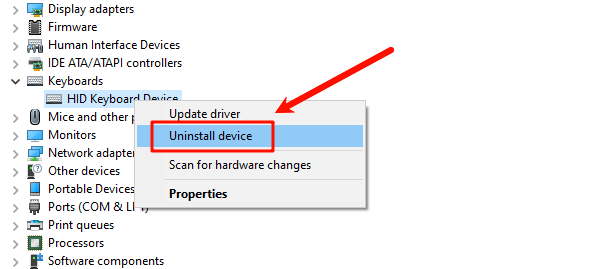
Restart your laptop.
Windows will reinstall a fresh standard keyboard driver.
Fix 4: Disable Fast Startup
Fast Startup can prevent keyboard drivers from loading correctly.
How to disable it:
Open Control Panel, go to "Power Options".
Click "Choose what the power buttons do".
Select "Change settings that are currently unavailable".
Uncheck "Turn on fast start-up (recommended)".
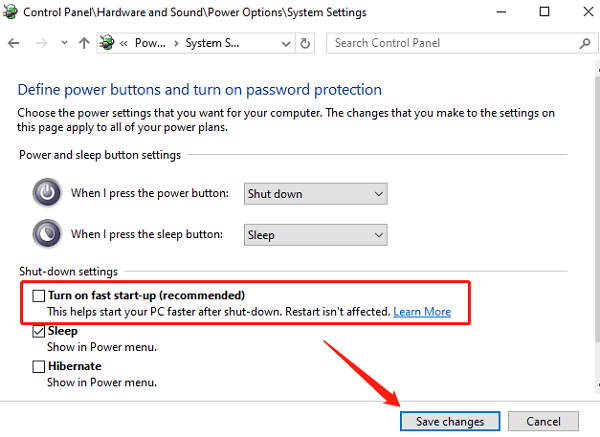
Save changes and reboot.
Fix 5: Check for ASUS BIOS or Firmware Issues
Some keyboard failures occur after BIOS updates or firmware glitches.
Steps to fix firmware-related problems:
1. Restart your laptop.
2. Press F2 repeatedly to enter BIOS.
3. Check whether the keyboard works inside BIOS.
If keys respond, the issue is software-related.
If keys do not respond at all, hardware may be damaged.
4. Update BIOS using ASUS MyASUS utility or official support page.
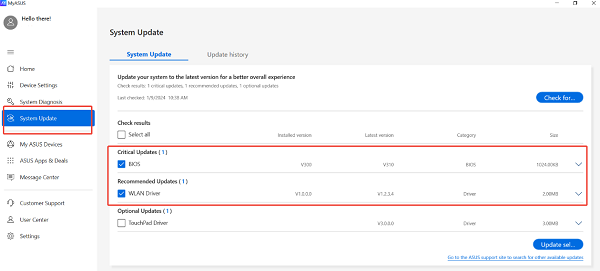
5. Restart your device after updating.
Fix 6: Run System File Checker
Corrupted system files may block keyboard input.
Steps:
1. Open Command Prompt as Administrator (Win + R > type "cmd" > right-click and choose "Run as administrator").
Type: sfc /scannow
2. Press Enter and wait for the process to complete.
3. Restart your laptop.
Fix 7: Perform a Clean Boot
This helps detect conflicts caused by third-party programs.
Steps:
Press Win + R, type "msconfig", press Enter and then open "Services".
Check "Hide all Microsoft services", click "Disable all".
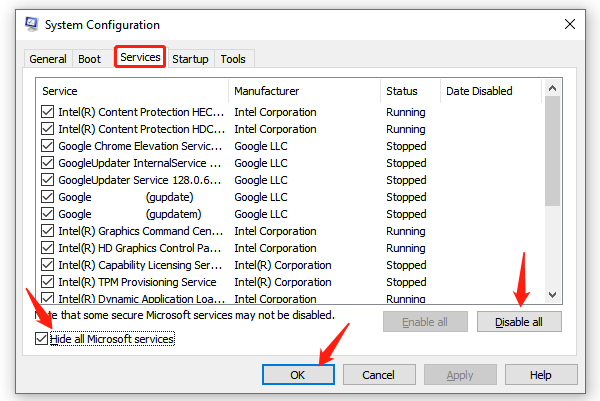
Go to "Startup" and open Task Manager.
Disable all startup programs.
Restart your system.
If the keyboard works during a clean boot, one of your applications is causing the conflict.
Fix 8: External Keyboard Test
Connect a USB keyboard.
If the external keyboard works, your system is functioning normally.
If both keyboards fail, the problem is driver or firmware related.
Fix 9: Hardware Inspection
If none of the above solutions help, the internal keyboard may be damaged.
Possible hardware causes include:
Liquid damage
Loose ribbon cable
Faulty keyboard membrane
Worn-out keys or connectors
You may need to:
Remove the bottom panel
Reconnect the keyboard ribbon cable
Replace the keyboard assembly
If you are not experienced with hardware repair, contact ASUS support or a professional technician.
Final Thoughts
When the ASUS laptop keyboard stops working, software issues such as corrupted drivers or disabled settings are the most common causes. Always start with a full driver update using Driver Talent X, then proceed through the additional solutions. If none of these methods restore keyboard functionality, the keyboard hardware may require repair or replacement.
See also:
Epson L3250 Driver Download & Installation Guide for Windows 10/11
How to Update BIOS on MSI Motherboard – Step-by-Step Guide









