
Corsair RGB keyboards offer vibrant, customizable lighting through the official iCUE software, allowing everything from simple static colors to complex effects like color shifts, waves, and per-key customization. For moments when iCUE isn't running (e.g., on a different PC or at startup), many models support Hardware Lighting saved directly to the keyboard's onboard memory. This guide draws from Corsair's official resources and covers the most reliable methods.
Method 1: Change Colors Using iCUE Software
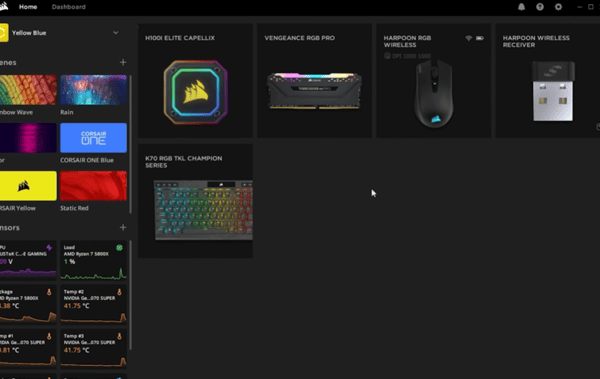
Open iCUE and ensure your keyboard is detected (it appears on the home screen)
Select your keyboard in the iCUE interface
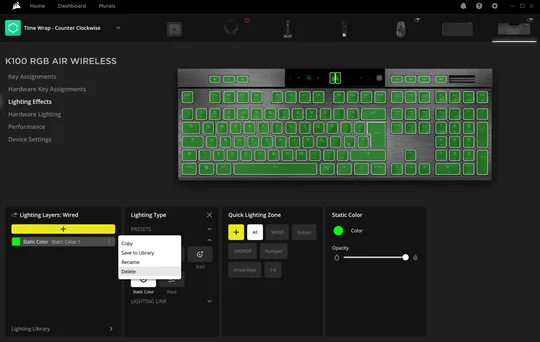
Go to Lighting Effects (found in the left menu or by hovering over the keyboard and clicking it)
Create or edit a lighting layer: Click the large yellow + button to add a new Lighting Layer
Choose a Lighting Type: Static for a single solid color (use the color picker or enter a HEX code). Color Shift, Rainbow Wave, Ripple, Color Pulse, Color Wave, or other presets
Customize: Adjust speed, direction, brightness, or colors
For per-key or group customization: Click keys on the on-screen keyboard model (hold CTRL to multi-select), then apply a specific effect or color to them
Add multiple layers for combined effects (e.g., base static + reactive on keypress)
Apply changes: Effects update live while iCUE is open and running in the background
Method 2: Set Up Hardware Lighting
In iCUE, select your keyboard
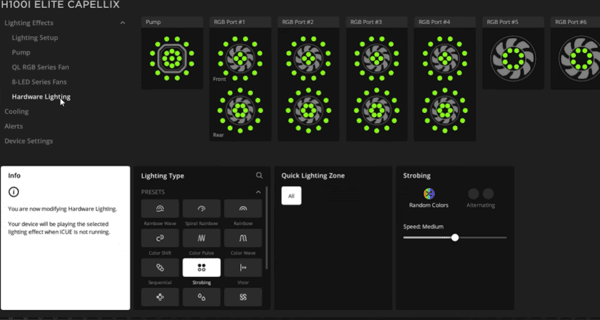
Go to Hardware Lighting (in the left menu, often under Lighting Effects or a dedicated tab)
Customize the effect:
Select a Lighting Type (e.g., Static for one color, or a preset like Color Wave)
Adjust colors, speed, etc., as desired
Save to onboard memory:
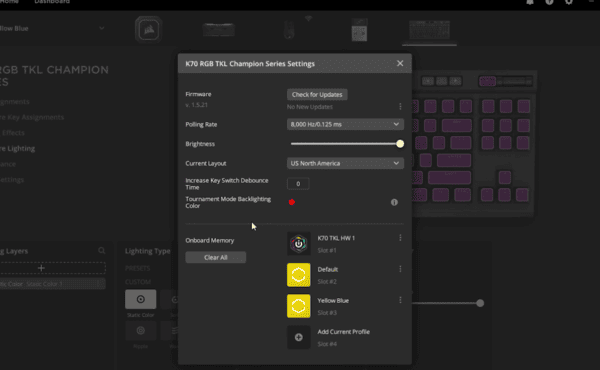
Click Device Settings.
Scroll to Onboard Memory section
Choose an available slot (or overwrite an existing one if full)
Save the profile
Method 3: Onboard Shortcuts
Certain models support quick hardware-mode color/effect cycling via FN keys. This is limited to zones or presets—no per-key or complex custom effects.
K55 RGB PRO (and similar):
Hold FN + number keys 1–5: Change static colors for different lighting zones
Hold FN + 6–0: Cycle through dynamic effects (e.g., wave, pulse, ripple)
To reset to default: Hold FN + a specific key (often ~ or as per model manual)
K70 CORE (and variants):
FN + specific keys cycle effects like Color Shift, Pulse, Wave, or Static (press to cycle colors)
Other models (e.g., K100): Rely more on iCUE or control wheel for adjustments
Check your model's manual or Corsair help site for exact shortcuts, as they vary
Bonus Tip: Fix Corsair RGB Issues with Driver Talent X
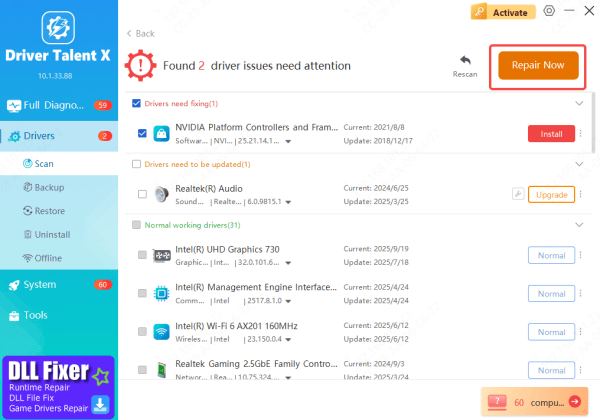
If you're experiencing issues like lighting settings not saving, default rainbow modes resetting, or iCUE not detecting your Corsair keyboard, outdated keyboard drivers are often to blame. Fortunately, Driver Talent X can help you easily resolve these issues.
Download and install Driver Talent X from the official website
Open the software and click on "Scan" to detect outdated drivers on your system
Review and update any missing or outdated drivers, especially USB and chipset drivers
Restart your PC to apply the changes
Reopen iCUE and check your RGB settings
Updating your drivers ensures that your Corsair keyboard's RGB lighting settings will work properly, even when iCUE isn't running. Say goodbye to RGB bugs and inconsistent lighting behavior!
Troubleshooting Tips
Keyboard not detected in iCUE: Reinstall iCUE, update drivers, try USB 3.0+ port
Colors reset on startup/close iCUE: Set up and save Hardware Lighting properly
Default rainbow persists: Override hardware slots or perform a hardware reset (model-specific, e.g., hold ESC while plugging in)
No changes apply: Confirm RGB model; ensure iCUE runs in background
Conclusion
Customizing your Corsair keyboard's RGB lighting is easy and rewarding with iCUE—use Lighting Effects for full creative control while the software runs, and save your favorite setup to Hardware Lighting (Device Memory Mode) so the colors persist even when iCUE is closed, during boot-up, or on another PC. Most common issues, like lighting reverting to rainbow or defaults, come from unsaved hardware profiles and can usually be fixed with a quick save or reset. Happy customizing—let your battlestation shine the way you want!









