
Docking stations are incredibly useful devices for those who want to expand the capabilities of their laptop. Whether you're working from home, in the office, or simply want to use your laptop as a desktop replacement, a docking station can help you connect to multiple peripherals such as monitors, keyboards, mice, and external storage devices—all while keeping cables organized. In this guide, we'll walk you through the process of connecting a docking station to your laptop, along with troubleshooting tips and other essential information.
What is a Docking Station?
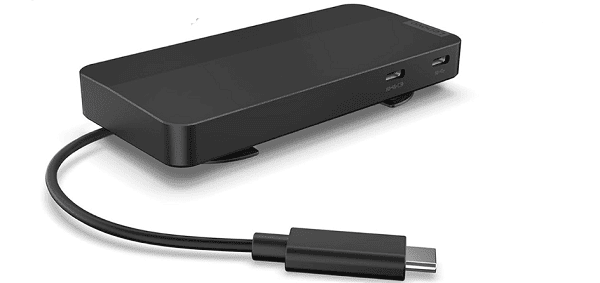
A docking station is a device that allows you to easily connect your laptop to multiple peripherals, including external monitors, printers, mice, keyboards, and Ethernet cables
It essentially acts as a hub to convert your laptop's limited ports into a wide array of connections, providing a seamless experience for work and play
How to Connect a Docking Station to Your Laptop
Step 1: Power the Docking Station
Plug the docking station's power adapter into an electrical outlet and connect it to the dock if required
This step is essential, especially if the dock charges your laptop
Step 2: Connect the Dock to the Laptop
Using the appropriate cable (USB-C, Thunderbolt, or USB-A), connect the docking station to your laptop
If your laptop has multiple ports, try using the primary port designated for the docking station (e.g., Thunderbolt or USB-C)
.png "connect-to-laptop")
Step 3: Connect External Devices
Now that your laptop is connected to the docking station, you can start connecting your external devices:
Monitors: Connect via HDMI or DisplayPort, depending on the docking station and monitor ports.
Keyboard & Mouse: Plug them into the USB ports on the dock
Ethernet Cable: If you prefer a wired internet connection, connect the Ethernet cable to the dock
Other USB Devices: Connect any additional devices such as printers, cameras, or external drives
.png "connect-cable")
Step 4: Power On Your Laptop
Turn on your laptop
In most cases, your operating system will automatically detect the connected devices and configure them accordingly
Install or Update Drivers
Many docking stations, especially those with advanced features like dual monitor support or fast charging, may require specific drivers to function optimally.
Install Driver Talent X
Download and install Driver Talent X on your Windows laptop
Scan the System
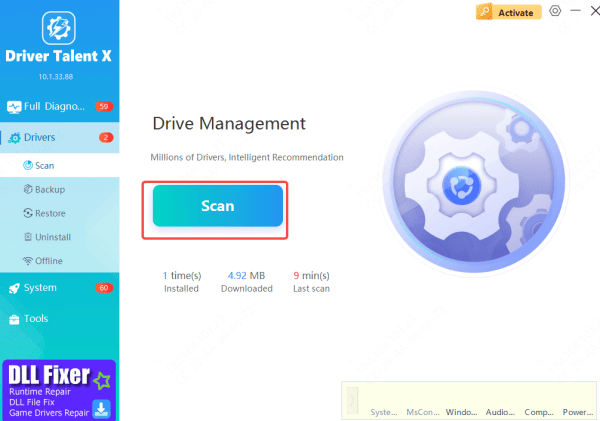
Open Driver Talent X and go to Drivers
Scan to check drivers related to USB, graphics, chipset, Thunderbolt, and network components
Update Drivers
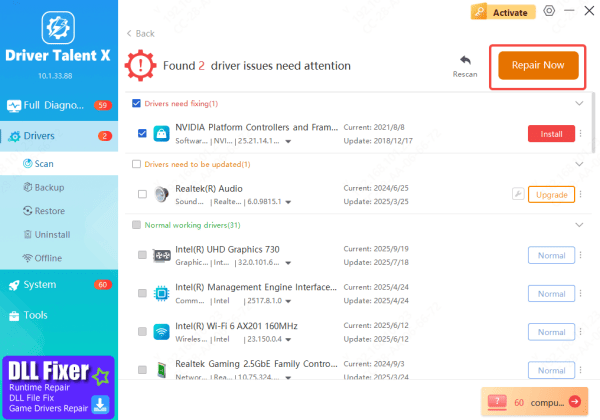
After the scan, select the recommended drivers and click Repair Now to install the correct versions automatically
Restart the Laptop
Reboot your system to apply the updates, then test the docking station to ensure everything works correctly
This approach helps ensure driver compatibility and is a safe, efficient solution for most docking station connection issues
Configure Display and Device Settings
Once everything is connected, you can begin configuring your external devices:
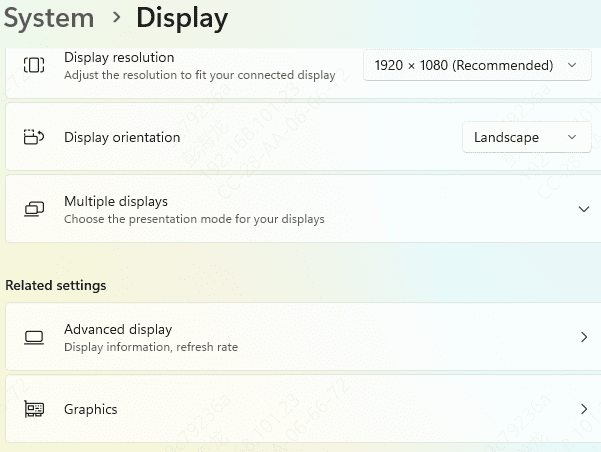
Set Up Multiple Monitors: Open Display Settings on Windows to extend, duplicate, or configure multiple monitors. Adjust the resolution and display orientation according to your preference
Audio Settings: If your docking station has speakers or a microphone, set the external audio device as the default in Sound Settings

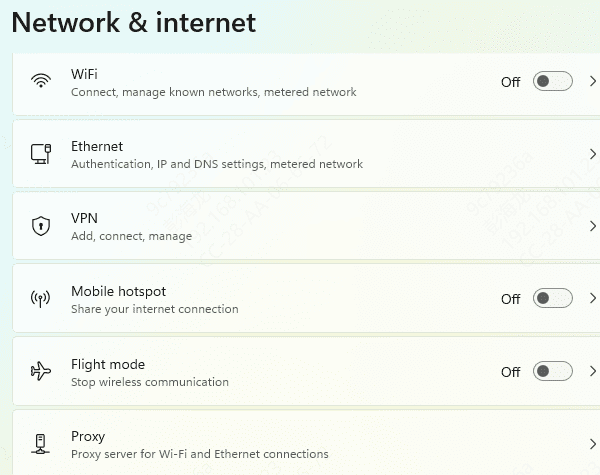
Network Settings: If using Ethernet, your system should automatically switch to the wired connection. If not, go to Network & Internet Settings and manually select Ethernet
Common Docking Station Connection Issues & Fixes
Dock Not Detected
Ensure all cables are securely connected
Try using a different USB port or cable
Restart your laptop and check again
.png "use-different-port")
External Monitors Not Working
Make sure the monitors are properly connected to the dock
Go to Display Settings and check if the monitors are detected. Click "Detect" if necessary
USB Devices Not Recognized
Unplug and re-plug the devices
Check if the docking station supports the USB version of your devices
.png "connect-hdmi")
Ethernet Not Working
Double-check the Ethernet cable and connection
Try connecting directly to the laptop to rule out dock issues
.png "connect-ethernet")
Conclusion
Connecting a docking station to your laptop can significantly enhance your productivity by expanding your device's connectivity options. By following this guide, you should have your docking station up and running in no time, whether for work, play, or everything in between. If you experience any issues, refer to the troubleshooting section or consider reaching out to the manufacturer's customer support for further assistance.









