
Logitech wireless keyboards are popular for their convenience and ability to reduce cable clutter in your workspace. However, sometimes connecting your keyboard to your computer can be tricky. Whether you're using a USB receiver or Bluetooth, this guide will walk you through the steps to connect your Logitech wireless keyboard and troubleshoot any issues you might encounter.
Connect Using the USB Receiver (Unifying Receiver)
If your Logitech wireless keyboard uses a USB Unifying Receiver, follow these steps:
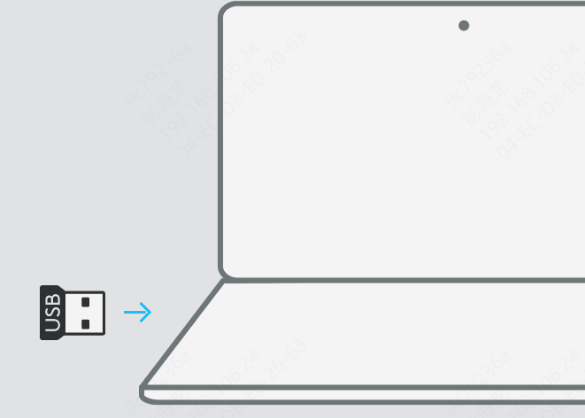
Plug in the Unifying Receiver: Insert the Logitech USB Unifying Receiver into a free USB port on your computer. This tiny receiver will allow your keyboard to communicate wirelessly with your computer
Automatic detection: In most cases, Windows will automatically detect the receiver and begin installing any necessary drivers. Wait for a few seconds to ensure the connection is established
Turn on the keyboard: Switch the keyboard on if you haven't done so already. If it's not automatically in pairing mode, look for a small pairing button on the keyboard. Press it to initiate the connection process
Connection: The keyboard should connect to the receiver almost immediately. You can test the connection by typing something in a text field, such as a search bar or document
If your keyboard still doesn't work, continue reading the troubleshooting section below
Connect Using Bluetooth (If Supported)
For models that support Bluetooth, follow these steps to connect wirelessly:
Enable Bluetooth on your computer: Make sure your PC's Bluetooth is turned on. If you're using a laptop, Bluetooth is usually built-in, but for desktops, you may need a Bluetooth adapter
Put the keyboard in pairing mode: Press the Bluetooth pairing button (usually located near the power switch) on your Logitech keyboard. The light indicator will blink to show that the keyboard is in pairing mode
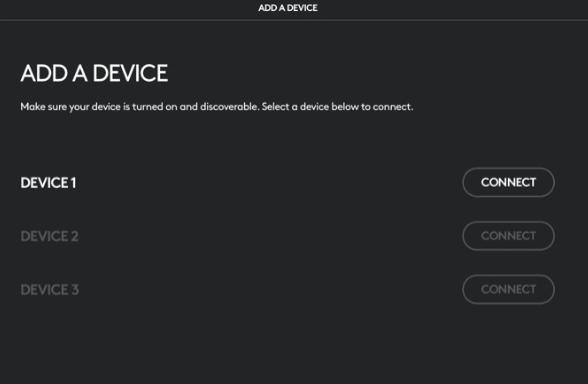
Add Bluetooth device: On your computer, go to Settings → Devices → Bluetooth & other devices and click Add Bluetooth or other device
Select the keyboard: From the list of available devices, choose your Logitech keyboard
Complete the pairing: Follow any on-screen prompts to finish the pairing process. Once paired, you should see your Logitech keyboard listed as a connected device
Test the keyboard: Open any app or document to confirm that the keyboard is working
Install Logitech Options or Logitech Unifying Software
To fully manage your Logitech wireless keyboard, download the necessary software:
Logitech Options: This software allows you to customize your keyboard's keys, create shortcuts, and adjust other settings
Logitech Unifying Software: If your keyboard uses the Unifying Receiver, you'll need this software to manage multiple Logitech devices with a single receiver
Go to the Logitech website and download the Logitech Options or Logitech Unifying Software based on your device
Install the software by following the on-screen prompts
Use the software to configure your keyboard, update firmware, and troubleshoot connection problems

Troubleshooting Connection Issue
Keyboard Not Connecting
Check the receiver connection: Ensure the USB receiver is properly plugged into the USB port. Try using a different port if necessary
Turn the keyboard off and on again: Sometimes a simple restart can fix the issue
Replace the batteries: Low or dead batteries can prevent the keyboard from working. Replace them with fresh batteries or recharge if needed
Re-pair the keyboard: If the keyboard isn't detected, press the pairing button and try again. You can also use the Logitech Unifying Software to re-pair the keyboard
.png "turn-keyboard")
Keyboard Not Responding
Ensure the keyboard is turned on: Check that the power switch is in the "on" position
Test with another device: Plug the USB receiver into a different computer or use Bluetooth to check if the issue is specific to your device
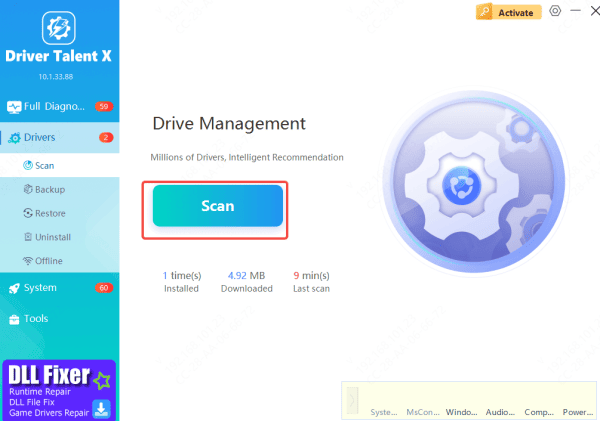
Update your drivers: Outdated drivers may cause issues with connectivity. Driver Talent X will detect outdated or corrupted drivers and ensure that the correct ones are installed

Conclusion
Connecting your Logitech wireless keyboard should be a smooth process, whether you're using a USB receiver or Bluetooth. By following the steps outlined above, you can easily set up your keyboard and fix any connection issues. Once set up, you'll enjoy the freedom of a wireless setup, perfect for a clutter-free and efficient workspace!









