
Connecting two external monitors to a laptop is one of the best ways to boost productivity, improve workflow, and create a more comfortable multitasking setup. Most modern laptops can support dual-monitor setups—if you use the right cables and settings. This guide explains everything you need to know: compatibility, required ports, adapter options, display configuration, and troubleshooting.
Verify GPU Capabilities
Most modern laptops support at least two displays (external + built-in), but some support three or more.
Press Win + R → dxdiag → Display (check Multiple Display Support)
Identify Your Laptop Ports
Common video ports on laptops:
HDMI (standard for TVs & monitors)
USB-C with DisplayPort (DP Alt Mode)
Thunderbolt 3 / Thunderbolt 4
Mini DisplayPort
VGA (older models)
.png "check-gpu-capabilities")
Method 1: Use Two Built-In Video Ports (Best Option)
If your laptop has two video output ports, such as: HDMI + USB-C, HDMI + DisplayPort, USB-C (DisplayPort) + Thunderbolt
You can plug each monitor directly into a separate port
Connect Monitor 1 to HDMI / USB-C / DP
Connect Monitor 2 to the second available port
Turn on both monitors
.png "connect-hdmi")
Method 2: Use a USB-C Docking Station (Most Convenient)
If your laptop supports USB-C DisplayPort (DP Alt Mode) or Thunderbolt, a docking station can power dual monitors easily.
A good dock typically includes: 2 × HDMI or 2 × DisplayPort or HDMI + DisplayPort
Connect your dock to the laptop via USB-C or Thunderbolt
Connect each monitor to the dock (HDMI/DP)
Power on the dock and monitors
.png "connect-monitor-to-dock")
Method 3: Use a USB-C to Dual HDMI/DP Adapter
A USB-C Dual Display Adapter is a small and affordable alternative to docking stations.
Make sure the adapter explicitly states: "Supports Dual Extended Displays", "DP Alt Mode" or "Thunderbolt"
Plug the dual adapter into your USB-C port
Connect both monitors via HDMI or DisplayPort
.png "connect-usb-c-port")
Configure Display Settings
Once connected, set up your monitors.
Windows 10/11 Settings
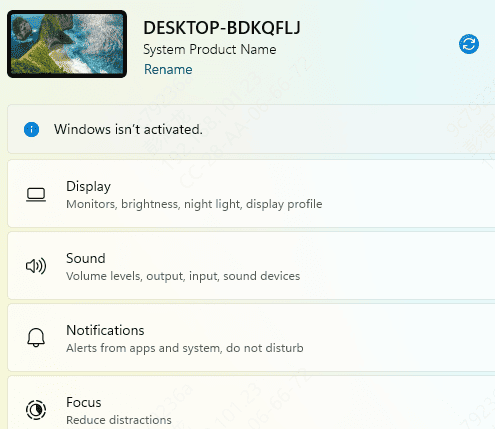
Right-click on the Desktop → Display settings
Scroll to Multiple displays
Choose one of these:
Extend these displays (recommended)
Duplicate these displays
Show only on 2 / 3
Arrange the monitors by dragging the screen icons
Set resolution and refresh rate if needed
Troubleshooting Connecting Problem
If your second monitor is not detected, try updating your graphics driver. Outdated graphics, chipset, USB-C controller, or firmware components often lead to problems where external displays are not recognized. By using an automated driver-update tool, you can avoid these compatibility issues and ensure your laptop reliably supports dual-monitor setups over HDMI, DisplayPort, or USB-C connections.
Download Driver Talent X
Click the Download button to get the Driver Talent X installation package
After the file finishes downloading, open the installer and follow the prompts on the screen to complete the setup on your laptop
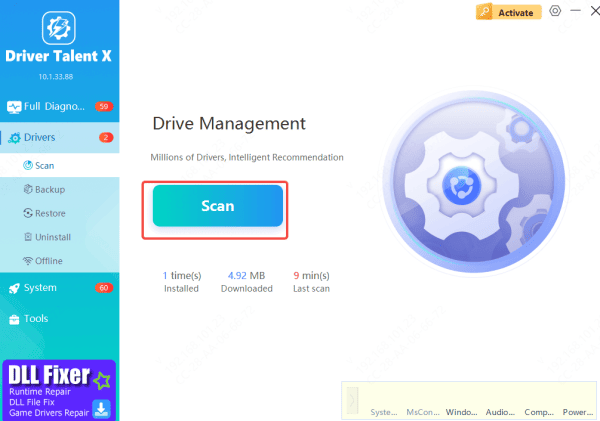
Run a Driver Scan
Click Scan
Driver Talent X will then examine all hardware components related to multi-monitor output
Install the Necessary Driver Updates
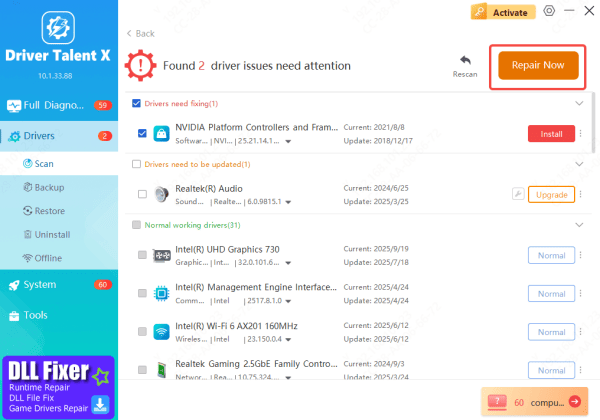
Click Repair Now or Update
The software will automatically download and install the latest drivers that are fully compatible with your Lenovo laptop, improving external monitor detection and stabilizing dual-monitor performance
Restart Your Laptop
Once the updates have been installed, reboot your laptop
This allows Windows to activate the new drivers properly and often resolves issues such as: External monitor not being recognized, Second display showing "No Signal", Flickering, freezing, or random disconnections, or USB-C display output not working
Conclusion
Connecting two monitors to a laptop is easy once you know your laptop's port capabilities and choose the right connection method. Whether you use dual HDMI, a USB-C docking station, Thunderbolt, or display adapters, expanding your laptop setup can dramatically improve productivity and comfort. Follow the steps in this guide to create a stable dual-monitor system and enjoy a smoother multitasking experience.









