
Keeping your Corsair mouse drivers up to date is essential for smooth performance, accurate tracking, stable DPI settings, and fully functional buttons and RGB lighting. Outdated or corrupted drivers can cause lag, connection issues, or prevent Corsair iCUE from detecting your mouse properly. This guide walks you through the best ways to update Corsair mouse drivers and keep your gaming setup running at peak performance.
Prerequisites & Preparation
Confirm your mouse model is supported (most modern Corsair mice are; check corsair.com or the utility's device list)
Requirements: Internet, admin rights, direct USB connection (rear port preferred; no hubs/docks for wireless models)
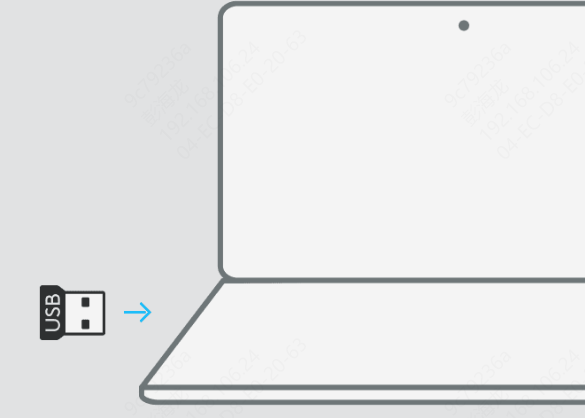
Plug mouse (and wireless dongle if applicable) directly into PC
Backup custom profiles/macros/DPI settings in iCUE if already using it
Method 1: Update via CORSAIR iCUE Software
Download & Install Latest iCUE
Launch iCUE after install
Detect Your Mouse
Plug in mouse → iCUE should auto-detect (shows as a tile on home screen)
Click gear icon (top-right) → Software Updates tab
Click Check for Updates
Select your mouse tile → Click settings wheel/gear icon
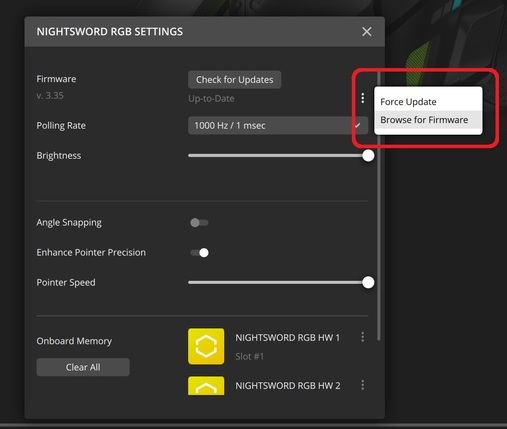
Go to Device Settings or Firmware section
Click Check for Updates — if "Up-to-Date," you're good
Method 2: Update via CORSAIR Firmware Update Utility
Visit: corsair.com/firmware-updater (or search "Corsair Firmware Update Utility")
Allow browser to access USB/Corsair devices (prompt appears)
Connect mouse directly via USB (wireless: connect dongle + mouse if needed)
Utility auto-scans → Shows current firmware vs. available update
If update ready: Click to apply (follow on-screen instructions; process takes 1-5 minutes)
Check supported devices list on page if your model isn't detected
Finish: Disconnect/reconnect mouse; test functionality
.png "corsair-firmware-update-utility")
Method 3: Automatically Update Drivers with Driver Talent X (Fastest & Easiest)
If you want a hands-off solution, Driver Talent X is a reliable way to keep your Corsair mouse and all peripherals updated automatically.
Download and install Driver Talent X
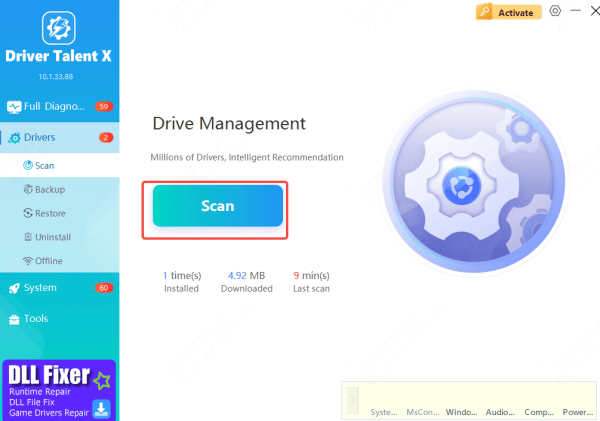
Launch the software and click Scan
Locate the mouse or USB-related drivers
Click Update or Repair
Restart your computer
This is ideal if iCUE fails to update drivers or your system has multiple driver-related issues.
Method 4: Update Corsair Mouse Driver via Windows Device Manager
This method updates the basic USB/HID driver but does not replace iCUE functionality.
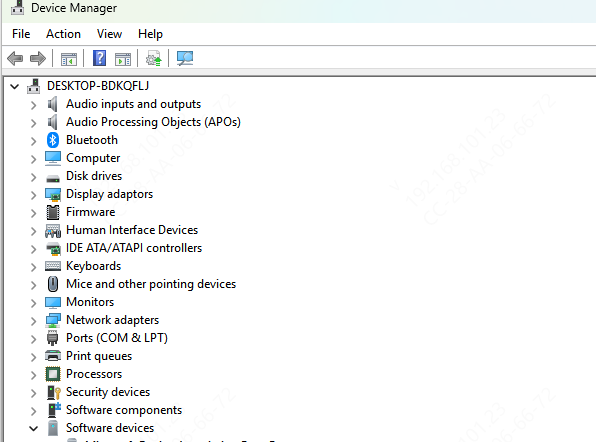
Press Win + X → Device Manager
Expand Mice and other pointing devices
Right-click your Corsair mouse → Update driver
Select Search automatically for drivers
Conclusion
Updating your Corsair mouse driver is a simple but critical step to ensure stable performance, accurate tracking, and full iCUE functionality. For most users, updating through Corsair iCUE works best. If you want a faster, more automated solution that covers all peripherals, Driver Talent X is an excellent choice. Keeping your drivers up to date means fewer issues, smoother gameplay, and a better overall gaming experience.









