
A CyberPowerPC gaming keyboard not lighting up can affect your gameplay and overall experience. Whether your RGB backlight fails to turn on, flickers, or stops responding to effects, the issue can be caused by outdated drivers, incorrect settings, USB power problems, software conflicts, or hardware failure.
This guide explains all possible causes and provides step-by-step solutions to restore your keyboard lighting. Before trying advanced fixes, start with the most important step: updating all keyboard, USB, chipset, and HID drivers using Driver Talent X.
Update Keyboard-Related Drivers Using Driver Talent X
Outdated or missing HID, USB, or peripheral drivers are one of the most common reasons CyberPowerPC keyboards fail to light up. Driver Talent X allows you to update these drivers automatically with detailed steps.
Download and Install:
Click the "Download" button to download the software package.
Run the installer and follow the on-screen prompts. Choose the installation directory and complete the setup process.
Perform a System Scan:
Open the application from the desktop shortcut or Windows Start menu, go to "Drivers" > "Scan", click "Scan".

Wait while Driver Talent X checks your system for outdated, missing, or corrupted USB drivers, chipset drivers, keyboard drivers, and RGB controller drivers.
Update All Drivers:
After the scan is complete, the software will display a list of all drivers that need attention. Select "Repair Now" button to automatically download and install the recommended drivers.
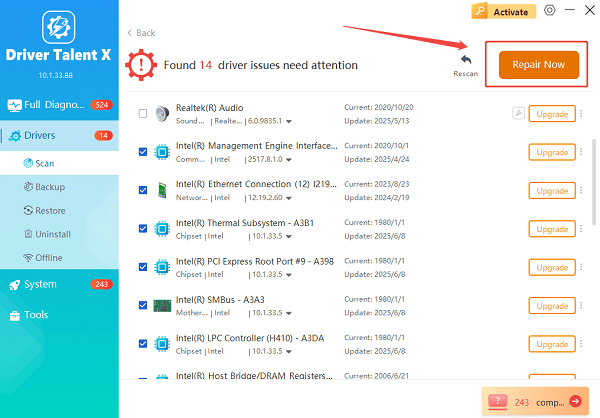
Driver Talent X will reliably download the correct, latest certified driver for your pc, and execute a completely clean installation automatically.
Restart Your Laptop:
Restart your computer after the updates are complete.
If the issue is driver-related, the lighting should function normally after rebooting.
Method 1: Reset the Keyboard Backlight Function
Most CyberPowerPC keyboards use a dedicated lighting toggle.
Try these steps:
1. Press the Function (FN) key on the keyboard.
2. While holding FN, press the key assigned to lighting control, commonly:
FN + F11
FN + F12
FN + Space
3. Cycle through modes until the backlight turns on.
If the shortcut was disabled previously, this will restore the RGB lighting.
Method 2: Check USB Port and Power Delivery
Insufficient USB power can prevent lighting from functioning.
Unplug the keyboard from the current USB port.
Plug it into a USB 3.0 port directly on the motherboard rather than through a hub.
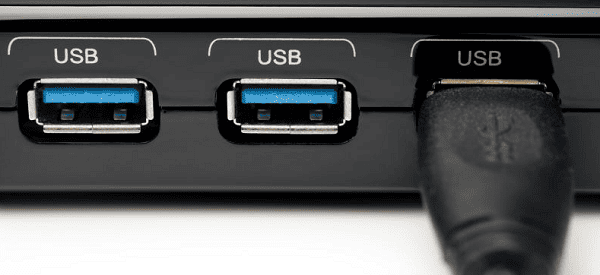
Avoid USB splitters or low-power hubs.
If the keyboard has dual USB connectors, plug in both cables.
If the lighting turns on immediately, the issue was power-related.
Method 3: Reinstall the CyberPowerPC Control Center or RGB Software
Some CyberPower keyboards rely on manufacturer lighting software.
Open Control Panel on Windows.
Select "Programs and Features".
Uninstall the CyberPowerPC Control Center or RGB Fusion/Spectra (if included).
Restart your PC.
Download the correct version of the software from CyberPowerPC or the keyboard brand's site.

Install and relaunch it, then reconfigure lighting settings.
Many lighting failures are caused by software corruption after Windows or driver updates.
Method 4: Check Windows Power and USB Settings
Windows power management can turn off USB ports to save energy.
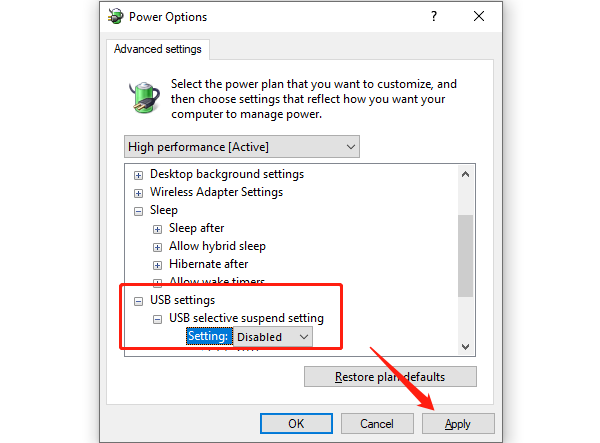
Disable USB Selective Suspend:
Open Control Panel.
Select "Power Options".
Click "Change plan settings next to the active plan".
Select "Change advanced power settings".
Expand USB Settings, set "USB selective suspend setting" to "Disabled".
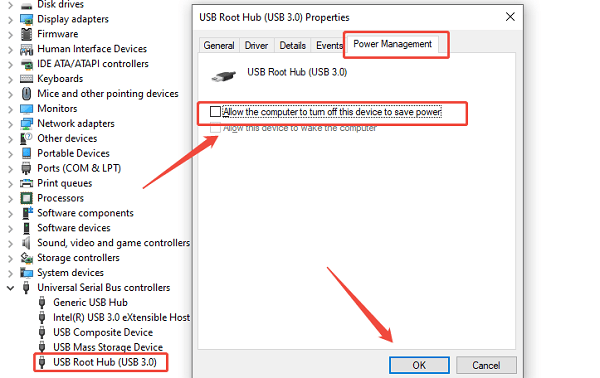
Prevent Windows from Turning Off USB Devices:
Open Device Manager.
Expand "Universal Serial Bus controllers".
Right-click each "USB Root Hub" entry and select "Properties".
Under Power Management, uncheck "Allow the computer to turn off this device to save power".
Restart the computer and test the lighting again.
Method 5: Update BIOS and Chipset Drivers
Firmware incompatibility can cause RGB controllers to malfunction.
How to update:
Visit the motherboard manufacturer's support page.
Download the latest BIOS file and chipset driver package.
Follow the provided flashing instructions carefully.
Restart your PC after the updates.
After updating the firmware, keyboard lighting often becomes more stable and responsive.
Method 6: Perform a Keyboard Hardware Reset
Some CyberPower keyboards support a hardware reset.
Try this universal reset procedure:
Unplug the keyboard from your PC.
Press and hold the ESC key.
While holding ESC, plug the keyboard back in.
Continue holding ESC for 10 seconds.
This resets profiles, macro settings, and RGB controls to factory defaults.
Method 7: Factory Reset Windows Lighting Settings
Corrupted Windows system files can break device lighting behavior.
Run the SFC repair tool:
Press Windows + R and type "cmd".
Right-click Command Prompt and select "Run as administrator".
Enter the command: sfc /scannow

Wait for repairs to complete and restart Windows.
Method 8: Inspect the USB Cable for Damage
Backlighting issues may indicate an internal cable failure.
Inspect the device for:
Frayed cables
Loose connectors
Excessive bending around the plug
If the cable is detachable, try using a different one.
Method 9: Test the Keyboard on Another PC
To confirm whether the keyboard hardware is faulty:
Plug the keyboard into a different computer.
Check if the backlight works immediately.
If the lighting still does not turn on, the keyboard may have internal hardware failure and require replacement.
Final Thoughts
A CyberPowerPC keyboard that is not lighting up can be caused by driver failures, power issues, software conflicts, or hardware faults. Start by updating all drivers using Driver Talent X, then proceed through USB checks, software reinstalls, lighting resets, and firmware updates. If none of these solutions work, the keyboard may require professional repair or replacement.
See also:
How to Fix AMD FreeSync Not Working Issue
How to Fix Bluetooth Not Working Issues









