A properly configured CyberPowerPC mouse enhances precision, responsiveness, and overall gaming performance. Whether you need customizable DPI settings, macros, or RGB lighting control, installing the correct CyberPowerPC mouse software is essential.
Before setting up the software, it is strongly recommended to update drivers so that your USB devices, sensor drivers, and system components operate smoothly without conflicts. Below you will find a complete guide that contains detailed steps to download, install, and configure CyberPowerPC mouse software.
Update Drivers with Driver Talent X
Updating drivers before configuring gaming peripherals helps prevent mouse lag, unresponsiveness, random disconnects, and RGB control failures. Driver Talent X scans your computer for outdated, missing, or corrupted drivers and installs the latest versions.
Steps to Update Drivers with Driver Talent X
Download and Install:
Click the "Download" button to download the software package.
Run the installer and follow the on-screen prompts. Choose the installation folder and allow the setup to complete.
Start a Full System Scan:
Open the app from your desktop shortcut or Windows Start menu, go to "Drivers" > "Scan", click "Scan".
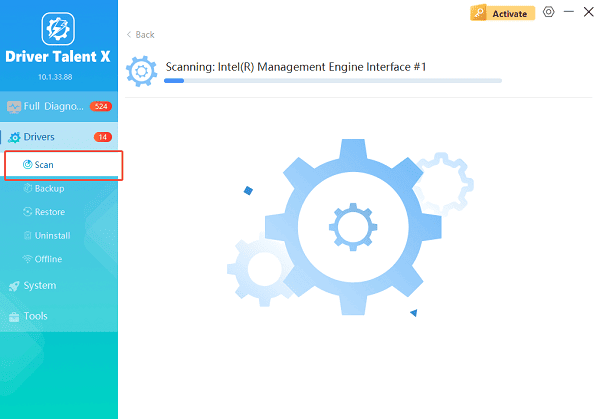
Driver Talent X will analyze all device drivers including USB controllers, mouse drivers, chipset drivers, and system components.
Update All Drivers:
After the scan is complete, the software will display a list of all drivers that need attention. Select "Repair Now" button to automatically download and install the recommended drivers.
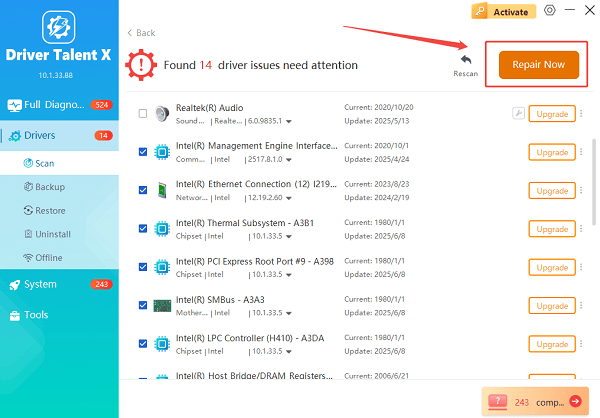
Wait until all installations finish.
Restart Your Computer:
Reboot the system to ensure all updated drivers are fully applied.
With your drivers successfully updated, you can now safely download and configure CyberPowerPC mouse software without compatibility issues.
What Is CyberPowerPC Mouse Software?
CyberPowerPC mouse software is a configuration utility used to manage advanced gaming features such as DPI adjustment, programmable buttons, macro creation, polling rate settings, and RGB lighting effects. This software is essential for unlocking the full functionality of CyberPowerPC gaming mice.
How to Download CyberPowerPC Mouse Software
Follow these steps to download the correct software for your mouse model.
Step 1: Go to the CyberPowerPC Support Website
Open your web browser.
Visit the CyberPowerPC official support page.
Click on "Downloads" or "Drivers & Software".
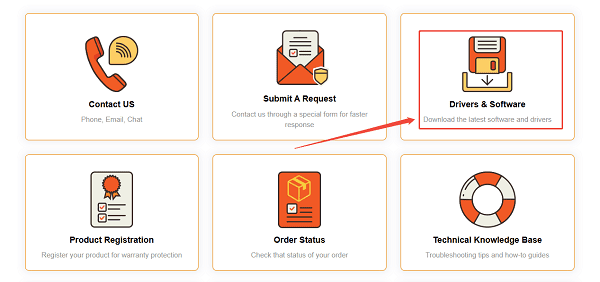
Step 2: Locate Your Mouse Model
Look for your specific CyberPowerPC mouse model name or number.
If you purchased a CyberPowerPC prebuilt system, check the mouse label or product documentation.
Step 3: Download the Software Package
Under your mouse model's driver section, select the available software download.
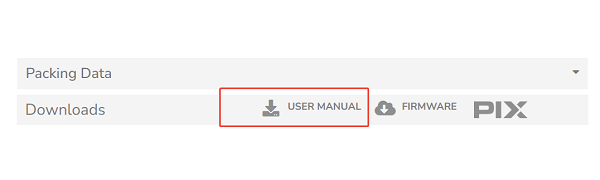
Click the download button and save the file to your computer.
How to Install CyberPowerPC Mouse Software
Step 1: Run the Installer
Navigate to your Downloads folder.
Double-click the software installer file.
Allow the installer to run if Windows asks for permission.
Step 2: Follow the Setup Instructions
Select the installation directory.
Click "Next" to proceed through the prompts.
Wait for the installation to complete.
Step 3: Launch the Software
Open the newly installed CyberPowerPC mouse control panel.
Ensure your mouse is connected directly to a USB port.
How to Set Up CyberPowerPC Mouse Software
Once installed, you can configure your mouse features.
Adjust DPI Settings:
Open the software's DPI section.
Choose preset DPI levels or customize your own.
Save your DPI profile for gaming, work, or daily use.
Configure Macro Buttons:
Navigate to the "Macro" or "Key Assignment" menu.
Select a mouse button to customize.
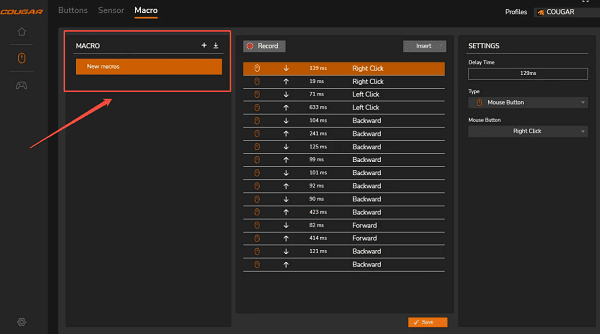
Record a new macro or assign a function such as copy, paste, or rapid-fire.
Apply the settings.
Change RGB Lighting:
Go to the RGB or LED settings panel.
Choose the lighting mode such as static, breathing, or color cycle.
Adjust color, brightness, and speed.
Save your lighting profile.
Modify Polling Rate:
Locate the polling rate settings.
Select a polling rate such as 125 Hz, 500 Hz, or 1000 Hz depending on your preference.
Apply the configuration.
Troubleshooting Tips
Make sure your USB drivers are updated using Driver Talent X.
Connect the mouse directly to the motherboard rather than a USB hub.
Reinstall the CyberPowerPC mouse software if the control panel does not detect the device.
Restart Windows after making major configuration changes.
Conclusion
CyberPowerPC mouse software allows you to fully customize your gaming experience through DPI adjustments, macro programming, lighting control, and performance tuning.
By updating your system drivers first with Driver Talent X and then following the download and setup steps in this guide, you can ensure smooth performance and maximum compatibility for your gaming mouse.









