The Dell D3100 docking station is a versatile and powerful accessory that significantly enhances your laptop's connectivity, allowing you to add multiple displays, USB peripherals, and network connections. Whether you're working from home, at the office, or just need additional ports for your devices, a docking station is a valuable tool. However, to ensure that your Dell D3100 docking station operates at peak performance, it is crucial to keep the drivers up to date. Drivers are the software that enables your operating system to communicate with the hardware of your docking station.Why Updating Dell D3100 Docking Station Drivers Matters
Why Updating Dell D3100 Docking Station Drivers Matters
Improved Compatibility: As new versions of operating systems are released, older drivers may become incompatible. Updated drivers ensure that your docking station works seamlessly with the latest OS versions
Bug Fixes and PerformanceEnhancements: Driver updates can fix known bugs and enhance the overall performance of the docking station, such as improving data transfer speeds or fixing issues with display outputs
Security Updates: Outdated drivers can expose your system to security vulnerabilities. Regular updates help protect your system from security risks
Better Functionality: Updating your drivers ensures that your docking station works optimally, with better support for external displays, USB devices, audio peripherals, and more
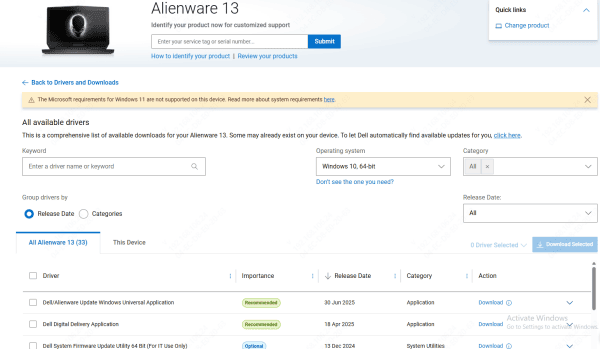
Method 1: Using Dell's Official Support Website
Visit the Dell Support Website
In the Search bar, type Dell D3100 Docking Station or enter your service tag if you have one
Select the appropriate product from the list
Navigate to the Drivers & Downloads section
Locate the USB or Docking Station drivers section
Download the latest driver for your Dell D3100
Once downloaded, open the installer and follow the on-screen instructions to complete the installation
Method 2: Using Device Manager in Windows
Press Windows + X and select Device Manager
In the Device Manager window, expand the Universal Serial Bus controllers or Display Adapters section, where the docking station drivers are usually listed
Right-click on the Dell D3100 Docking Station device and select Update Driver
Choose Search automatically for updated driver software
Allow Windows to search for and install any available updates for the docking station
Restart your system to apply the new driver

Method 3: Using Driver Talent X (Recommended for Automated Updates)
Download Driver Talent X
Go to the official Driver Talent X website and download the software
Run the installer and follow the on-screen prompts to complete the setup
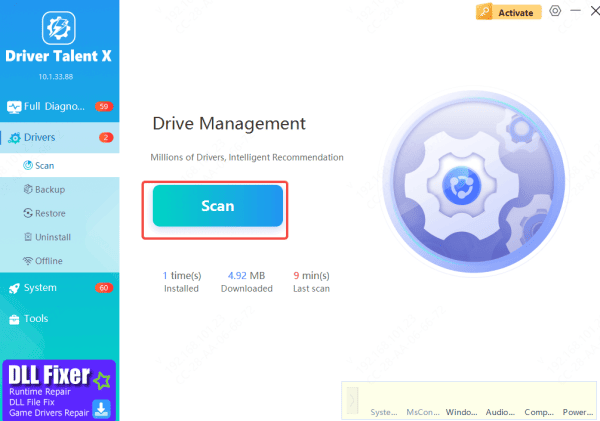
Scan for Outdated Drivers:
Open Driver Talent X
Click on Drivers and select Scan
Let the software scan your system for outdated or missing drivers
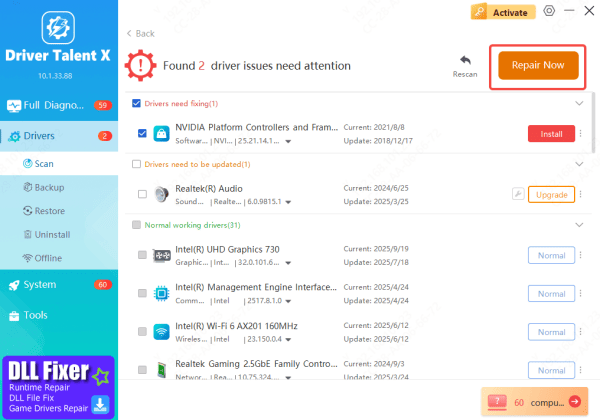
Update Drivers
Once the scan is complete, locate the Dell D3100 drivers from the list
Click Repair Now to automatically download and install the latest compatible driver
Restart
After the installation is complete, restart your system to ensure the new drivers take effect
Driver Talent X not only saves time but also ensures you have the correct drivers for all your devices, helping you avoid compatibility issues and driver conflicts
Best Practices for Maintaining Updated Drivers
Regular Updates: Make a habit of checking for updates every few months, or after significant OS updates
Set Up Automatic Updates: Consider using tools like Driver Talent X to automate the process, ensuring you never miss an update
Backup Drivers: Always keep a backup of your current drivers, especially if you rely on certain configurations for work
Conclusion
Updating your Dell D3100 docking station drivers is essential to ensure optimal performance and compatibility with your devices. By following the methods above, you can easily update your drivers and address any issues you may encounter. Regular updates will not only improve functionality but also enhance your overall experience with the docking station. Don't forget, tools like Driver Talent X can automate the process, saving you time and ensuring that all your drivers are up to date and functioning as they should.









