
Updating drivers is an essential part of maintaining your Dell laptop or desktop on Windows 10. Drivers are the software components that allow your operating system to communicate with your hardware, including your graphics card, audio system, network adapters, and more. Keeping them up-to-date ensures optimal performance, enhances system stability, and can even improve security. This guide will take you through the importance of updating your Dell drivers, the various methods you can use to update them, and troubleshooting tips if you run into issues during the update process.
Method 1: Using Dell SupportAssist
Download and install Dell SupportAssist from Dell's official website (if it's not already installed)
Open SupportAssist, and it will automatically scan your system for missing or outdated drivers
Follow the on-screen instructions to update your drivers. The tool will install the latest dell drivers for you automatically

Method 2: Manually Updating Drivers through Device Manager
You can update drivers manually through Device Manager in Windows 10:
Press Windows + X and select Device Manager
Locate the category for the device you want to update (e.g., Display Adapters for graphics card drivers, Network Adapters for Wi-Fi drivers)
Right-click on the device and choose Update driver
Choose Search automatically for updated driver software. Windows will check for available updates online
If an update is found, follow the prompts to install it
This method works well for updating individual drivers, but it requires more hands-on involvement.

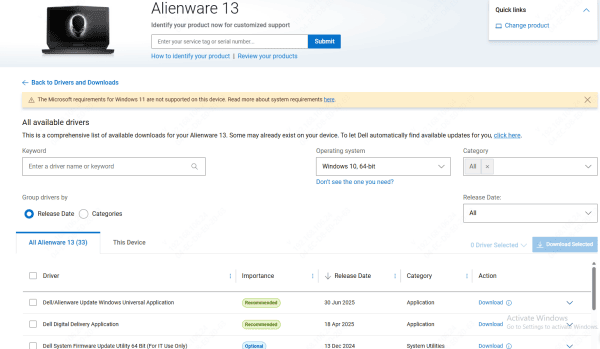
Method 3: Downloading Drivers from Dell's Official Website
For a more manual approach, you can download drivers directly from Dell's support page:
Go to the Dell Support website
Enter your Dell system's Service Tag or use the Detect PC feature
Navigate to the Drivers & Downloads section
Select your operating system (Windows 10)
Choose the driver category (e.g., Network, Audio, Graphics) and download the latest version of the driver
After downloading, run the installer and follow the on-screen instructions
This method allows you to control exactly which drivers you're installing, and it's ideal for advanced users.
Method 4: Using Driver Talent X
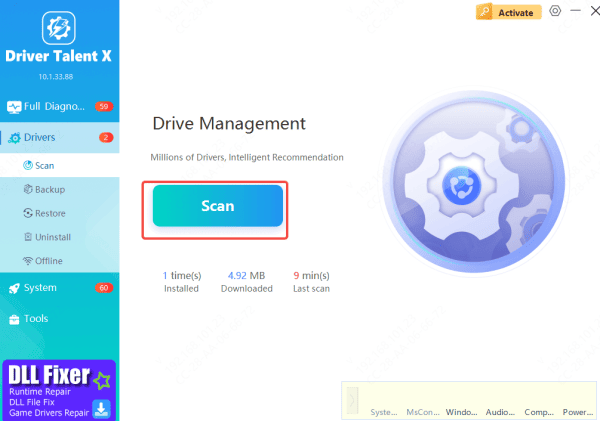
Driver Talent X is an automated tool that can simplify the process of finding and installing Dell drivers:
Download and install Driver Talent X from its official website
Open the software and go to the Drivers tab
Click Scan to check your system for missing or outdated drivers
Select the drivers you want to update and click Repair Now or Update
Restart your system to apply the new drivers
What to Do If Driver Updates Don't Work
Occasionally, you may run into issues after updating your drivers. Here's how to troubleshoot common problems:
Driver Not Found or Missing: If your device doesn't appear after updating, try restarting your system. If that doesn't work, use Device Manager to uninstall the driver and reinstall it from Dell's website or through Driver Talent X
Blue Screen of Death (BSOD) After Driver Update: You can do this by right-clicking the device in Device Manager, selecting Properties, and choosing Rollback Driver
Device Not Functioning Properly: If the driver update seems to have worked but the device isn't functioning as expected (e.g., Wi-Fi connectivity is still slow), you can try reinstalling the driver or rolling it back to the previous version
Conclusion
Updating Dell drivers is an essential task for ensuring your system runs smoothly and securely. Whether you use Dell SupportAssist for automatic updates, manually download drivers from the Dell website, or rely on tools like Driver Talent X for convenience, keeping your drivers up-to-date ensures that your hardware and software are fully compatible with each other. Regular driver updates not only improve performance and stability but also reduce the risk of security vulnerabilities. By following the methods outlined in this guide, you can keep your Dell computer running in top form for years to come.









