
Dell docking stations are designed to expand your laptop's connectivity, allowing you to use external monitors, keyboards, mouse, Ethernet, audio devices, and charging through a single connection.
However, if the required Dell docking station drivers are not working properly, you may encounter issues such as no display output, USB ports not responding, network failure, or charging problems. This guide explains the most common causes and provides step-by-step solutions to restore full docking station functionality.
Update Drivers First Using Driver Talent X
Outdated, missing, or incompatible drivers are the most common reason Dell docking stations fail to work correctly. Before trying hardware-level fixes, it is strongly recommended to update all related drivers using Driver Talent X, which can automatically detect and install the correct versions for your system.
Download and Install:
Use your laptop's built-in keyboard and an external mouse to navigate.
Download and install the Driver Talent X application onto your Dell laptop.
Run Scan:
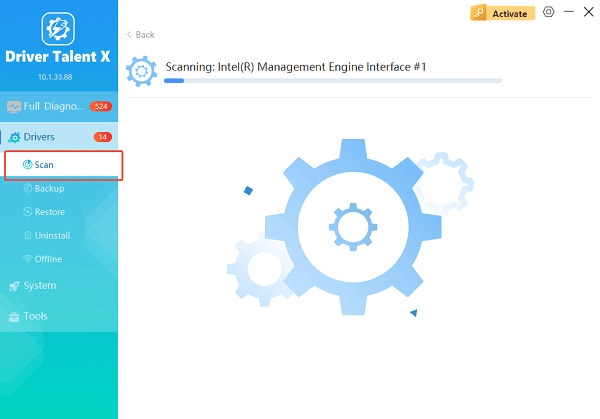
Launch the application and go to "Drivers" > "Scan", click "Scan".
Wait while the tool scans system drivers, including graphics, USB controllers, Thunderbolt, network, and docking-related components.
Execute Update:
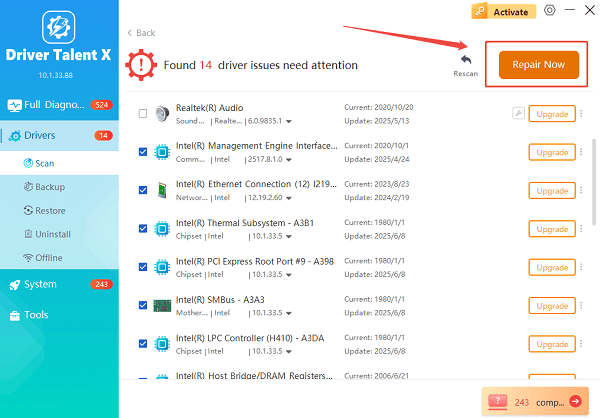
After the scan is complete, the software will display a list of all drivers that need attention.
Select the necessary drivers (prioritizing the Chipset, Thunderbolt, and BIOS) and click the "Repair Now" button. Driver Talent X will download the latest, certified drivers specific to your Dell model.
Restart Your Computer:
Allow the driver installation process to finish completely.
Restart your laptop to apply the changes.
Updating drivers at this stage resolves most docking station issues, especially after Windows updates or system upgrades.
Common Causes of Dell Docking Station Driver Issues
Understanding the root cause can help you choose the right solution:
Outdated USB, Thunderbolt, or display drivers
Incompatible drivers after a Windows update
Missing Dell dock firmware
Faulty USB-C or Thunderbolt configuration
Power delivery or cable issues
BIOS settings not optimized for docking stations
Fix 1: Check Physical Connections and Power Supply
Disconnect the docking station from your laptop.
Unplug the docking station's power adapter from the wall.
Wait at least 30 seconds.
Reconnect the power adapter firmly.
Connect the docking station to your laptop using the original Dell cable.
Avoid using adapters or third-party cables, especially for Thunderbolt docks.
Insufficient power or loose connections can prevent the dock from being detected correctly.
Fix 2: Verify Thunderbolt and USB-C Settings in BIOS
Many Dell docks rely on Thunderbolt or USB-C features that can be disabled in BIOS.
1. Restart your Dell laptop.
2. Press F2 repeatedly to enter BIOS setup.
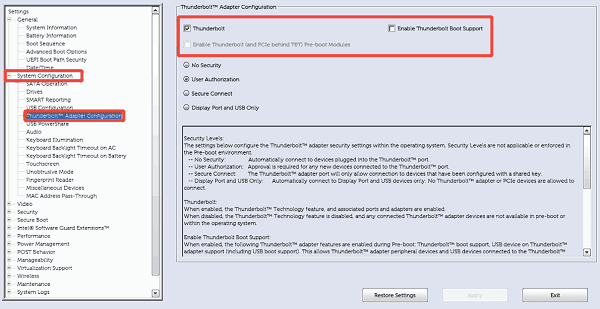
3. Navigate to "System Configuration" or "Advanced Settings".
4. Ensure the following options are enabled:
Thunderbolt Technology
USB-C Support
External USB Ports
5. Save changes and exit BIOS.
6. Restart your system and reconnect the docking station.
Fix 3: Reinstall Docking Station Drivers via Device Manager
If drivers are installed but malfunctioning, reinstalling them can help.
Right-click the Start button and select "Device Manager".
Expand "Universal Serial Bus controllers" and "Display adapters".
Right-click each relevant device and select "Uninstall device".
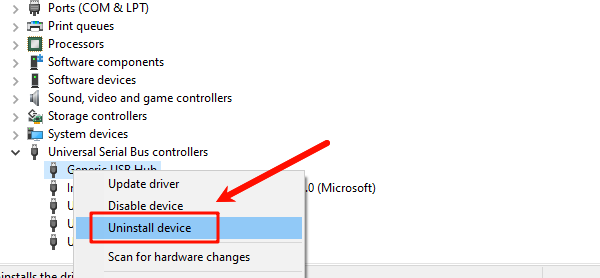
Check the option to delete the driver software if available.
Restart your laptop.
Windows will automatically reinstall the default drivers.
After rebooting, reconnect the docking station and test all ports.
Fix 4: Update Dell Dock Firmware
Some Dell docking stations require firmware updates to function correctly with newer systems.
Identify your docking station model (for example, WD19, WD22TB4).
Download the latest firmware from Dell's official support site.
Disconnect all peripherals from the dock.
Run the firmware update tool as administrator.
Follow the on-screen instructions carefully.
Restart your laptop after the update completes.
Firmware updates often fix display flickering, Ethernet dropouts, and USB detection problems.
Fix 5: Check Windows Power and USB Settings
Power management settings can disable dock ports to save energy.
Open Device Manager.
Expand "Universal Serial Bus controllers", right-click each USB Root Hub and select "Properties".
Go to the Power Management tab, uncheck "Allow the computer to turn off this device to save power".
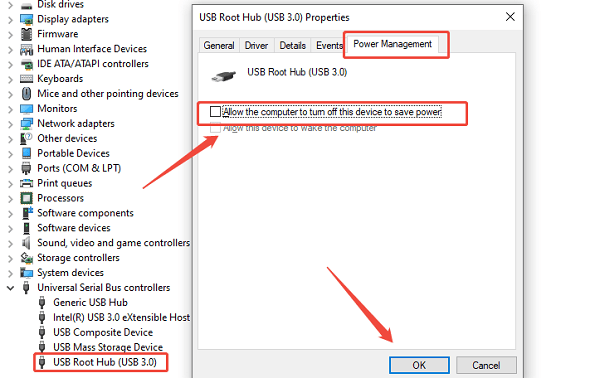
Click OK and repeat for all USB Root Hub entries.
Restart your system.
Fix 6: Test the Dock on Another Device
To rule out hardware failure:
Connect the Dell docking station to another compatible laptop.
Check whether displays, USB ports, and Ethernet work properly.
If the dock fails on multiple devices, the docking station itself may be defective.
When to Consider Hardware Replacement
If all drivers are updated, firmware is current, and BIOS settings are correct, but the docking station still does not work, the issue may be due to internal hardware failure. In such cases, contacting Dell support or replacing the docking station may be necessary.
Conclusion
When Dell drivers for docking stations are not working, driver conflicts and outdated components are usually the main cause. Updating drivers early using Driver Talent X provides the fastest and most reliable fix. Combined with BIOS checks, firmware updates, power configuration adjustments, and proper cable usage, these solutions can restore full docking station functionality and ensure stable performance for your Dell laptop.
See also:
How to Update Graphics Driver Intel on Windows PC
HP Drivers Download – Official and Safe Methods for Windows









