
The Dell Inspiron laptop series is designed to offer a balanced blend of features, reliable performance, and value for everyday computing, multimedia consumption, and light productivity tasks. The Inspiron line targets students, families, and general users seeking dependability without the premium price of the XPS or Latitude lines.
To truly unlock the reliable performance and intended features of your Inspiron, maintaining system stability is non-negotiable. This overview covers the core features, expected performance, and the essential steps needed to keep your Dell Inspiron running at its peak efficiency.
Part I: Driver Integrity and System Synchronization
Inspiron laptops rely heavily on tightly integrated system drivers for features like power management, display synchronization, and Wi-Fi stability. Outdated or conflicting drivers are the primary cause of throttling and unexpected issues.
Automated Driver Update with Driver Talent X
Manually updating the various chipset, ACPI (power management), and Intel/AMD graphics drivers can be time-consuming and prone to errors. A specialized utility simplifies this by identifying and installing the correct, manufacturer-specific driver versions for your Dell Inspiron configuration.
Download and Install:
Click the "Download" button to download the software package.
Install it on your Dell Inspiron laptop.
Run Scan:
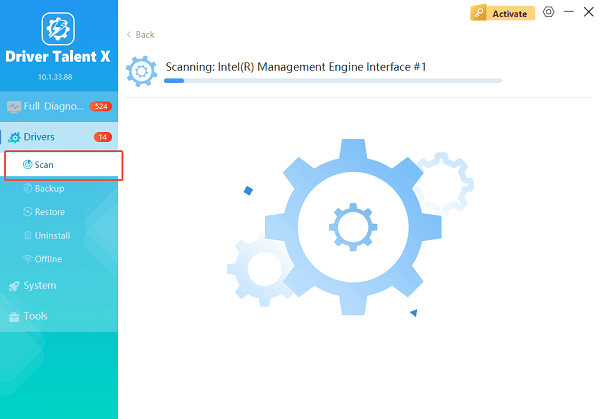
Launch the application and go to "Drivers" > "Scan", click "Scan".
The software will perform a deep analysis of your system, focusing on core components vital to laptop performance.
Execute Clean Update:
After the scan is complete, the software will display a list of all drivers that need attention. Select the necessary drivers and click the "Upgrade" or "Repair Now" button.
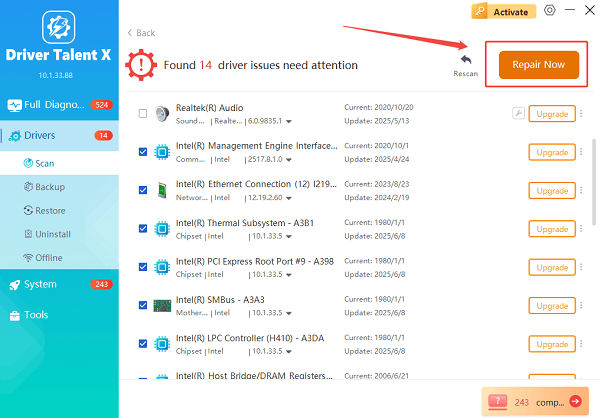
Driver Talent X will download the latest, certified drivers that are customized for your specific Dell Inspiron model, which is critical for smooth performance and battery life.
Finalize:
After the installation is complete, restart your computer to integrate the new drivers fully.
Part II: Core Features and Expected Performance
The Inspiron series is categorized by its ability to handle general computing tasks efficiently and reliably.
Key Features
Display Quality: Inspiron models typically offer vibrant, anti-glare FHD (1920x1080) displays, with many featuring touch capabilities and 2-in-1 hinge designs.
Processor Options: Configuration options include recent generations of Intel Core i3/i5/i7 or AMD Ryzen 3/5/7 processors, balancing multi-core efficiency for multitasking.
Port Selection: Excellent connectivity, usually including USB Type-C, multiple USB-A ports, an HDMI out, and an SD card reader, making it highly versatile.
Performance Benchmarks (Expected Use Cases)
The Inspiron excels at managing multiple standard applications simultaneously.
Multitasking: Handling 10-15 Chrome tabs, Microsoft Word, and Spotify running concurrently is standard for mid-range Inspiron models.
Productivity: Fast boot times and rapid file loading thanks to NVMe SSD storage (standard on most new models).
Light Gaming/Editing: Capable of running less demanding games (e.g., Minecraft, Fortnite at lower settings) and handling basic photo editing tasks with integrated graphics.
Part III: Optimization and Longevity Fixes
These steps ensure your Inspiron runs efficiently over its lifetime, preventing slowdowns and maximizing battery life.
Method 1: Use Dell Power Manager (or MyDell App)
Dell provides specialized software to manage thermal profiles, which is essential for performance on thin laptops.
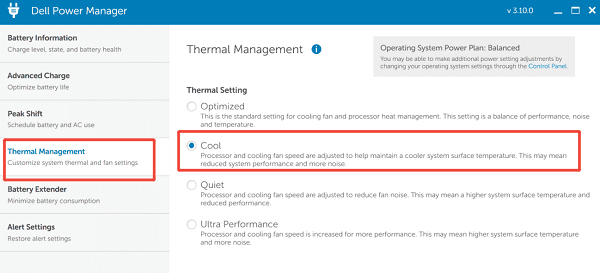
Launch Utility: Open the pre-installed Dell Power Manager or MyDell application.
Adjust Thermal Management: Navigate to the "Thermal Management" or "Power settings".
Set Performance Mode: If you need sustained speed (e.g., for a video conference), set the mode to "Ultra Performance" or "Cool". For battery life, set it to "Quiet" or "Optimized". This ensures the CPU behaves predictably.
Method 2: Check Battery Health and Charging Mode
Managing battery charging cycles can significantly extend the lifespan of your Inspiron battery.
Open Dell Power Manager.
Navigate to "Battery Information" or "Battery Health".
Check the Health Status. If it shows "Excellent" or "Good", the battery is healthy.
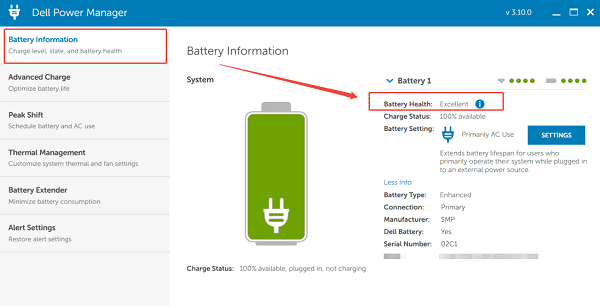
Consider setting the Charge Mode to "Adaptive" or "Primarily AC Use" if the laptop is mostly plugged in. This avoids fully charging the battery to 100%, prolonging its lifespan.
Method 3: Configure Windows Startup Items
Too many background programs slow down startup times and consume precious resources.
Press Ctrl + Shift + Esc to open the Task Manager.
Go to the "Startup" tab.
Right-click and select "Disable" any non-essential application that has a high impact and doesn't need to run immediately upon booting (e.g., Spotify, Steam, secondary update services).
Conclusion
The Dell Inspiron is a highly capable and versatile laptop series that offers great returns on investment when properly maintained. The most reliable strategy for sustained performance is to first ensure system-wide driver integrity and synchronization with Driver Talent X.
By combining this foundational fix with using the Dell Power Manager to optimize thermal output and carefully configuring startup items, you guarantee a smooth, efficient, and long-lasting computing experience.
See also:
Canon CanoScan LiDE 100 Not Recognized? Try These Fixes
How to Fix Knup Keyboard Connection Issues – Working Driver Solutions
Canon IR2520 UFRII LT Driver Not Recognized? Try These Fixes
Can't Print with HP LaserJet M1120 MFP? Complete Troubleshooting Guide









