
If you're facing issues with your Dell Inspiron touchpad not responding, it can be frustrating, especially when you're used to the convenience of using the touchpad for navigation. Fortunately, most touchpad issues are caused by software glitches, incorrect settings, or outdated drivers, and can be easily fixed with a few simple steps. This guide will walk you through the troubleshooting process to get your Dell Inspiron touchpad working again.
Check Touchpad Settings
One of the most common reasons for a non-functional touchpad is that it's accidentally disabled through settings. Here's how to check and enable it:
Open Settings by pressing Windows + I
Go to Devices → Touchpad
Ensure the toggle for "Touchpad" is turned on
You can also adjust the sensitivity and other touchpad settings here
Sometimes, the touchpad might also be disabled through function keys (e.g., F3 on some models) Look for an icon that resembles a touchpad and press the corresponding function key while holding down the Fn key to enable it

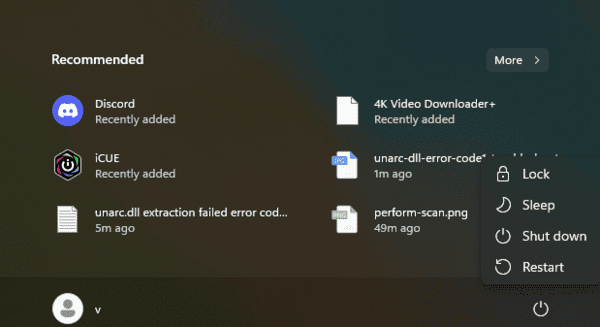
Restart Your Laptop
Sometimes, a simple restart is all it takes to solve a touchpad problem
Software issues or temporary glitches can be resolved by restarting your laptop
If you've made changes to settings or installed software recently, restarting can help those changes take effect
Update Touchpad Driver
Outdated or corrupted drivers can prevent your touchpad from functioning properly. Here's how you can update or reinstall the touchpad driver:
Update via Device Manager
Press Windows + X and select Device Manager
Scroll down to Mice and other pointing devices and expand the section
Right-click on your touchpad device (e.g., "Dell Touchpad" or "Synaptics Touchpad") and select Update Driver
Choose Search automatically for updated driver software

Use Driver Talent X
If manual updating feels like a hassle, you can use Driver Talent X, which automatically detects, downloads, and installs the latest drivers for your Dell Inspiron laptop, including touchpad drivers. It eliminates the risk of installing incorrect drivers and ensures that you're always up to date.
Download and Install Driver Talent X
Click the Download button to get the Driver Talent X installer from the official website
Once downloaded, run the installer and follow the on-screen instructions to complete the setup
Run a System Scan
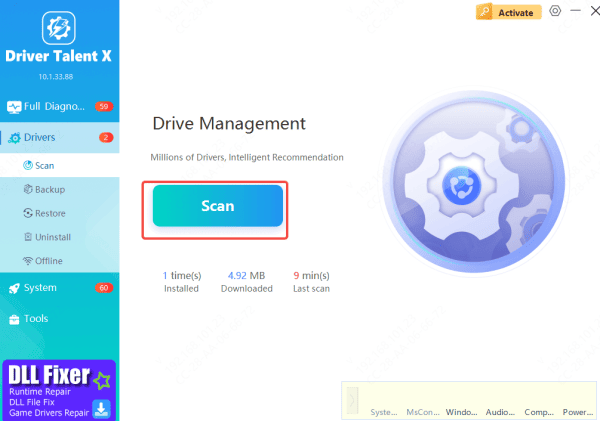
Open Driver Talent X and navigate to Drivers → Scan
Click Scan to let the software analyze your system in detail, identifying outdated or missing drivers, including touchpad, input, and chipset drivers
Update and Repair Drivers
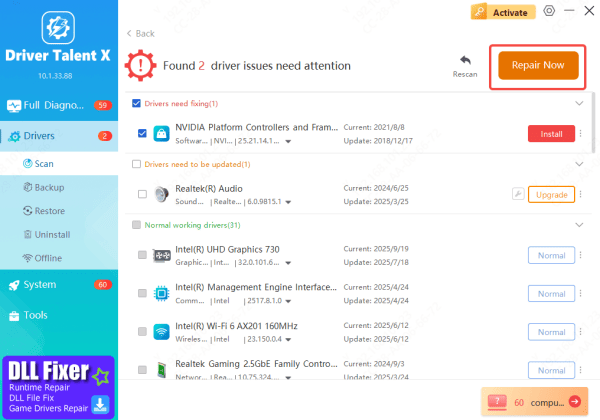
After scanning, Driver Talent X will present a list of drivers that require updates or repairs
Select all relevant drivers, including touchpad and chipset drivers, and click Repair Now
Check for Hardware Issues
If the touchpad still isn't working, it's important to rule out hardware problems. Inspect your touchpad for any visible signs of physical damage
Clean the surface gently using a microfiber cloth
Also, if you have an external mouse connected, try disconnecting it and see if the touchpad starts working. External devices might sometimes interfere with the laptop's internal pointing devices
Enable Touchpad in BIOS
Sometimes, the touchpad might be disabled in the BIOS (Basic Input/Output System) settings, especially after a system update or BIOS reset. To check if it's disabled at the hardware level:
Power off your laptop
Power it on and immediately press the F2 key (or whichever key prompts BIOS setup for your system)
Navigate to the Advanced tab or Integrated Peripherals section
Check if the touchpad is enabled. If it's disabled, enable it and save the changes by pressing F10 to exit

Perform System Restore
If the touchpad issue started after a recent update or software installation, performing a system restore can take your laptop back to a point where the touchpad was working correctly. Here's how:
Press Windows + R and type rstrui to open System Restore
Follow the on-screen instructions to choose a restore point before the issue began
Once restored, check if your touchpad is working again

Check for Windows Updates
Outdated Windows system files can cause driver incompatibilities, including issues with your touchpad. Make sure your Windows operating system is fully updated:
Go to Settings → Update & Security
Click on Check for Updates
Install any pending updates, then restart your laptop

Conclusion
Touchpad issues on your Dell Inspiron laptop can be frustrating, but most of the time, they can be resolved with a few simple troubleshooting steps. Whether it's checking the settings, updating drivers, or ensuring there are no hardware issues, these steps should help restore functionality. Regular updates and maintenance can help prevent such issues from arising in the future. And, for a quick and easy solution, Driver Talent X is a great tool for automatically keeping your drivers up to date.









