
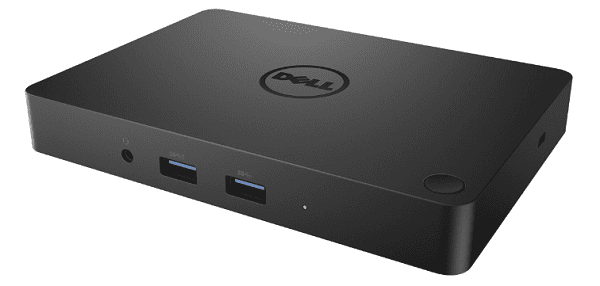
A Dell laptop docking station is essential for connecting external monitors, USB devices, network cables, and other peripherals. When the dock stops working, your display, keyboard, mouse, or charging functions may fail. This guide explains the common causes and provides detailed solutions, including how to update all required drivers using Driver Talent X.
Update Dell Drivers First Using Driver Talent X
Many docking station issues are caused by outdated USB, Thunderbolt, DisplayLink, chipset, or graphics drivers. Before attempting hardware fixes, update all related drivers using Driver Talent X.
Download and Install:
Use your laptop's built-in keyboard and an external mouse to navigate.
Download and install the Driver Talent X application onto your Dell laptop.
Run Scan:
Launch the application and go to "Drivers" > "Scan", click "Scan".
Wait while the tool scans system drivers, including graphics, USB controllers, Thunderbolt, network, and docking-related components.
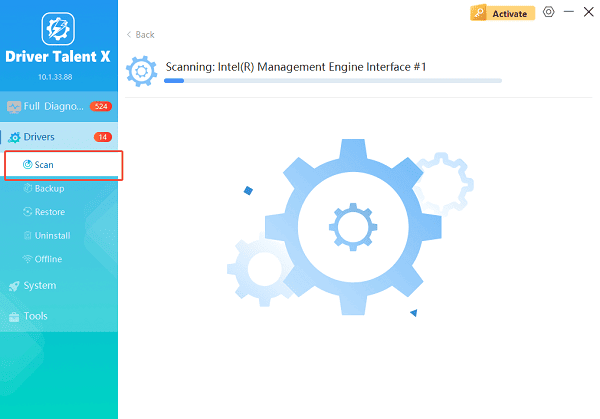
Execute Update:
After the scan is complete, the software will display a list of all drivers that need attention.
Select the necessary drivers (prioritizing the Chipset, Thunderbolt, and BIOS) and click the "Repair Now" button. Driver Talent X will download the latest, certified drivers specific to your Dell model.
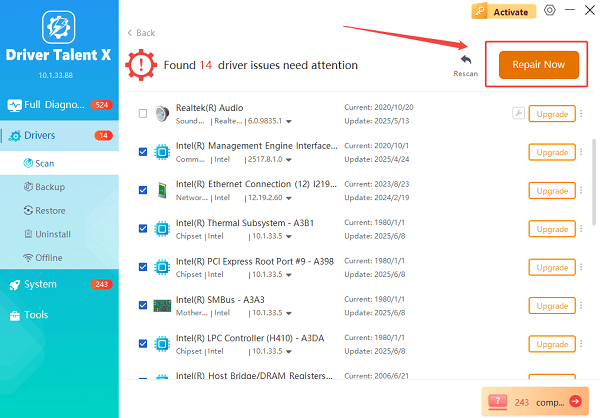
Restart Your Computer:
Restart your laptop to apply updated firmware and driver configurations.
Reconnect the docking station and check whether displays, network, or USB ports work correctly.
If the problem persists after updating all drivers, continue with the following fixes.
1. Check the Docking Station's Power Supply
A docking station may not function if the AC adapter is not connected or is faulty.
What to do:
Confirm that the dock's power adapter is plugged into an active outlet.
Make sure the LED indicator on the dock is lit.
Replace the power adapter if the light does not turn on.
2. Verify the Connection Cable and Port
Loose or damaged cables are a common cause of failures.
Steps:
Unplug the cable connecting your laptop to the dock.
Inspect the cable for visible damage.
Reconnect firmly into the USB-C or Thunderbolt port.
Try another port if available.
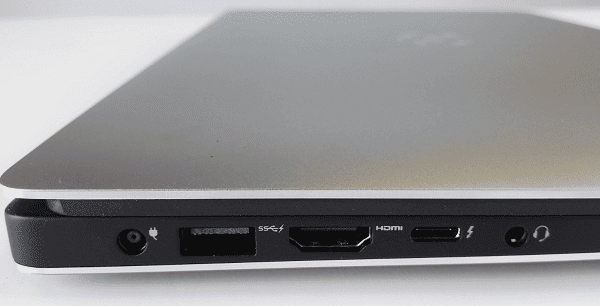
Swap the connection cable if you suspect it is faulty.
3. Perform a Docking Station Reset
Resetting can resolve firmware communication issues.
How to reset:
Disconnect the laptop from the docking station.
Unplug the dock's power cable.
Wait 30 seconds.
Plug the power back into the dock.
Reconnect the laptop.
4. Update Dell Dock Firmware
Dell docks require their own firmware updates to support new laptops and Windows updates.
Steps:
Visit the Dell Support website.
Enter your docking station model (WD19, D6000, WD22TB4, etc.).
Download the latest firmware update package.
Run the firmware installer with the dock connected.
Restart the system afterward.
5. Enable Thunderbolt or USB-C in BIOS
Some Dell laptops block docking functionality for security reasons.
Steps to check:
Restart your Dell laptop.
Press F2 during boot to enter BIOS.
Locate the Thunderbolt or USB-C configuration section.
Ensure that Thunderbolt Technology and External Ports are enabled.
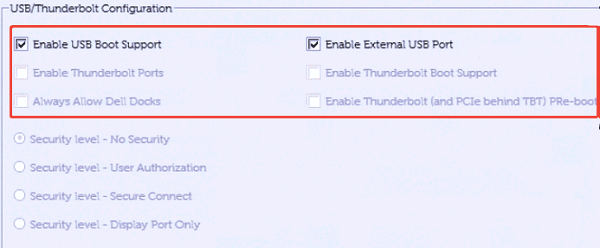
Save changes and restart.
6. Check Display Settings for Monitor Issues
If external monitors do not work, configure Windows display settings.
Steps:
Right-click the desktop and select "Display settings".
Click "Detect" to force Windows to look for external screens.
Set Multiple displays to "Extend" or "Duplicate".
Verify refresh rate and resolution settings.
7. Test USB Ports and External Devices
If USB ports on the dock are not working:
Connect the same device directly to the laptop to verify it functions.
Try different USB ports on the dock.
Disconnect unnecessary peripherals to prevent power overload.
8. Reinstall DisplayLink Drivers
Some Dell docks use DisplayLink technology.
Steps:
Download DisplayLink Installation Cleaner from the official site.

Run the cleaner tool.
Restart your laptop.
Install the latest DisplayLink driver from the official website.
9. Check Windows Power Settings
USB power saving settings can disable dock functionality.
Steps:
Open Device Manager.
Expand "Universal Serial Bus controllers", right-click each USB device and open "Properties".
In the Power Management tab, uncheck "Allow the computer to turn off this device to save power".

Restart your computer.
10. Try the Dock on Another Laptop
This helps determine whether the dock or the laptop is the problem.
If the dock does not work on multiple devices, it may require replacement.
Final Thoughts
A Dell docking station may stop working due to outdated drivers, incorrect BIOS settings, power issues, or faulty hardware. Updating all essential drivers with Driver Talent X should always be your first troubleshooting step, as it resolves many compatibility and communication problems automatically. If the issue continues, the additional solutions above will help identify and correct hardware, firmware, or configuration-related causes.
See also:
Solutions to Fix Monster Hunter Wilds Crashes
How to Fix Split Fiction Not Launching on Windows
[Fixed] Whoa! Cyberpunk 2077 Flatlined Error
Solutions for 'DirectX 12 Not Supported' Error on Windows 10









