
Discovering your Dell laptop keyboard is locked will halt all productivity. When the keyboard becomes unresponsive, but the rest of the computer works fine, the cause is usually a software glitch, a physical lock, or an incorrect system setting, not permanent hardware failure.
Before you consider a professional repair, there are several simple yet effective troubleshooting steps you can take to quickly restore full functionality. This guide provides step-by-step solutions to unlock your Dell keyboard, starting with the most efficient driver-based fix.
Part I: Driver and Software Integrity Checks
Keyboard locks often stem from conflicts with Human Interface Device (HID) drivers, chipset drivers, or BIOS firmware, especially after a system update.
Method 1: Automated Driver Update with Driver Talent X
Manually troubleshooting and updating the various input and controller drivers can be tedious. A specialized driver utility ensures that all necessary input and chipset drivers are perfectly compatible with your Dell hardware and Windows version, often resolving stubborn keyboard lock issues.
Preparation: Use an external working mouse or the On-Screen Keyboard (search for "On-Screen Keyboard" in the Start Menu) to navigate. Download and install the Driver Talent X application.
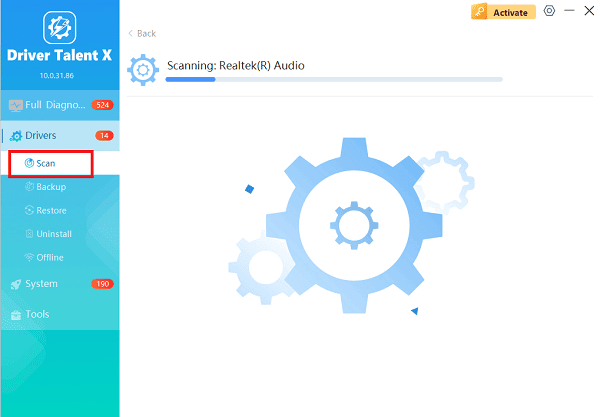
Run Scan:
Launch the application and go to "Drivers" > "Scan", click "Scan".
The software will perform a deep analysis of your system, focusing on peripheral and controller drivers.
Install the Update:
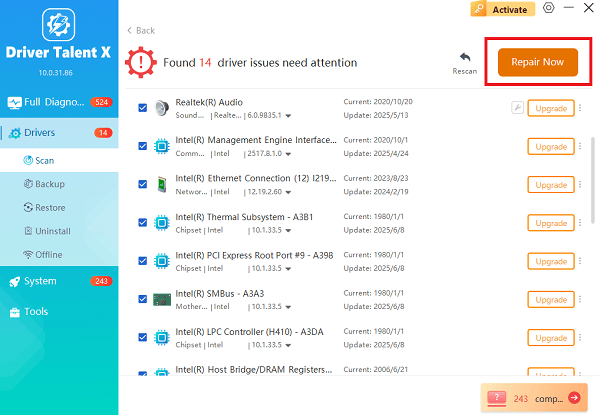
After the scan is complete, the software will display a list of all drivers that need attention.
Select the necessary drivers and click the "Upgrade" or "Repair Now" button. Driver Talent X will download the latest, certified versions specific to your Dell model.
Restart Your PC:
Once the installation is complete, restart your computer.
The new drivers should load correctly, resolving any software-induced keyboard lock.
Method 2: Reinstall Keyboard Driver via Device Manager
This process forces Windows to forget the existing driver configuration and install a fresh copy upon scanning.
Press Windows Key + X and select "Device Manager".
Expand the "Keyboards" category.
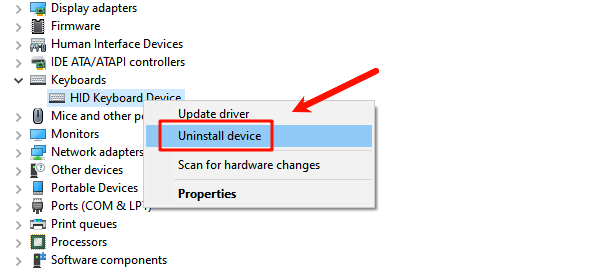
Right-click on your keyboard entry (often labeled as "HID Keyboard Device" or "Standard PS/2 Keyboard").
Select "Uninstall device". Do NOT check the box that says "Delete the driver software for this device".
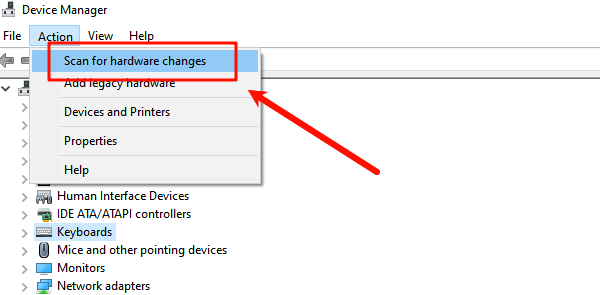
In the Device Manager menu, click "Action" > "Scan for hardware changes". Windows will automatically detect the uninstalled device and load a fresh default driver.
Restart the laptop to confirm the fix.
Part II: Physical and System Lock Checks
These solutions address accidental physical toggles or power glitches that can mimic a keyboard lock.
Method 1: Perform a Hard Reset
A hard reset clears residual electrical charge (flea power) that can interfere with the Embedded Controller (EC) and other keyboard circuits, often unlocking the keyboard.
Disconnect Everything: Turn off the laptop, unplug the AC adapter, and disconnect all peripherals.
Hold Power Button: Press and hold the power button for 30 seconds. This action drains all residual charge from the system.
Test: Reconnect the AC adapter and turn the laptop back on.
Method 2: Disable Accessibility Settings
Windows accessibility features, if enabled unintentionally, can lock or severely alter keyboard behavior.
Press Windows Key + I to open Settings.
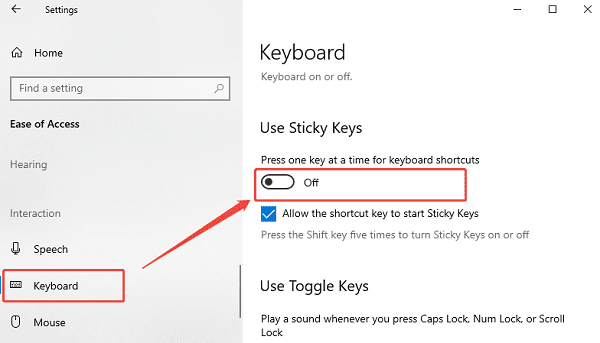
Navigate to "Ease of Access" > "Keyboard".
Ensure the "Filter Keys" toggle switch is set to "Off". Filter Keys is designed to ignore quick presses and can make the keyboard seem locked or unresponsive.
While in the same menu, also check the "Sticky Keys" setting and ensure it is set to "Off".
Method 3: Check Num Lock and Function (Fn) Keys
Certain Dell models use function key combinations that can inadvertently lock the keyboard or keypad.
Num Lock: Press the Num Lock key. Even if your laptop doesn't have a dedicated keypad, this key can sometimes be active and affect the main typing area.
Function Key Combinations: Try pressing the Fn key in combination with other keys such as F10, F12, or the Shift key, as some models use these as temporary locks.
Conclusion
A locked Dell laptop keyboard is usually a temporary issue caused by driver conflicts or a power glitch. The most effective strategy is to use Driver Talent X to ensure that your core system and input drivers are stable. By combining this with a Hard Reset and verifying accessibility settings, you can reliably diagnose and restore full typing capability to your Dell machine.
See also:
Qualcomm Atheros QCA61x4A Driver Download and Installation Guide
Network Adapter Not Working on Windows? Try These Fixes









