
Dell laptop keyboard is not working is a common issue, the symptoms include unresponsive keys, missing letters, function keys not working, or the entire keyboard failing to respond. These problems are usually caused by outdated or corrupted drivers, Windows update conflicts, incorrect settings, or hardware issues. This guide provides multiple effective solutions, starting with the most reliable and recommended method: updating drivers properly.
Update Dell Keyboard Drivers with Driver Talent X
Outdated or incompatible keyboard drivers are the most common cause of Dell laptop keyboard issues. Driver Talent X can automatically detect, download, and install the correct drivers for your Dell model and Windows version.
Download and Install:
Use an external working mouse or the on-screen keyboard (search for "On-Screen Keyboard" in the Windows search bar) to navigate.
Download and install the Driver Talent X application onto your Dell laptop.
Run Scan:
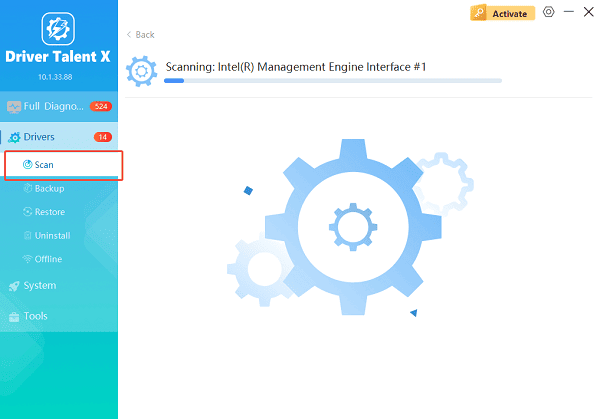
Launch the application and go to "Drivers" > "Scan", click "Scan".
Driver Talent X will analyze your system and identify outdated, missing, or faulty drivers, including keyboard and chipset drivers.
Install the Update:
After the scan is complete, the software will display a list of all drivers that need attention. Select the necessary drivers and click the "Repair Now" button.
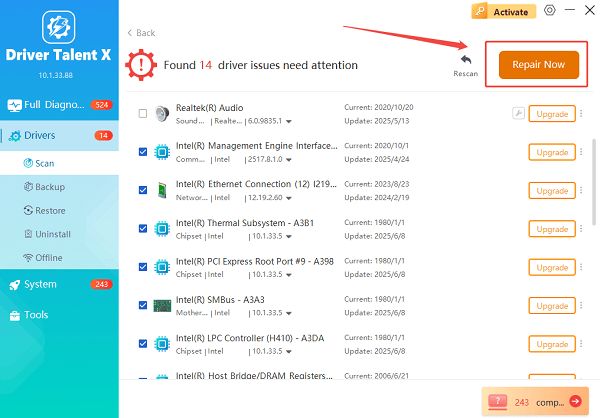
Driver Talent X will download the latest, certified versions, often resolving the lock issue instantly.
Restart your laptop:
Allow the process to finish fully. Do not shut down the system during installation.
Reboot the system to apply the driver changes properly.
In most cases, this step alone restores full keyboard functionality.
Common Causes of Dell Laptop Keyboard Not Working
Outdated or corrupted keyboard drivers
Windows updates causing driver conflicts
Disabled keyboard settings
BIOS or chipset issues
Physical connection problems inside the laptop
Liquid spills or dust buildup
Fix 1: Restart Windows Explorer
Temporary system glitches can disable keyboard input.
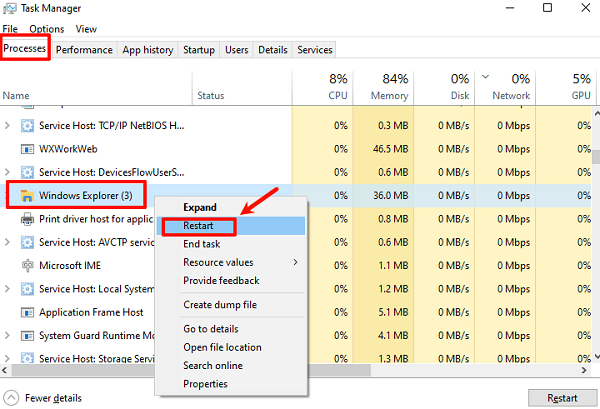
Press Ctrl + Alt + Delete and open Task Manager.
Locate Windows Explorer, right-click it and select "Restart".
If the keyboard partially works, restart the laptop fully.
Fix 2: Check Keyboard Settings in Windows
Incorrect settings may prevent keys from registering.
Open Settings.
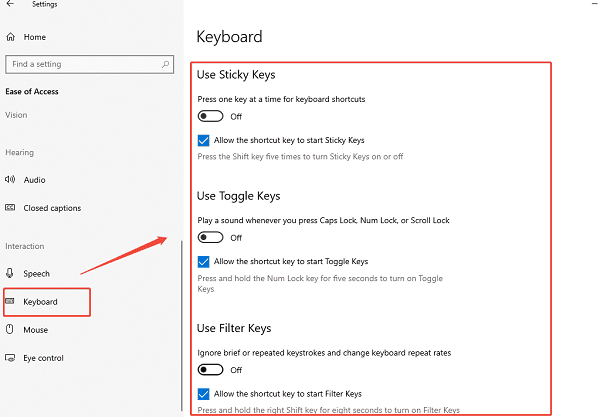
Go to Ease of Access > Keyboard.
Turn off Sticky Keys, Filter Keys, and Toggle Keys.
Open Control Panel > Keyboard.
Restore default repeat delay and repeat rate.
Fix 3: Reinstall Dell Keyboard Driver Manually
If updating does not work, reinstalling the driver can help.
Right-click Start and open Device Manager.
Expand the Keyboards section, right-click HID Keyboard Device and select "Uninstall device".
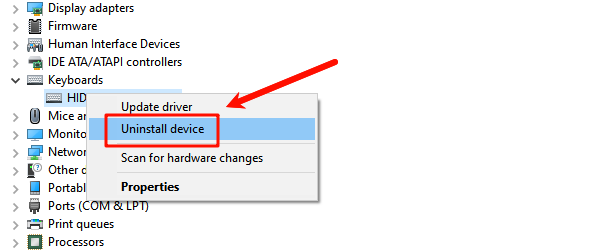
Check the option to delete the driver if available.
Restart your Dell laptop.
Windows will automatically reinstall the correct driver.
Fix 4: Update Dell BIOS and Chipset Drivers
Keyboard issues may be linked to outdated BIOS or chipset firmware.
Visit the official Dell support website.
Enter your Dell Service Tag.
Download the latest BIOS and chipset drivers.
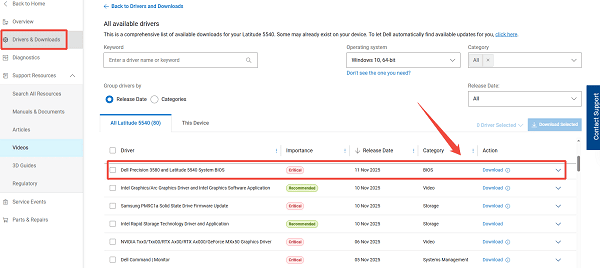
Install updates following Dell's instructions carefully.
Restart the laptop after installation.
Fix 5: Check for Windows Update Conflicts
Recent Windows updates may break driver compatibility.
Open Settings.
Go to Update & Security> Windows Update > Check for updates.
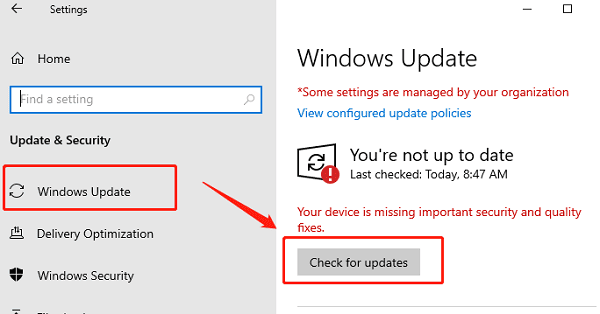
Check for pending updates and install them.
If the issue started after a recent update, use Update History to uninstall the problematic update.
Fix 6: Test with an External Keyboard
This helps determine whether the issue is hardware-related.
Connect a USB external keyboard.
If the external keyboard works normally, the built-in keyboard may have a hardware issue.
If it does not work, the problem is likely software-related.
Fix 7: Inspect for Hardware Damage
If none of the software solutions work, hardware may be the cause.
Check for liquid spills or physical damage.
Clean the keyboard area gently with compressed air.
Contact Dell support or a certified repair technician if internal connections are damaged.
How to Prevent Dell Keyboard Problems
Keep keyboard and chipset drivers updated with Driver Talent X
Avoid forced shutdowns during Windows updates
Protect the keyboard from dust and liquid spills
Restart the system regularly to prevent driver conflicts
Conclusion
When a Dell laptop keyboard is not working, outdated drivers and system conflicts are usually the main reasons. Updating drivers using Driver Talent X should always be the first step, followed by checking Windows settings, reinstalling drivers, updating BIOS, and inspecting hardware. By following these proven solutions, you can quickly restore keyboard functionality and prevent similar issues in the future.
See also:
How to Fix CoD Vanguard Not Launching on PC
How to Resolve Crashing Issues in Warframe









