
A non-functional mouse on a Dell laptop may be caused by outdated drivers, software conflicts, hardware issues, or misconfigured settings. This guide provides detailed steps to update drivers with Driver Talent X to ensure proper hardware functionality and prevents potential conflicts with the mouse. And also provides multiple methods to fix a Dell laptop mouse that is not working.
Update Drivers First with Driver Talent X
Updating drivers is essential to fix hardware-related issues such as a malfunctioning mouse. Driver Talent X scans your system for outdated or corrupted drivers and installs the latest versions automatically.
Download and Install:
Use an external working mouse or the keyboard (use the Tab key and arrow keys for navigation) to download the installer. Save it to your computer.
Run the installer and follow the on-screen prompts. Choose the installation folder and complete the setup.
Run Scan:
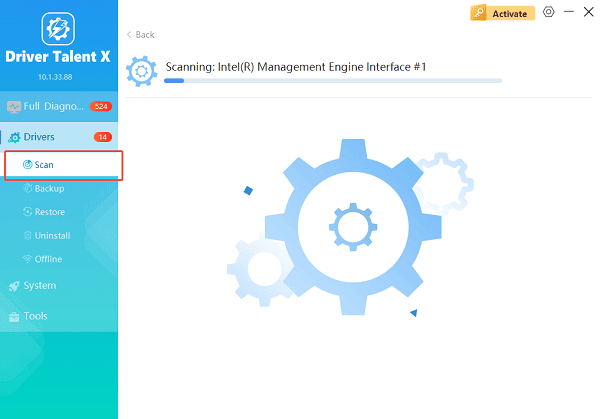
Open the program from the desktop shortcut or Windows Start menu, go to "Drivers" > "Scan", click "Scan".
Driver Talent X will analyze all drivers, including mouse, touchpad, USB controllers, and system chipset drivers.
Update All Drivers:
After the scan is complete, the software will display a list of all drivers that need attention. Select the necessary drivers and click the "Repair Now" button.
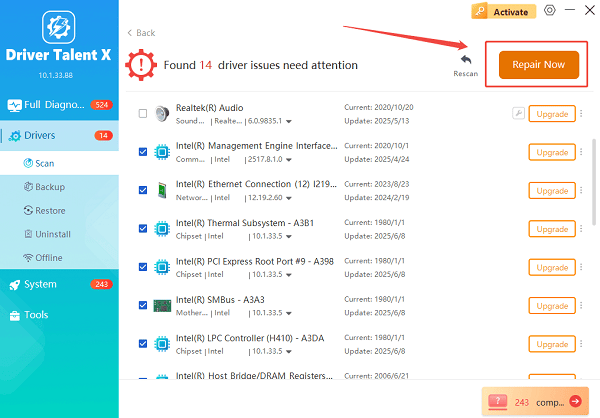
Driver Talent X will download the latest, certified versions specific to your Dell model.
Restart Your Laptop:
Reboot the system to apply all driver updates properly.
Once the drivers are updated, your system is ready for further troubleshooting.
Causes of Mouse Not Working on Dell Laptops
Outdated or Corrupted Drivers: A missing or outdated mouse driver can prevent proper functionality.
Touchpad Disabled: Some Dell laptops have a function key that disables the touchpad.
USB Port Issues: External mice may not work if the USB port is damaged or malfunctioning.
Software Conflicts: Third-party software or antivirus programs may block mouse functionality.
Hardware Problems: Faulty internal touchpads or external mice can cause issues.
How to Fix Dell Laptop Mouse Issues
Method 1: Enable the Touchpad
Press Fn + F3/F5/F7 (varies by model) to toggle the touchpad on.
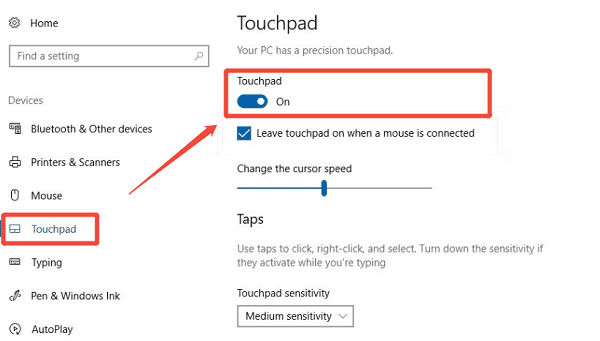
Go to Settings > Devices > Touchpad and ensure the touchpad is enabled.
Method 2: Check USB Connections for External Mouse
Disconnect and reconnect the USB mouse.
Test the mouse in another USB port.
Replace the mouse if it still does not work on multiple ports.
Method 3: Restart the Dell Laptop
Shut down the laptop completely.
Unplug any external peripherals.
Power it back on and test the mouse.
Method 4: Reinstall Mouse Driver via Device Manager
Press Windows + X and select Device Manager.
Expand "Mice and other pointing devices", right-click the mouse device and select "Uninstall device".
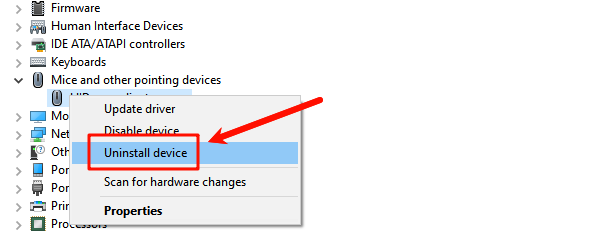
Restart your laptop. Windows will automatically reinstall the driver, or you can use Driver Talent X to reinstall the latest driver.
Method 5: Disable Conflicting Software
Temporarily disable antivirus or security software.
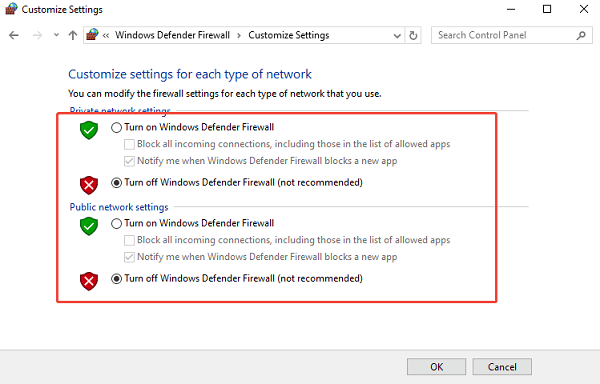
Test mouse functionality.
Adjust software settings if it interferes with the device.
Method 6: Update Chipset Drivers
Use Driver Talent X to update your system chipset drivers.
Restart your laptop and verify if the mouse works properly.
Method 7: External Mouse as Temporary Solution
Connect a USB or wireless mouse.
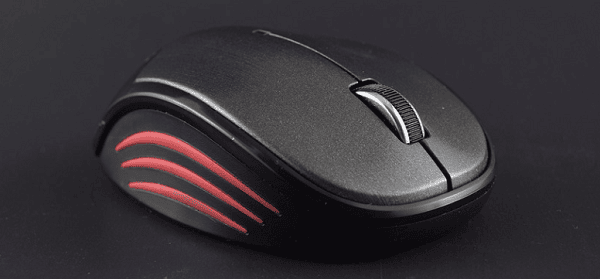
If the external mouse works, the issue may be with the internal touchpad.
Consider servicing the touchpad if the internal device is defective.
Tips for Maintaining Proper Mouse Functionality
Keep all drivers updated using Driver Talent X.
Avoid exposing the laptop to liquids or excessive dust that can affect the touchpad.
Regularly check system settings for accidental touchpad disabling.
Ensure your Windows operating system is up to date.
Conclusion
A Dell laptop mouse that is not working can be caused by driver issues, touchpad settings, USB port problems, software conflicts, or hardware malfunctions. By first updating all drivers with Driver Talent X and following multiple troubleshooting methods, you can restore mouse functionality and prevent recurring problems. Regular maintenance and driver updates ensure smooth operation for both internal and external pointing devices.
See also:
Solutions to Fix Monster Hunter Wilds Crashes
How to Fix Split Fiction Not Launching on Windows
[Fixed] Whoa! Cyberpunk 2077 Flatlined Error
Solutions for 'DirectX 12 Not Supported' Error on Windows 10









