
A Dell laptop showing a black screen after startup is a common issue affecting Inspiron, XPS and Latitude models. The problem can be caused by driver failures, corrupted system files, display hardware faults, or incorrect boot configurations. This guide provides detailed solutions, starting with updating your graphics and system drivers using Driver Talent X, followed by a full set of proven troubleshooting methods.
Update Graphics and System Drivers First
Outdated or faulty graphics drivers are one of the most common causes of a black screen after startup. Updating your drivers is a critical first step before applying hardware-level fixes.
Update Drivers with Driver Talent X
Download and Install:
Click the "Download" button to download the software package.
Install the program on a working Windows PC or boot into Safe Mode with Networking if your main display is black.
Scan your system:
Open the software once installation is complete, go to "Drivers" > "Scan", click "Scan".
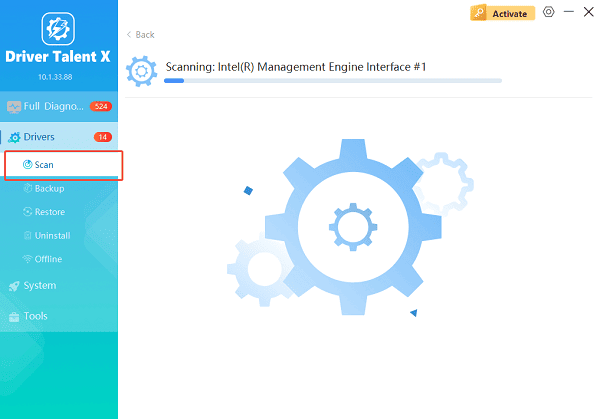
Driver Talent X will perform a full scan of all hardware components, including your GPU, chipset and display adapters.
Update the drivers:
After the scan is complete, the software will display a list of all drivers that need attention. Select the necessary graphics drivers and click the "Upgrade" or "Repair Now" button.
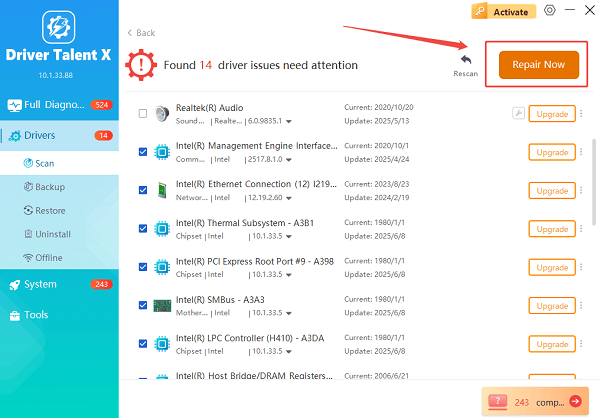
Driver Talent X will first perform a thorough cleanup of any conflicting older files, then reliably download and execute a completely clean installation of the latest certified drivers.
Restart Your Computer:
Reboot the laptop and check if the screen displays normally after startup.
Driver Talent X ensures a clean installation of certified drivers, helping eliminate driver corruption as a root cause.
Other Effective Fixes for Dell Black Screen After Startup
If updating your drivers did not resolve the issue, continue with the following solutions.
1. Perform a Hard Reset
A hard reset clears residual power and restores the display connection.
Turn off the laptop.
Disconnect the power adapter. Remove any USB devices.
Hold the power button for 15–20 seconds.
Reconnect the power adapter and start the laptop.
If the display appears normally, the issue was caused by a temporary hardware freeze.
2. Check External Display and Projection Settings
Windows may be projecting the display to a non-existent external monitor.
Press Windows + P immediately after startup.
Keep pressing Up/Down Arrow and hit Enter to switch display modes.
Try "PC Screen Only" and "Duplicate".
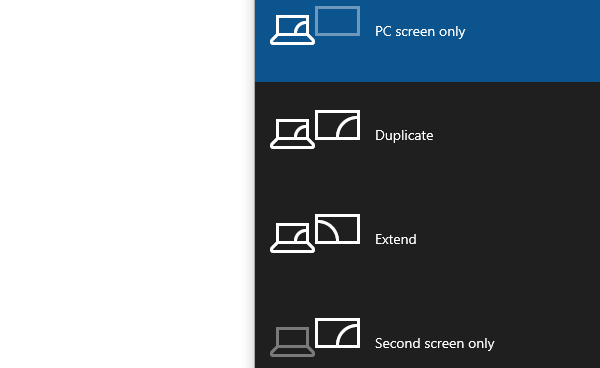
This resolves cases where the system booted in an external-display mode.
3. Boot Into Safe Mode and Repair Drivers
If the screen stays black but the laptop seems to run (keyboard lights, fans), enter Safe Mode.
How to Enter Safe Mode:
Turn the laptop on.
When you see the Dell logo, force shutdown by holding the power button.
Repeat this three times until Windows enters Automatic Repair.
Navigate to: "Troubleshoot" > "Advanced Options" > "Startup Settings" > "Restart".
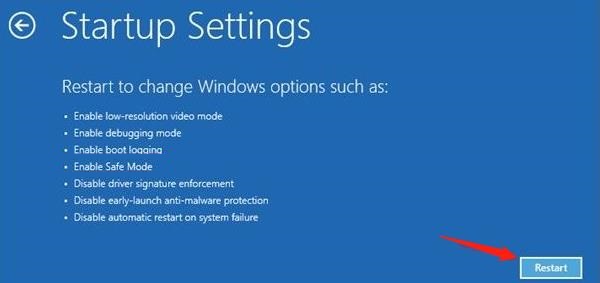
Press 4 to enter Safe Mode.
In Safe Mode:
Uninstall the current display driver in Device Manager.
Restart the laptop to let Windows auto-install a default driver.
Then use Driver Talent X again to install the correct latest driver.
4. Disable Fast Startup
Fast Startup sometimes loads corrupted display states.
Open Control Panel.
Go to "Power Options", click "Choose what the power buttons do".
Disable "Turn on fast start-up (recommended)".
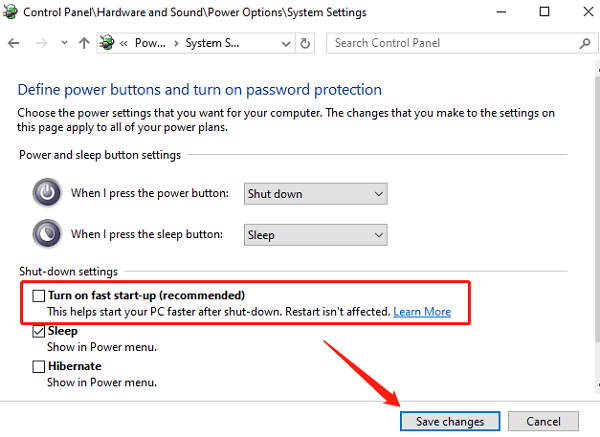
Restart your laptop.
5. Reset BIOS Settings
Incorrect BIOS configurations may cause a black screen.
Turn off the Dell laptop.
Press F2 repeatedly during startup to enter BIOS.
Select "Load Setup Defaults" or "Restore Factory Settings".
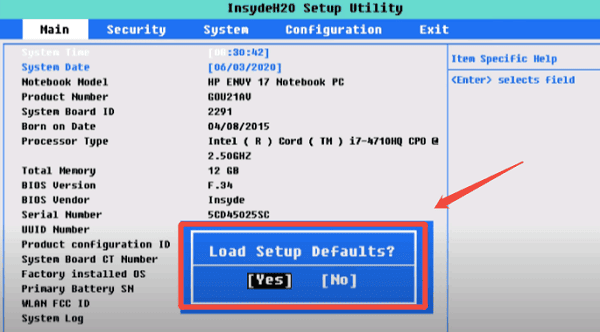
Save and exit.
6. Check for Loose or Faulty RAM
A black screen with power indicators often points to RAM issues.
Power off the laptop. Remove the bottom panel.
Take out the RAM sticks. Clean the contacts with a soft cloth.
Reinsert them firmly or try one module at a time.
7. Update Dell BIOS and Firmware
Screen issues can result from outdated firmware.
To update BIOS:
Visit Dell's official support website.
Enter your device number, go to "Find Specific Drivers(Select Drivers)" > "Drivers & Downloads".
Find and download the latest BIOS file.
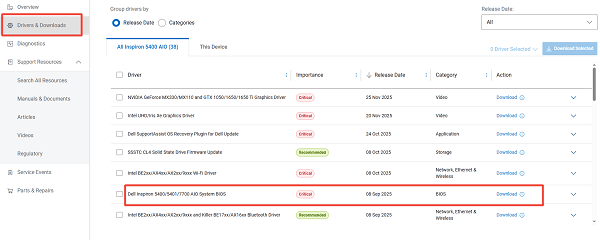
Run it in Windows (preferably after restoring display via Safe Mode).
Ensure the laptop stays powered during the update.
8. Run System File Repair (SFC & DISM)
Corrupted system files can block display initialization.
Open Command Prompt (Admin).
Enter: sfc /scannow
After completion, enter: DISM /Online /Cleanup-Image /RestoreHealth
Restart and test the screen again.
9. Inspect Backlight and Internal Display Cable
If the screen is black but faint images appear under a flashlight, the backlight may be faulty.
Internal cable looseness can also cause a black display.
This step is recommended for technicians or experienced users.
Final Thoughts
A Dell laptop that shows a black screen after startup can be caused by driver failures, firmware issues, hardware faults, or incorrect display configurations. Start with the most common cause by updating all graphics, chipset, and system drivers using Driver Talent X. Then proceed through the additional troubleshooting steps including Safe Mode repair, BIOS reset, firmware updates, and hardware checks.
See also:
Epson L3250 Driver Download & Installation Guide for Windows 10/11
How to Update BIOS on MSI Motherboard – Step-by-Step Guide









