
A Dell laptop that powers on but shows a black screen is a common issue experienced on many Inspiron, XPS, Latitude, and Vostro models. The problem can be caused by display driver failures, firmware bugs, hardware connection issues, corrupted system files, or incorrect power settings. This guide explains the most effective solutions to restore your display, starting with a complete driver update using Driver Talent X.
Update All System Drivers Using Driver Talent X
Faulty or outdated graphics drivers are one of the most common reasons for a black screen on Dell laptops. Updating all system drivers ensures your GPU, chipset, BIOS components, and display adapters work correctly.
Step 1: Download and Install
Click the "Download" button to download the software package.
Follow the on-screen instructions to complete installation.
Step 2: Scan Your Dell Laptop
Open the software once installation is complete, go to "Drivers" > "Scan", click "Scan".
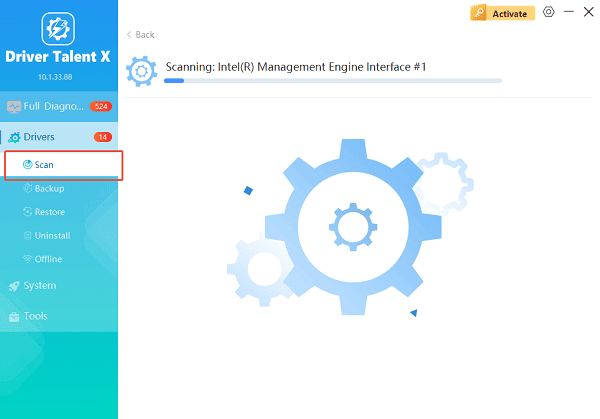
Wait while the tool checks your graphics driver, chipset driver, display adapter, BIOS-related components, and other system drivers.
Step 3: Update All Outdated Drivers
After the scan is complete, the software will display a list of all drivers that need attention. Select the necessary graphics drivers and click the "Upgrade" or "Repair Now" button.
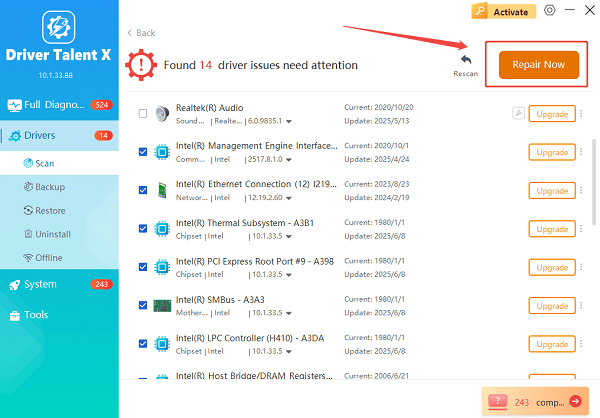
Driver Talent X will first perform a thorough cleanup of any conflicting older files, then reliably download and execute a completely clean installation of the latest certified drivers.
Step 4: Restart Your Computer
Restart your laptop after updates are complete.
Updating drivers often resolves black-screen issues caused by GPU failures, firmware bugs, and incorrect driver versions.
Additional Solutions to Fix Dell Laptop Black Screen Issue
If the screen remains black after updating drivers, proceed with the following effective solutions.
1. Perform a Hard Reset
A hard reset clears temporary hardware conflicts.
Steps:
Shut down your Dell laptop completely.
Disconnect the power adapter.
Remove the battery (if removable).
Hold the power button for 20 to 30 seconds.
Reconnect the battery and charger.
Turn on the laptop.
If the problem was caused by residual electrical charge or temporary hardware conflict, the display should return.
2. Check Display Output Settings
Windows may be outputting the display to an external monitor.
Try this:
Press Windows + P.
Press the Up or Down arrow several times.
Press Enter to select "Duplicate" or "Extend mode".
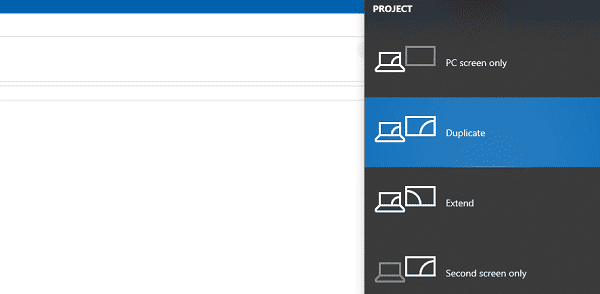
If the display was set to Second Screen Only, this restores visibility.
3. Boot into Safe Mode
If the display works in Safe Mode, the problem is likely driver or software related.
Steps:
Turn the laptop off.
Press the power button, and when Windows begins to load, hold the power button to force shutdown.
Repeat this process three times until you see "Advanced Startup".
Navigate to "Troubleshoot" > "Advanced options" > "Startup Settings", click "Restart".
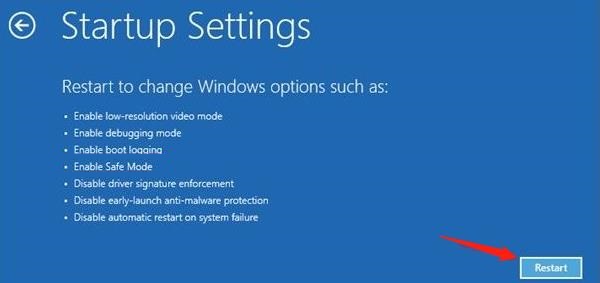
Press 4 to enter Safe Mode.
Once in Safe Mode, reinstall display drivers or remove recent updates.
4. Reset BIOS
Incorrect BIOS settings can cause the screen to stay black.
Steps:
Turn off your laptop.
Press the power button while repeatedly tapping F2 to enter BIOS.
Go to the "Exit" tab.
Select "Load Setup Defaults".
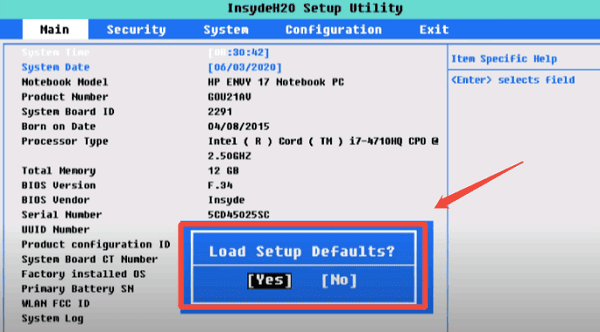
Save and exit.
This restores default firmware display settings.
5. Try External Monitor Output
This checks whether the internal LCD panel is faulty.
Steps:
Connect the laptop to an external monitor using HDMI or USB-C.
Turn on both devices.
Press Windows + P and select "Duplicate".
If the external monitor works, the issue may involve the laptop screen, cable, or backlight.
6. Reseat RAM Modules
Loose RAM can prevent the screen from displaying anything.
Steps:
Power off the laptop.
Remove the back cover.
Take out the RAM modules.
Clean the contacts gently.
Reinsert them firmly.
Restart the laptop.
If the RAM was improperly seated, this resolves the problem.
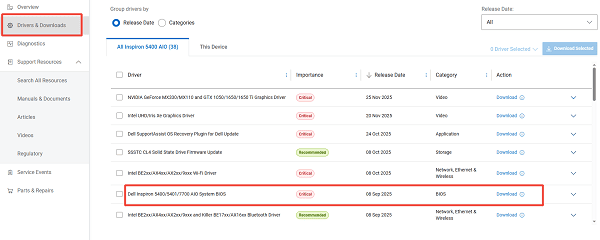
7. Perform a BIOS Update
Outdated BIOS firmware can cause display initialization failures.
Steps:
Visit Dell's official support site.
Enter your laptop model (Latitude, Inspiron, XPS, etc.).
Download the latest BIOS update.
Connect your laptop to power.
Run the BIOS update file.
Do not interrupt the installation.
8. Check LCD Cable or Backlight Hardware
If the display flickers or shows a faint image when shining a flashlight, the backlight or cable may be faulty.
This requires:
Opening the laptop.
Inspecting the LCD ribbon cable.
Replacing a damaged cable or faulty screen.
If you are not comfortable with hardware repairs, consult a technician.
9. Restore Windows System Files
Corrupted system files can also cause a black screen.
Run these commands in Command Prompt (Safe Mode or Recovery Environment):
sfc /scannow
DISM /online /cleanup-image /restorehealth
After completion, restart the laptop.
Final Thoughts
A Dell laptop that turns on but shows a black screen can be caused by driver failures, firmware issues, incorrect system settings, or hardware problems. The most effective starting point is updating all relevant drivers using Driver Talent X, followed by a combination of power resets, BIOS checks, external display tests, and hardware diagnostics.
If the screen still does not display after trying all solutions, the issue may be related to a damaged display panel, GPU failure, or motherboard component and may require professional repair.
See also:
How to Fix AMD FreeSync Not Working Issue
How to Fix Bluetooth Not Working Issues









