
It is highly frustrating when your Dell Latitude 3550 refuses to power on. Whether you see absolutely no power lights, hear no fan noise or the laptop simply stops at a black screen, these issues usually point to common power problems or software conflicts.
This guide provides a systematic, step-by-step approach to troubleshooting your Dell Latitude 3550, starting with the most efficient fixes to restore power and functionality.
Part I: Driver and Software Resolution
If the laptop is turning on but consistently failing to boot into Windows (or showing a black screen after the Dell logo), the cause is often driver-related.
Method 1: Automated Driver Update with Driver Talent X
Corrupt graphics, chipset, or power management drivers can cause boot failures. If you can access Windows (even in Safe Mode), an automated driver fix is the fastest and safest solution.
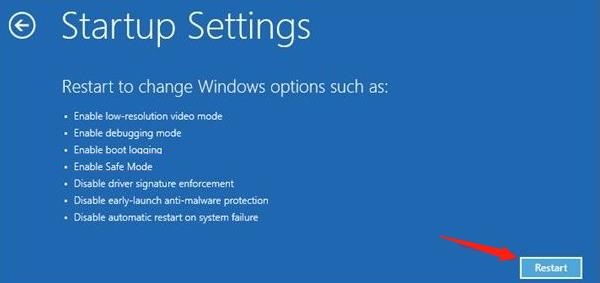
Access Windows: If you can't boot normally, repeatedly press the F8 key during startup or forcibly shut down 2-3 times until Windows enters the Recovery Environment. Navigate to "Troubleshoot" > "Advanced options" > "Startup Settings" > "Restart", and then press F5 to boot into Safe Mode with Networking.
Download and Install:
Click the "Download" button to download the software package.
Install it on your Windows PC.
Run Scan:
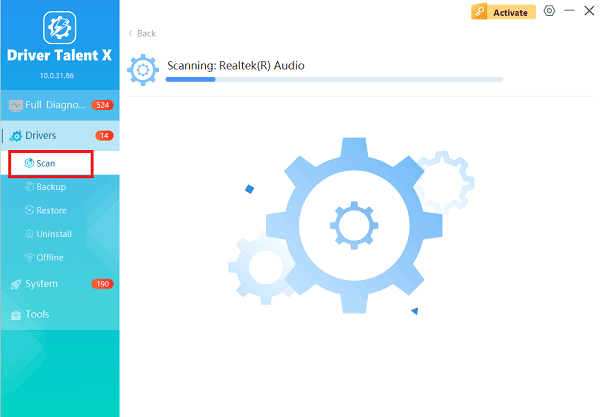
Launch the application and go to "Drivers" > "Scan", click "Scan".
The tool will check all your hardware, focusing on critical Dell Chipset, Graphics, and Power Management drivers.
Update Critical Drivers:
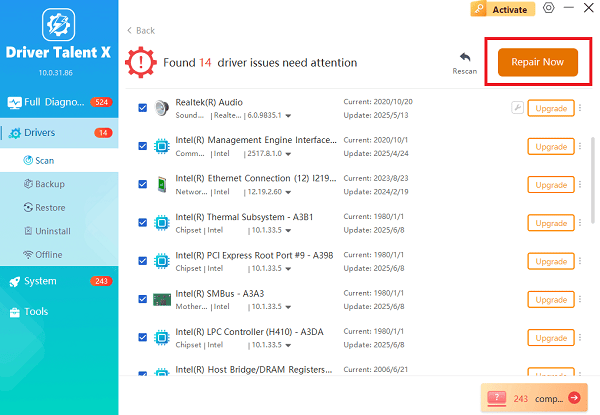
After the scan is complete, the software will display a list of all drivers that need attention.
Select the Chipset, Graphics, and System drivers and click the "Upgrade" or "Repair Now" button. The utility ensures you install stable, compatible versions.
Restart Your PC:
After the installation is complete, restart your computer to load the new drivers and resolve the boot conflict.
Method 2: Reseat RAM and Hard Drive
Hardware connection issues can mimic power failures. If you are comfortable and your warranty allows, reseating the internal components is a necessary step.
1). Power Down: Perform the steps in Method 1 (Hard Reset) of Part II to ensure the system is completely powered down and drained.
2). Open Panel: Refer to the Dell service manual for the Latitude 3550 to safely access the back panel where the RAM and Hard Drive (HDD/SSD) are located.
3). Reseat Components:
RAM: Unclip the retaining clips, gently pull out the RAM stick(s), and firmly push them back into the slots until the clips snap into place.
HDD/SSD: Disconnect and reconnect the SATA cable or drive connector firmly.
4). Test: Reassemble the panels, reconnect the AC adapter, and attempt to power on.
Part II: Immediate Power and Hardware Checks
Before assuming a major failure, run through these essential checks, as the solution is often a simple power issue.
Method 1: Perform a Hard Reset
The hard reset is the number one fix for power-related issues on Dell laptops, as it drains residual electrical charge (flea power) that can interfere with the system's Embedded Controller (EC).
Disconnect Everything: Unplug the AC power adapter from the laptop. Disconnect all external devices (USB drives, external mouse, dock, etc.).
Remove Battery: If your Latitude 3550 has a removable battery, remove it from the device. If it has a non-removable battery, proceed to step 3.
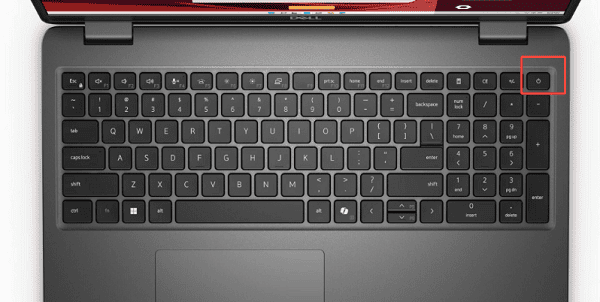
Hold Power Button: Press and hold the power button for 30 to 40 seconds. This drains all residual power from the motherboard.
Reconnect: Reconnect only the AC adapter. Do not insert the battery yet.
Test: Press the power button normally. If the laptop powers on, shut it down, replace the battery (if applicable), and restart normally.
Method 2: Verify AC Adapter and Power Source
Ensure the power adapter and the outlet are functioning correctly.
Check Adapter Status Light: Look at the small LED light on the power brick (the rectangular box on the cord). If the light is off, try unplugging and re-plugging the adapter from the wall and the laptop.
Test Outlet: Plug the adapter into a different, known-working wall outlet or surge protector (test the outlet with a phone charger first).
Inspect Connector: Carefully inspect the DC-in connector (the tip that plugs into the laptop) for any bent pins or damage.
Method 3: Test External Display (If Lights are On)
If your power lights are active and the fans are spinning, the computer may be running, but the internal screen is the problem.
Connect your Dell Latitude 3550 to an external monitor or TV using an HDMI or VGA cable.
Press the Windows Key + P repeatedly to cycle through the display modes (Duplicate, Extend, Second Screen Only).
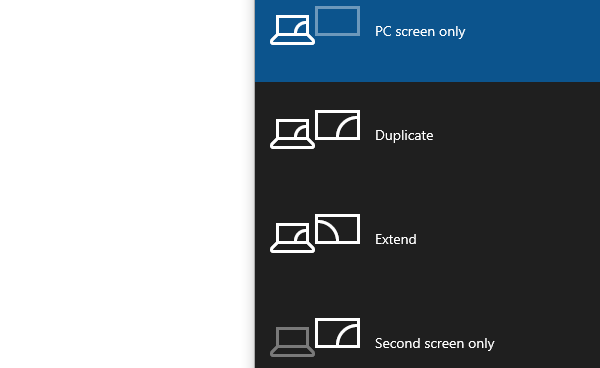
If the external screen displays the desktop, the problem is with the laptop's internal LCD, its cable, or the graphics driver (proceed to Method 4).
Conclusion
When your Dell Latitude 3550 fails to turn on, the most likely solution is a Hard Reset to clear residual power. If the issue is software-related, using Driver Talent X to update core system and graphics drivers is the safest way to ensure a conflict-free boot sequence. If these steps fail, the problem may be a permanent failure of the AC adapter, DC-in port, or the motherboard, requiring professional service.
See also:
Qualcomm Atheros QCA61x4A Driver Download and Installation Guide
Network Adapter Not Working on Windows? Try These Fixes









