
The Dell Latitude 5540 is a powerful business laptop, but software conflicts, outdated drivers, or hardware glitches can cause issues such as system lag, black screens, WiFi instability, touchpad malfunction, audio problems, or frequent crashes. Most of these problems are related to driver failures or misconfigurations.
Before applying advanced fixes, it is strongly recommended to update all system drivers using a reliable tool like Driver Talent X. This guide provides detailed steps to update drivers, followed by multiple effective solutions to restore your Dell Latitude 5540 to full performance.
Update Drivers First with Driver Talent X
Many performance and stability issues on the Dell Latitude 5540 come from outdated or corrupted drivers. Updating them ensures compatibility with Windows 10 or 11 and resolves conflicts that cause boot failures, display problems, or hardware malfunction.
Download and Install:
Click the "Download" button to download the software package.
Run the downloaded setup file. Select the installation directory, accept the agreement, and complete the installation.
Run Scan:
Open the program through the Start menu or desktop shortcut, go to "Drivers" > "Scan", click "Scan".
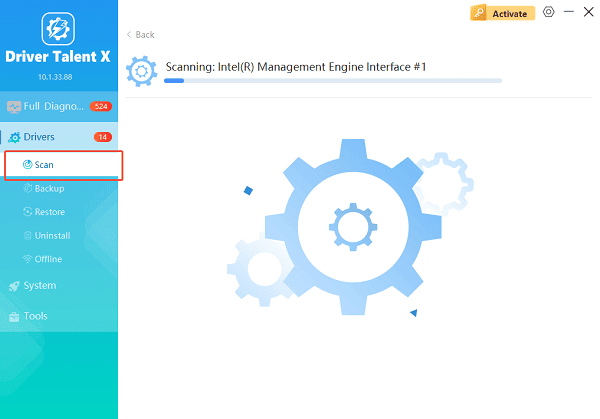
The tool will check all hardware components on your Dell Latitude 5540, including graphics, chipset, network, audio, and Bluetooth drivers.
Update All Drivers Automatically:
After the scan is complete, the software will display a list of all drivers that need attention. Select the necessary drivers and click the "Upgrade" or "Repair Now" button.

Driver Talent X will download athe latest, certified drivers that are customized for your specific Latitude 5540, which is critical for restoring system stability and battery efficiency.
Restart Your Laptop:
Rebooting ensures all updated drivers load correctly and resolves many common hardware conflicts.
After completing the driver updates, proceed to the troubleshooting solutions below to fix remaining issues.
Fix 1: Run Hardware Diagnostics on the Laptop
Dell laptops include built-in hardware diagnostics that can identify failing components.
Turn off your laptop completely.
Press the F12 key repeatedly as soon as you power it on.
Choose "Diagnostics" from the Boot Menu.
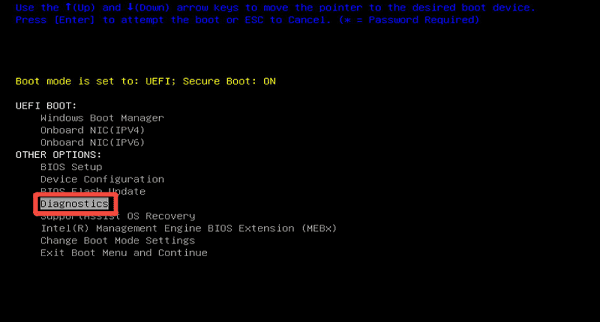
Let the system run a full hardware test.
If any error codes appear, visit the Dell support website and check the recommended repair steps.
Fix 2: Update BIOS and Firmware
Go to the Dell Support website.
Enter "Latitude 5540" in the product search bar.
Navigate to "Drivers & Downloads".
Download the latest BIOS update for your model.
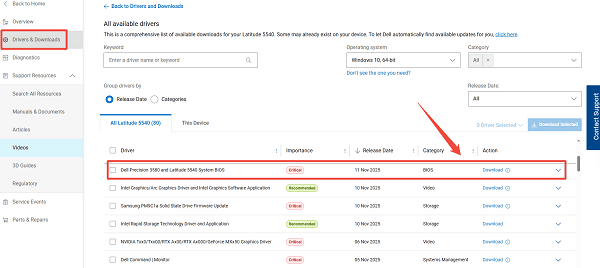
Plug in the AC adapter before installation.
Run the BIOS update file and follow the instructions.
Restart your device.
Updating BIOS improves system stability, compatibility, and hardware communication.
Fix 3: Install Dell Official Drivers Manually
Even after using Driver Talent X, you may want the latest OEM-specific drivers.
1. Visit the Dell Support page.
2. Enter "Latitude 5540".
3. Select Windows 10 or Windows 11 as your OS.
4. Download drivers for:
Intel Chipset
Intel UHD or NVIDIA Graphics
Realtek or Intel Audio
Intel WiFi 6E
Dell Touchpad
5. Install each file manually and restart afterward.
Fix 4: Perform Windows Troubleshooting and Repair
Run System File Checker:
Open Command Prompt as administrator.
Type: sfc /scannow
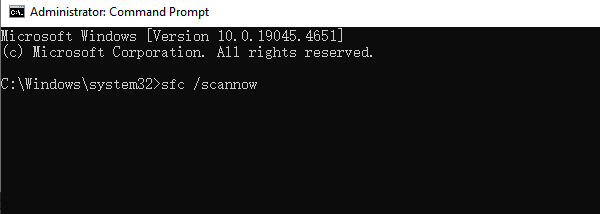
Press Enter and wait for the process to complete.
Run DISM Repair:
1. Open Command Prompt as administrator.
2. Enter the following commands one by one:
DISM /Online /Cleanup-Image /CheckHealth
DISM /Online /Cleanup-Image /ScanHealth
DISM /Online /Cleanup-Image /RestoreHealth
3. Restart your system after completion.
This resolves corrupted Windows system files that may cause driver issues.
Fix 5: Resolve Performance Problems
Disable Startup Bloat:
Press Ctrl + Shift + Esc to open Task Manager.
Go to Startup Apps.
Disable non-essential programs.
Adjust Power Settings:
Open Control Panel.
Go to "Hardware and Sound" > "Power Options".
Select "High Performance" or "Balanced".

Reset Graphics Settings:
For NVIDIA models:
Open NVIDIA Control Panel
Restore default settings under Manage 3D settings
Fix 6: Address Specific Hardware Issues
Touchpad Not Working:
Update touchpad driver via Driver Talent X
Enable touchpad in "Settings" > "Devices" > "Touchpad"
Toggle touchpad on using the function key (Fn + Touchpad icon)
WiFi Not Connecting:
Update Intel WiFi driver
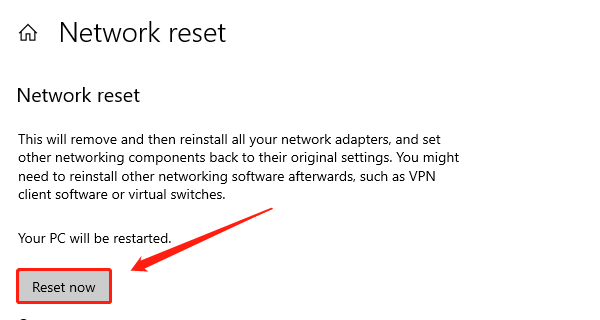
Reset network settings: Settings > Network & Internet > Advanced network settings > Network reset > Reset now
Audio Not Working:
Install Realtek or Intel audio driver
Restart the "Windows Audio Service"
Screen Black After Boot:
Perform a forced reboot
Remove external devices
Reset BIOS by pressing F2 and choosing Load Defaults
Fix 7: Factory Reset Windows (Last Resort)
Open Settings.
Go to "Update & Security" > "Recovery".
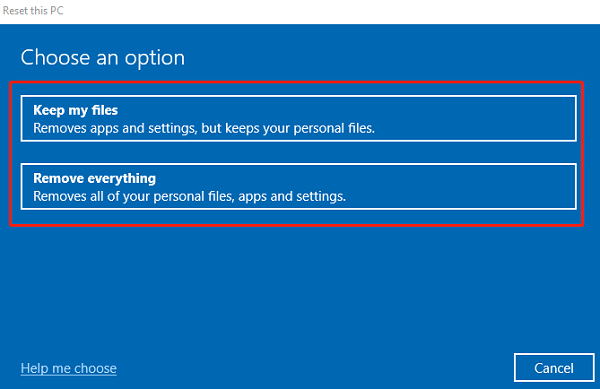
Select "Reset this PC" > "Get started".
Choose "Keep my files" or "Remove everything".
Reinstall Windows and reapply driver updates with Driver Talent X.
Conclusion
Most Dell Latitude 5540 performance issues are caused by outdated or corrupted drivers, misconfigured system settings, or hardware conflicts. Start by updating all drivers using Driver Talent X, then apply hardware diagnostics, BIOS updates, manual driver installation, and system repairs to resolve deeper problems. These solutions will restore stability, improve performance, and ensure your Dell Latitude 5540 operates at its best.
See also:
How to Fix AMD FreeSync Not Working Issue
How to Fix Bluetooth Not Working Issues









