
Keeping your Dell computer up to date is essential for maintaining system stability, improving performance, and preventing hardware issues. Dell Command Update is Dell's official tool for downloading and installing the latest system updates, BIOS, firmware, and Dell-specific drivers.
Before using Dell Command Update, it is recommended to ensure your Windows device already has the latest hardware drivers installed. This helps avoid compatibility problems, especially during firmware and BIOS upgrades. Below is a complete step-by-step instructions on using Dell Command Update on Windows.
Update All Drivers First with Driver Talent X
Before running Dell Command Update, updating the core hardware drivers ensures maximum compatibility. Driver Talent X is a professional Windows driver tool that scans, downloads, installs, and repairs all PC drivers automatically.
Steps to Update Drivers with Driver Talent X
Download and Install:
Click the "Download" button to download the software package.
Run the setup file and follow the on-screen instructions to complete the installation.
Scan Your Computer:
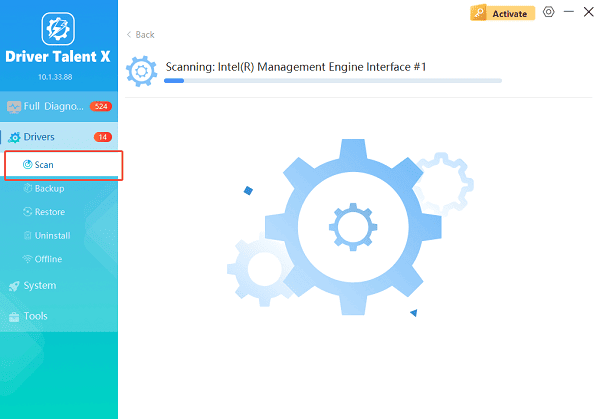
Open the program from your desktop or start menu, go to "Drivers" > "Scan", click "Scan".
Driver Talent X will detect all outdated, missing, or corrupted drivers on your Windows system.
Execute Clean Installation:
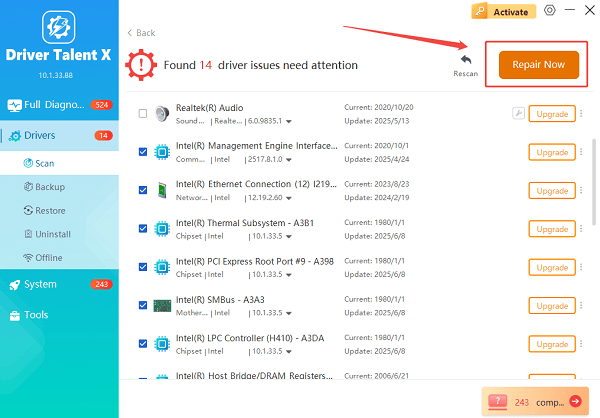
After scanning, you will see a list of drivers that require updates. This typically includes graphics drivers, network drivers, chipset drivers, audio drivers, and storage controllers.
Choose the "Upgrade" or "Repair Now" button to download and install every recommended driver. Driver Talent X will automatically apply the updates and optimize the driver installation process.
Restart Your PC:
Once updates are completed, restart your computer to ensure all drivers load correctly.
With updated hardware drivers, your system is now ready for a smooth Dell Command Update experience.
What Is Dell Command Update?
Dell Command Update is Dell's official software for Windows that automatically identifies and installs critical updates for Dell systems. It supports BIOS updates, firmware updates, Dell-specific driver packages, and system utilities. It works on most Dell business and consumer models.
How to Use Dell Command Update on Windows
Follow the detailed steps below to install and use Dell Command Update on your Dell device.
Step 1: Download and Install Dell Command Update
Open your browser and go to Dell's official support website.
Search for "Dell Command Update" in the support search bar.
Download the latest version for Windows 10 or Windows 11.
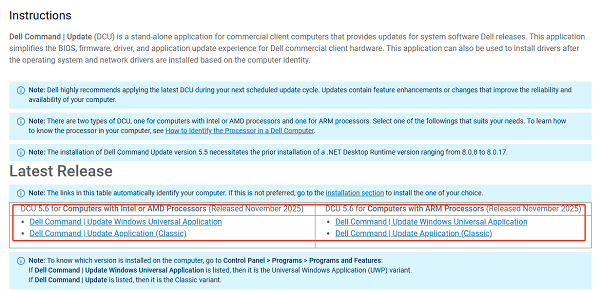
Run the installer and follow the prompts to complete installation.
Step 2: Launch the Program
Open the Start menu.
Search for "Dell Command Update".
Click to launch the application.
Step 3: Run a System Scan
In the Dell Command Update window, click "Check".
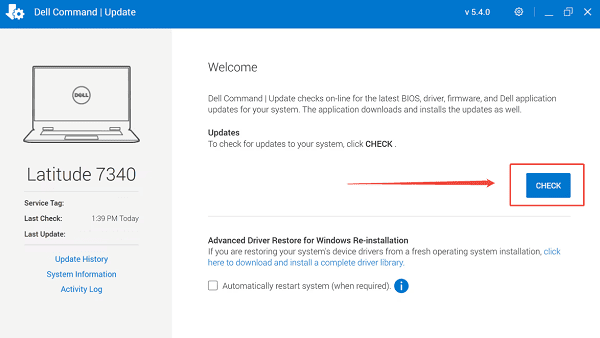
The tool will scan your system for BIOS updates, firmware, drivers, and Dell applications.
Step 4: Review Available Updates
After the scan, Dell Command Update will show a list of recommended updates.
Review the update categories such as BIOS, Firmware, Chipset, Network Adapter, Video Driver, or Dell Apps.
Step 5: Install Updates
Click "Install".
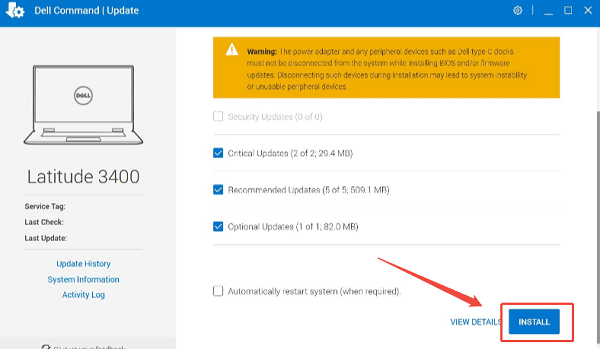
Dell Command Update will automatically download and apply all selected updates.
Do not turn off your computer during BIOS or firmware installation.
Step 6: Restart Your Computer
Once installation is complete, Dell Command Update will prompt you to restart your system.
Restart immediately to finalize the update process.
Tips for Using Dell Command Update Safely
Always plug in your laptop before running BIOS updates.
Ensure your device drivers (especially chipset and storage) are updated with Driver Talent X beforehand.
Do not interrupt BIOS or firmware updates.
Check for updates regularly to maintain optimum performance.
Conclusion
Dell Command Update is an essential tool for keeping your Dell computer secure and up to date. By first updating your hardware drivers using Driver Talent X and then applying Dell's official system updates through Dell Command Update, you ensure maximum system stability, strong performance, and long-term reliability. Following the steps provided above will help you maintain your Windows system efficiently and safely.
See also:
Epson L3250 Driver Download & Installation Guide for Windows 10/11
How to Update BIOS on MSI Motherboard – Step-by-Step Guide









