
The Dell Optiplex 3020 is a widely used desktop computer, particularly favored in business environments for its reliable performance and versatility. Drivers are the software that enables your operating system to communicate with your computer's hardware, like the graphics card, network adapter, audio system, and more. In this guide, we'll show you how to download and install the latest drivers for your Dell Optiplex 3020 running Windows 10. Updated drivers are essential to avoid system crashes, performance issues, and compatibility problems with software or peripherals.
Why Are Drivers Important for Dell Optiplex 3020?
Performance: Updated drivers ensure that hardware, like your graphics card and network adapter, functions at its highest potential, improving system responsiveness and task execution
Security: Driver updates often include critical security patches, protecting your computer from vulnerabilities that could be exploited by malicious software
Compatibility: New driver versions may fix compatibility issues, especially after major Windows updates. This is vital for smooth functioning with external devices and new applications
When your Dell Optiplex 3020 drivers are outdated or missing, you may experience issues such as poor display quality, slow network speeds, or no sound. Regular updates help avoid these problems
How to Download and Install Dell Optiplex 3020 Drivers Manually
If you prefer to manually download and install your drivers, follow these steps:
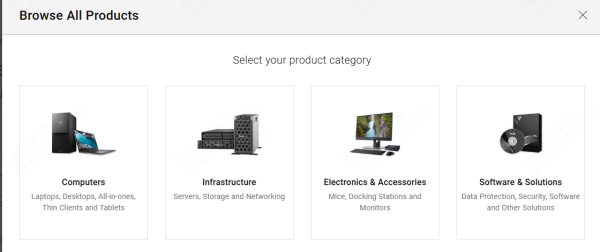
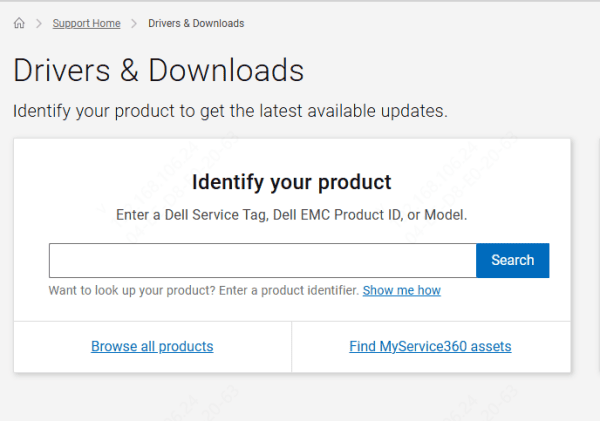
Step 1: Visit the Dell Support Website
Go to Dell's official support page and enter your model or service tag
This will direct you to the driver page for your Dell Optiplex 3020
Step 2: Choose the Correct Drivers
Select the appropriate drivers for your system, such as: Chipset Drivers, Graphics Drivers, Audio Drivers, and Network Drivers
Make sure to choose Windows 10 as the operating system to ensure compatibility
Step 3: Download the Drivers
Click the download button next to the drivers you need
Save the files to an easily accessible location
Step 4: Install the Drivers
Once the drivers are downloaded, double-click on each file and follow the on-screen instructions to install them
Typically, the installer will guide you through the setup process
Step 5: Restart Your Computer
After installing the drivers, restart your system to allow the new drivers to take effect
How to Use Driver Talent X for Automatic Updates
If manually downloading and installing drivers sounds like too much work, you can use Driver Talent X to do the heavy lifting for you. Here's how it works:
Step 1: Download and Install Driver Talent X
Visit the Driver Talent X website and download the installer
Run the installer and follow the on-screen prompts to set up the software
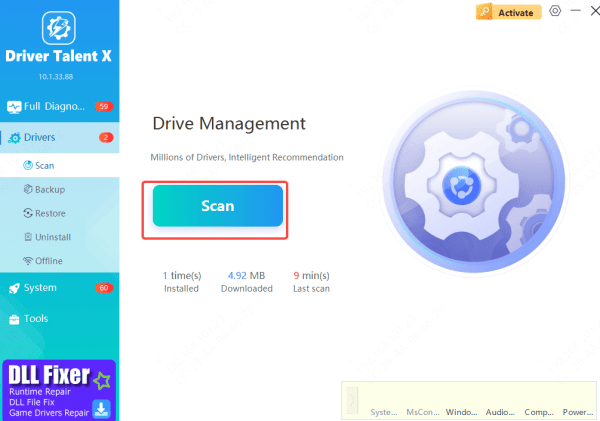
Step 2: Run a System Scan
Open Driver Talent X
Navigate to the Drivers tab and click on Scan. The software will analyze your system and detect outdated or missing drivers
Step 3: Update the Drivers
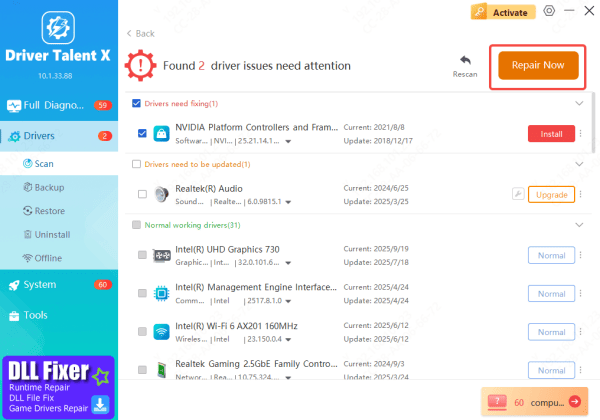
After the scan, Driver Talent X will display a list of outdated or missing drivers, including those for your Dell Optiplex 3020
Click Repair Now to download and install the latest drivers for your system automatically
Step 4: Restart Your Computer
Once the updates are complete, restart your system to apply the changes
Best Practices for Maintaining Drivers
To keep your Dell Optiplex 3020 running smoothly, here are a few tips:
Check for Updates Regularly: Make it a habit to check for driver updates every few weeks to avoid any performance issues
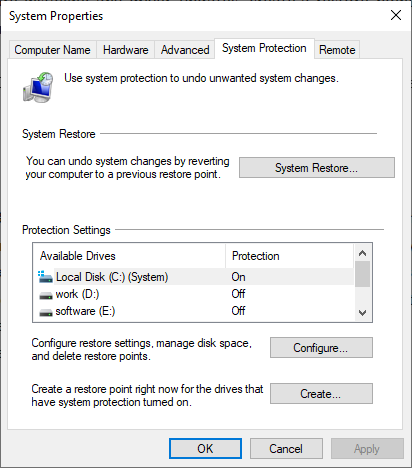
Create a Restore Point: Before installing any driver updates, create a restore point in case you need to roll back to a previous driver version
Automated Driver Updates: Consider using a tool like Driver Talent X to ensure that all drivers are up-to-date without the need for manual intervention
Conclusion
Keeping your Dell Optiplex 3020 drivers up to date is crucial for optimal performance, security, and system stability. Whether you prefer downloading and installing drivers manually from Dell's website or using an automated tool like Driver Talent X, ensuring your system drivers are updated will help you avoid issues and maintain your desktop's efficiency. Following the steps outlined above will allow you to keep your Dell Optiplex 3020 in top condition, ensuring smooth functionality and a better overall user experience.









