
The Lenovo M7205 is a reliable monochrome laser multifunction printer (MFP) known for its efficiency in home and small office environments.
However, to ensure seamless printing, scanning, and copying functionality across different operating systems—especially on modern Windows 10 and Windows 11—you need the correct, up-to-date driver.
An outdated or missing driver can lead to errors, printing delays, or a complete inability for your PC to recognize the printer. This guide provides step-by-step methods to download and install the right driver for your Lenovo M7205, regardless of your Windows version.
1. Ensure System Stability for Smooth Installation
Before installing any hardware-specific driver, it is crucial to ensure your core Windows system drivers are stable.
Outdated Chipset or USB Controller Drivers can sometimes interfere with the printer's ability to communicate with the PC, causing the driver installation to fail or the printer to randomly disconnect after installation.
Driver Talent X is an an efficient tool that automates the driver update process, making it the quickest and safest way to ensure your system's foundation is solid before introducing a new peripheral driver.
Download and Install:
Click the "Download" button to download the software package.
Install it on your Windows PC (7, 10, or 11).
Scan Your System:
Launch the application. Go to "Drivers" > "Scan", click "Scan".
Driver Talent X will automatically perform a comprehensive scan, specifically identifying the latest Chipset Driver and USB Controller Drivers that need updating.
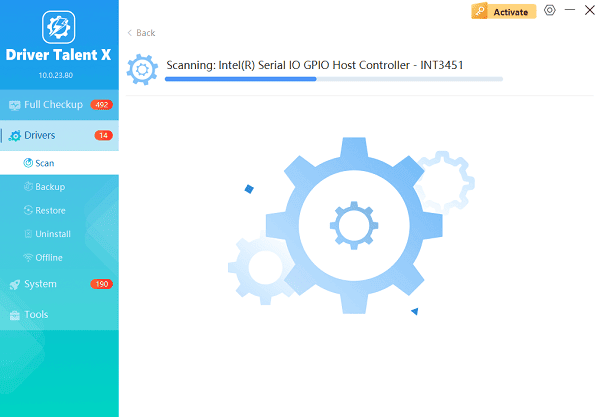
One-Click Update:
After the scan is complete, the software will display a list of all drivers that need attention. Click the "Repair Now" button.
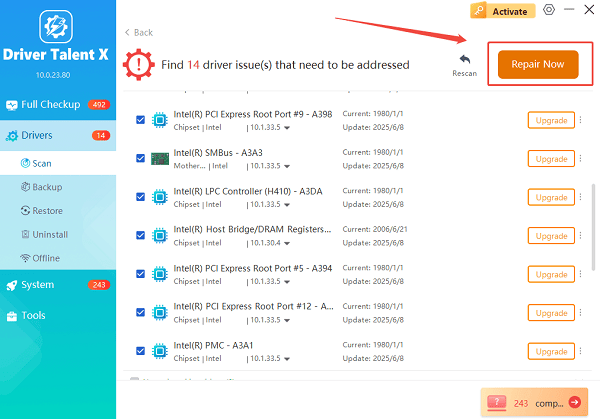
The tool will automatically download and install the latest, verified versions, optimizing your system for better peripheral connectivity.
Restart Your PC:
Once the installation is finished, it is absolutely crucial to restart your computer.
This allows the new drivers to fully integrate.
2. Official Method: Lenovo Support Website
The most reliable source for your Lenovo M7205 driver is the official Lenovo support website. This ensures you get the specific driver certified for your device and operating system.
Access Lenovo Support: Navigate to the Lenovo Support and Downloads page.
Search for Model: Use the search bar and enter the full model name: "Lenovo M7205".
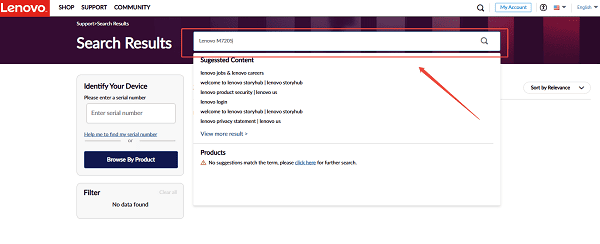
Select Downloads: Click on the dedicated product page for the M7205 and navigate to the "Drivers & Software" section.
Filter by OS: Use the dropdown menus to select your specific Operating System (Windows 7, Windows 10, or Windows 11).
Download Driver: Look for the "Printer Driver" or "MFP Driver Package". Download the latest version available (usually an executable .exe file).
Install: Run the downloaded file and follow the on-screen instructions. (Note: Most manufacturers recommend that you do not connect the printer to the PC until the installer explicitly prompts you to do so.)
3. Alternative Method: Windows Update
Windows Update often contains generic or basic drivers for many printers, which may be sufficient for basic printing tasks.
Connect Printer: Connect the Lenovo M7205 to your PC via USB and ensure it is powered on.
Open Settings: Press Windows Key + I to open the Settings app.
Go to Printers: Navigate to "Devices" > "Printers & scanners".
Add Printer: Click "Click "Add a printer or scanner". Windows will start scanning for the printer.
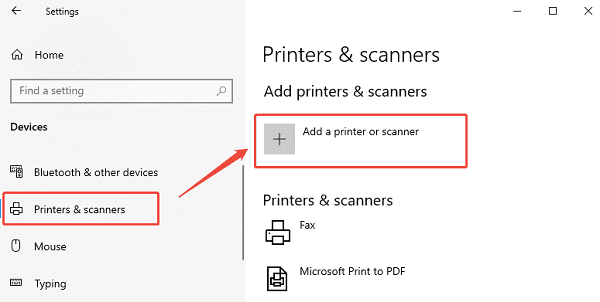
Automatic Install: If detected, Windows will often automatically download and install the best compatible driver available in its online catalog. If the driver is not found, click "Add manually" and follow the prompts to search for it via Windows Update.
4. Manual Driver Update via Device Manager
If the installation fails or the printer shows up as "Unknown Device", you can force Windows to use the downloaded driver file.
Open Device Manager: Right-click the Start button and select "Device Manager".
Locate Device: Find the M7205 entry (it might be under "Printers" or "Other devices" as "Unknown device").
Update Driver: Right-click the device and select "Update driver".
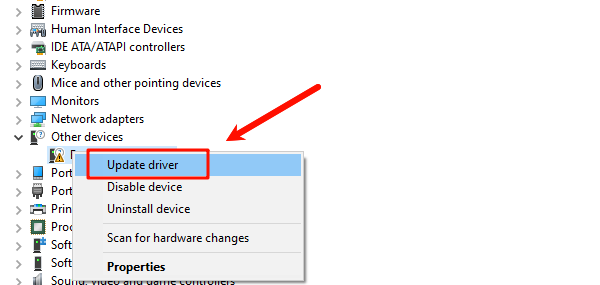
Browse for Files: Choose "Browse my computer for drivers".
Specify Location: Navigate to the folder where you saved the driver files downloaded from the Lenovo website. Click "Next" to force the installation of that specific driver package.
Conclusion
Finding and installing the correct driver is crucial for maintaining the full functionality of your Lenovo M7205 printer on any Windows platform.
By first ensuring your system is stable with Driver Talent X, then utilizing the official Lenovo website for the certified driver, you can reliably establish communication between your PC and your MFP, ensuring years of smooth, error-free printing.
See also:
Solutions to Fix Monster Hunter Wilds Crashes
How to Fix Split Fiction Not Launching on Windows









