
The NVIDIA Control Panel is essential for managing display settings, configuring GPU performance, enabling G-SYNC, adjusting color profiles, and optimizing gaming performance. However, many Windows users find that the NVIDIA Control Panel is missing, cannot be downloaded, or fails to appear after a driver installation.
This guide explains how to correctly download and restore the NVIDIA Control Panel, along with detailed steps to update your graphics driver using Driver Talent X, plus several additional solutions.
Update Your NVIDIA Driver First Using Driver Talent X
A corrupted, outdated, or incomplete NVIDIA graphics driver often prevents the NVIDIA Control Panel from installing or appearing in Windows. Updating the GPU driver using Driver Talent X is the most reliable way to restore the Control Panel and fix driver-related issues.
Download and Install:
Click the "Download" button to download the software package.
Run the setup file and follow the on-screen instructions to complete installation.
Run Scan:
Open the program from the desktop icon or Start Menu, go to "Drivers" > "Scan", click "Scan".
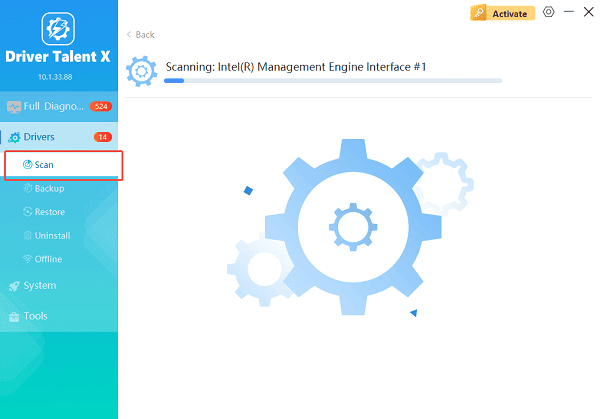
Driver Talent X will detect outdated, broken, or missing graphics drivers, including NVIDIA GPU drivers.
Update drivers:
After the scan is complete, the software will display a list of all drivers that need attention. Select the necessary drivers and click the "Upgrade" or "Repair Now" button.
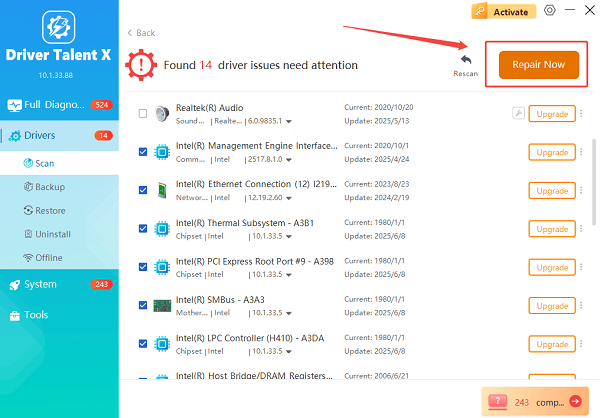
Driver Talent X will reliably download the latest driver and execute a clean installation, critical for performance enhancements and stability fixes.
Restart your computer:
Reboot Windows to apply the updated driver. In many cases, the NVIDIA Control Panel will reappear automatically after restart.
If Driver Talent X resolves the driver corruption, you can skip the remaining methods. Otherwise, continue with the additional solutions below.
Method 1: Download from the Microsoft Store
The NVIDIA Control Panel is now distributed through the Microsoft Store for most modern driver packages.
Steps:
Open the Microsoft Store on your Windows PC.
Search for NVIDIA Control Panel.
Select the official app published by NVIDIA.
Click "Get".
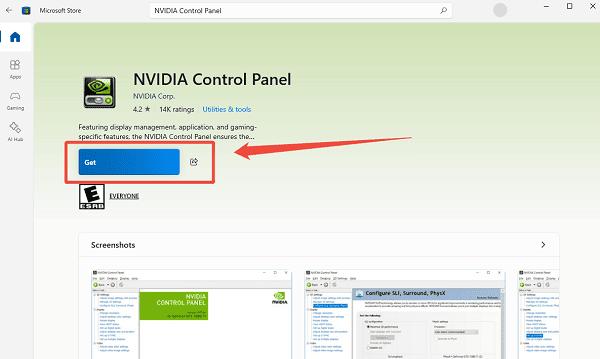
Wait for installation to finish, then check the desktop context menu or system tray.
If the Store displays an error or prevents installation, try resetting the Store (instructions below).
Method 2: Reinstall the NVIDIA Graphics Driver Manually
If the Control Panel is missing from both Windows and the Store, reinstall the GPU driver manually.
Visit the official NVIDIA driver download page.
Enter your GPU model, operating system, and driver type.
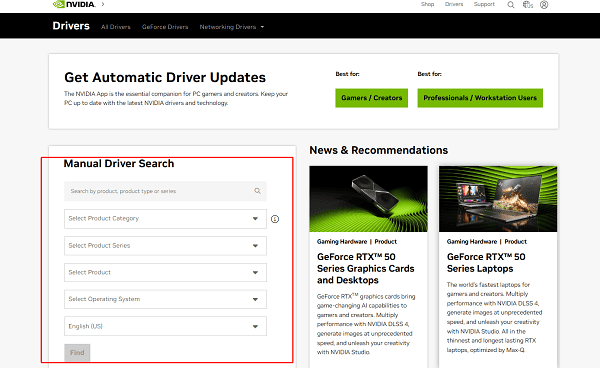
Download the latest Game Ready or Studio Driver.
Run the installer and choose Custom Installation.
Select "Perform a clean installation".
Complete the process and restart your computer.
This method restores all missing components, including the NVIDIA Control Panel.
Method 3: Enable the NVIDIA Display Container Service
The Control Panel will not load if the supporting service is disabled.
Steps:
Press Windows + R and type "services.msc".
Scroll down to "NVIDIA Display Container LS".
Double-click the service. Set Startup type to "Automatic".
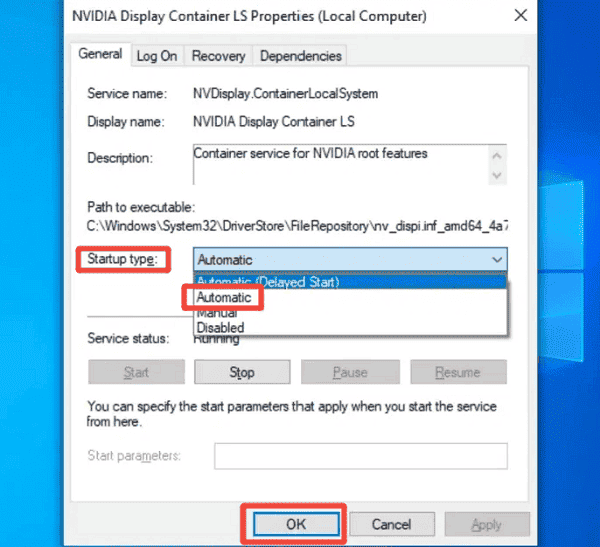
Click Start, then "Apply" and "OK".
Restart your PC and check again.
Method 4: Reset the Microsoft Store
If the Store version of the Control Panel fails to download, the Store cache may be corrupted.
Steps:
Press Windows + R.
Type "wsreset.exe" and press Enter.
A blank window will appear and disappear automatically.
When the Store reopens, search for NVIDIA Control Panel again.
Method 5: Disable Windows Fast Startup
Fast Startup can block proper driver initialization.
Steps:
Open Control Panel, go to "Power Options".
Select "Choose what the power buttons do".
Click "Change settings that are currently unavailable".
Uncheck "Turn on fast start-up (recommended)".
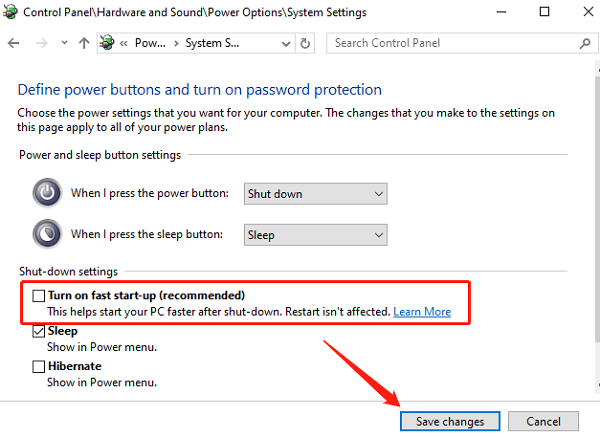
Save changes and restart your PC.
Method 6: Confirm Your System Is Using an NVIDIA GPU
The Control Panel will not appear if Windows is not detecting the GPU.
Steps to check:
Open Device Manager, expand "Display adapters".
Look for an NVIDIA GeForce card.
If missing, the GPU driver is corrupted or the hardware is not being recognized.
Use Driver Talent X again to scan and reinstall the driver.
Method 7: Install the Control Panel via Legacy Driver Package
Some older PCs require the traditional driver installer that bundles the Control Panel directly.
Visit NVIDIA's Legacy Driver or Advanced Driver Search page.
Download an older WHQL driver for your GPU.
Install the package.
Restart and check for the Control Panel.
Conclusion
Downloading the NVIDIA Control Panel on Windows is simple once the underlying driver issues are resolved. Since missing or corrupted drivers are the most common cause, updating the GPU driver using Driver Talent X should be the first step.
After updating, you can install the Control Panel from the Microsoft Store, reinstall NVIDIA drivers manually, enable required services, or apply additional fixes depending on the cause.
See also:
How to Fix AMD FreeSync Not Working Issue
How to Fix Bluetooth Not Working Issues









