
Keeping your AMD Radeon Graphics Processing Unit (GPU) drivers current is essential for optimizing gaming frame rates, ensuring stability in creative applications, and accessing the latest features like AMD FidelityFX technologies. Outdated or corrupted drivers are a primary source of crashes, performance bottlenecks, and incompatibility issues on your PC.
This comprehensive guide walks you through all the reliable methods for updating your AMD GPU drivers, ensuring a clean and successful installation every time. We start with the most efficient and error-proof method for driver management.
Part I: Automated Driver Management
Manually updating AMD drivers requires knowing your exact GPU model and Windows version, and potentially dealing with the complexities of cleaning up old driver files. Driver management software simplifies this entire process, making conflicts almost non-existent.
One-Click Driver Update with Driver Talent X
Driver Talent X provides an intelligent, automated solution that scans your system, identifies the precise AMD driver needed, and executes a clean, conflict-free installation. This is the fastest way to ensure both your AMD GPU and associated chipset drivers are perfectly optimized.
Download and Install:
Click the "Download" button to download the software package.
Install it on your Windows PC.
Run Scan:
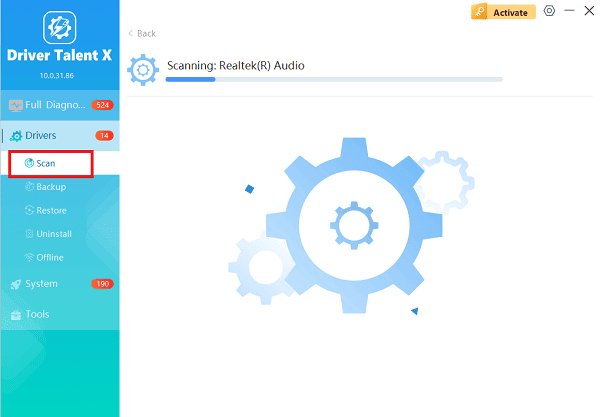
Launch the software and go to "Drivers" > "Scan", click "Scan".
The application will comprehensively analyze all system hardware, including your AMD Radeon GPU and motherboard chipset.
Execute Clean Installation:
After the scan is complete, the software will display a list of all drivers that need attention. Select the AMD driver entry and click the "Upgrade" or "Repair Now" button.
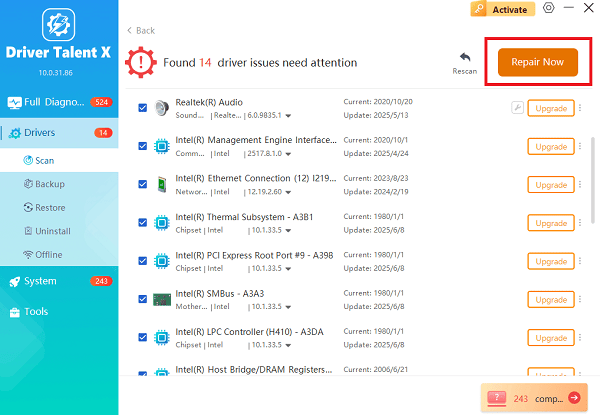
The tool will download the latest, WHQL-certified (Windows Hardware Quality Labs) driver package specifically for your card. Driver Talent X automatically handles the complex uninstall/install sequence to ensure a clean slate.
Finalize:
Once the installation progress reaches 100%, restart your computer to fully integrate the new AMD driver and software.
Part II: Official AMD Software Methods
AMD provides its own highly effective tools for managing drivers through the user-friendly Radeon Software.
Method 1: Update Using AMD Software: Adrenalin Edition
If you already have AMD's control panel installed, this is the easiest official way to update your drivers.
Open Adrenalin: Right-click anywhere on your desktop and select "AMD Software: Adrenalin Edition".
Check for Updates: Navigate to the "System" > "Software & Driver" tab and click "Check for Update".
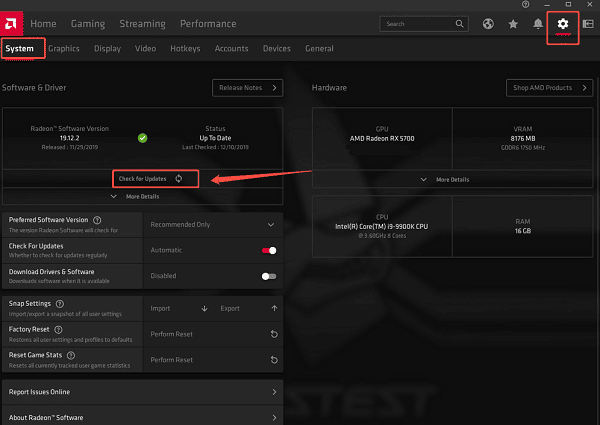
Download and Install: If a new driver is available, it will display a notification (e.g., "New Update"). Click the "Download" button.
Choose Installation Type: Once downloaded, select "Express Install" (recommended) or "Custom Install". For troubleshooting, choose Custom Install and check the "Perform Factory Reset" option to wipe old settings and files.
Follow the on-screen prompts to complete the installation and restart your PC when prompted.
Method 2: Using the AMD Auto-Detect and Install Tool
If you do not have the Adrenalin software installed, or if you are installing drivers on a new PC:
Go to the official AMD Drivers and Support website.
Locate the section for the "Auto-Detect and Install" tool.
Download the file and execute it. The tool will automatically scan your system to identify your AMD graphics card and Windows version.
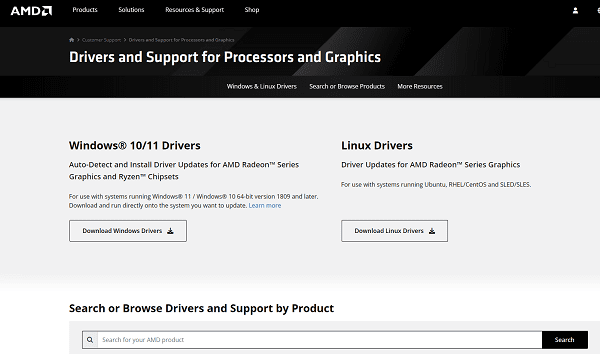
It will then recommend and allow you to download and install the latest version of the AMD Software: Adrenalin Edition, including the latest driver.
Part III: The Manual & Clean Uninstall Method
For advanced users or those troubleshooting persistent issues, a manual download combined with a complete, independent uninstall is the most thorough approach.
Manual Download and DDU Clean Uninstall
This process uses a third-party tool, Display Driver Uninstaller (DDU), to ensure no trace of the old driver remains.
Download New Driver: Go to the official AMD Drivers and Support website. Manually select your GPU series and specific model and download the latest driver package for your operating system.
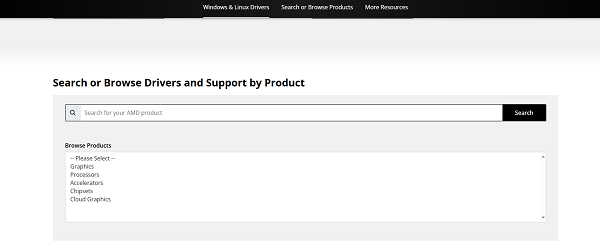
Download DDU: Download the Display Driver Uninstaller (DDU) utility.
Boot into Safe Mode (MANDATORY): Reboot your PC into Safe Mode (search online for your Windows version instructions).
Execute DDU: In Safe Mode, run DDU. Select "GPU" and "AMD" and click "Clean and restart". DDU will perform a complete, deep-level cleanup.
Install the New Driver: Once the PC restarts (in normal mode), run the AMD driver file you downloaded in Step 1 as an administrator.
Final Restart: Complete the installation and restart your computer one last time.
Conclusion
Regularly updating your AMD graphics card drivers is vital for maximizing stability and performance. Using Driver Talent X is the most efficient and error-free way to manage your drivers, especially for performing clean installations. By choosing one of these methods, you ensure your AMD hardware is always running with the latest optimizations and fixes.
See also:
Qualcomm Atheros QCA61x4A Driver Download and Installation Guide
Network Adapter Not Working on Windows? Try These Fixes









