
If your Drunkdeer A75 keyboard has stopped working, it can be incredibly frustrating, especially if you're in the middle of an important task or game. Fortunately, most keyboard issues are solvable with a few simple troubleshooting steps. In this guide, we'll walk you through the process of fixing your Drunkdeer A75 keyboard and getting it back to full functionality.
Check the Physical Connections
First things first, let's rule out simple connectivity issues
USB Cable and Port Check: Inspect the USB cable for any visible damage or fraying
Ensure the cable is properly plugged into the computer's USB port. If the cable is detachable, try using a different one to eliminate a faulty cable
Try a Different USB Port: Sometimes the problem is with the USB port. Try connecting your keyboard to another port on your computer to see if that solves the issue. If you're using a USB hub, try connecting directly to the computer instead
Check for Debris: Dust or debris can accumulate around the USB connector, blocking the connection. Use compressed air or a small brush to clean both the keyboard's USB connector and the USB port on your computer
.jpg "check-physical-connection")
Power Cycle the Keyboard
Sometimes a simple reset is all it takes to resolve connectivity problems
Disconnect and Reconnect: Unplug the keyboard, wait about 30 seconds, and then plug it back into the USB port. This can help reset the connection
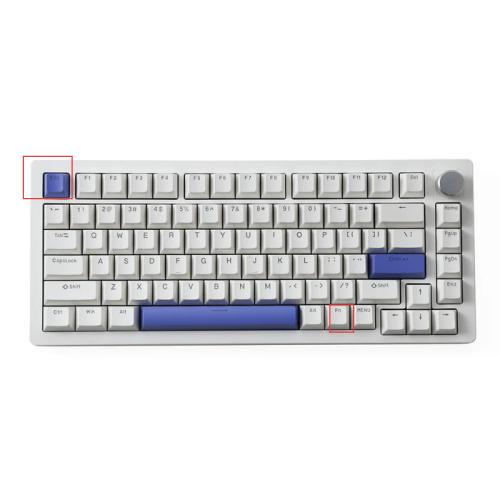
Reset the Keyboard. PressFn+Ese. This can sometimes clear minor configuration errors
Update Drivers
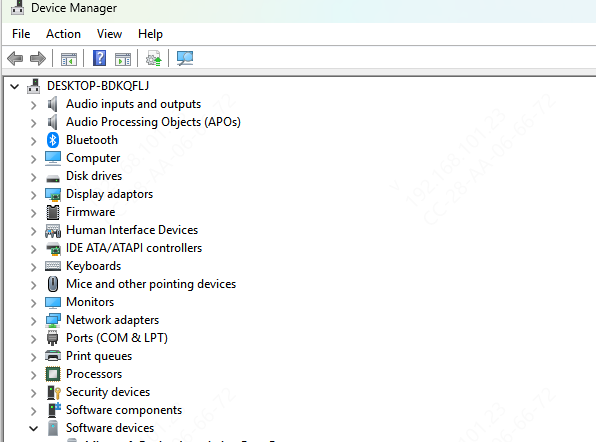
Outdated or corrupt drivers could be causing your keyboard to malfunction.
Open Device Manager on your computer and check for any error symbols (yellow triangles) next to your keyboard
Click update
Use Driver Talent X for Automatic Updates
To save time and ensure your drivers are up to date, using Driver Talent X is an effective and automated solution.
Download and Install Driver Talent X: Visit the official Driver Talent website and download the latest version of the software
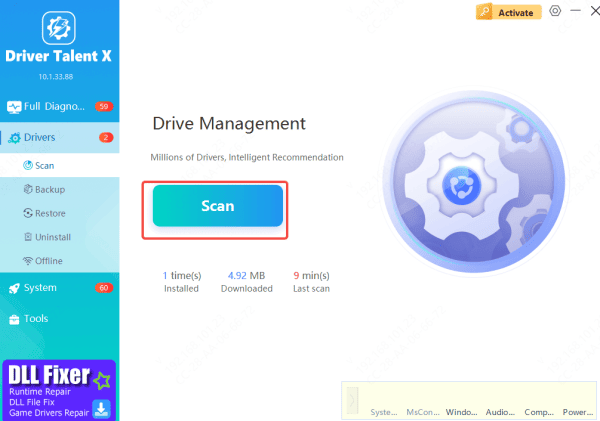
Open Driver Talent X: Launch the software and navigate to the Drivers → Scan tab
Scan for Outdated or Missing Drivers: The software will scan your system and identify outdated or missing drivers, including any issues with your Drunkdeer A75 keyboard drivers
Click "Repair Now": Once the scan is complete, simply click Repair Now to automatically fix any driver issues detected
Using Driver Talent X eliminates the hassle of manually searching for drivers and ensures that your drivers are always up to date. This can resolve many keyboard-related issues, including functionality problems caused by outdated or incompatible drivers
Firmware Update
Enter web driver & update
Open web driver in browser
Click Firmware Upgrade → let it auto-detect and flash
Do NOT unplug during process (progress bar must finish 100%)
.png "online-update")
Download Firmware
Extract firmware ZIP → run updater from folder
Downgrade first: Flash older firmware version (e.g., v0008 or previous model file) → then update to latest
Using a Replacement Cable (If Detachable)
If your Drunkdeer A75 has a detachable cable, it might be worth testing with a different one
Use another USB-C or USB-A cable (depending on your model) to see if the original cable is faulty. A damaged cable can prevent your keyboard from connecting or functioning properly
.jpg "use-different-cable")
Conclusion
By following these troubleshooting steps, you should be able to pinpoint the issue with your Drunkdeer A75 keyboard and get it back to full working order. Whether the problem is related to connectivity, software, drivers, or hardware, these solutions cover all the common causes of keyboard failure. With the right approach, your Drunkdeer A75 will be back in action before you know it.









