Using dual monitors with a Lenovo ThinkPad can significantly improve productivity—whether you're working on spreadsheets, coding, or multitasking across several applications. Although docking stations make multi-monitor setups easier, you don't actually need one. This guide explains all the ways you can connect two monitors to a Lenovo ThinkPad without a docking station, along with setup instructions and troubleshooting tips.
Connect Dual Monitors Using HDMI + USB-C
This is the most common dual monitors setup without a dock.
What you need: 1× HDMI cable. 1× USB-C to HDMI or USB-C to DisplayPort adapter/cable
Connect your first monitor using the ThinkPad's HDMI port
Connect your second monitor using USB-C (Alt Mode) to HDMI/DP
Power on both monitors
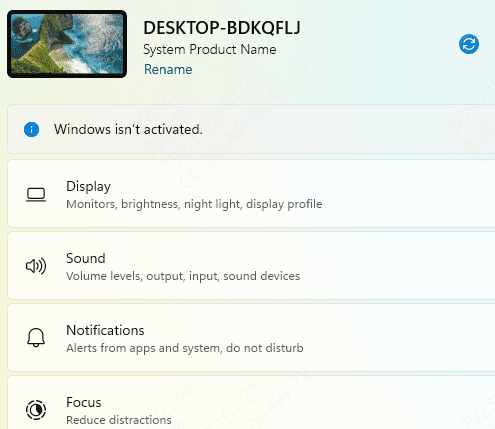
Go to Settings > System > Display
Select Extend these displays under Multiple displays
Your ThinkPad should now output to two external monitors without a dock
.png "connect-cable")
Use USB-C Multi-Port Adapter
If your ThinkPad has only one video port, a simple USB-C multi-port hub (not a full docking station) can extend your display.
Look for an adapter with: 1× HDMI + 1× DisplayPort or 2× HDMI outputs
Plug the multi-port adapter into your USB-C or Thunderbolt port
Connect each monitor with HDMI/DP cables
Configure display settings in Windows
Make sure the adapter supports dual 4K or dual 1080p output—the product description must say "supports dual monitors."
.png "connect-hdmi")
Configure Display Settings in Windows
Once both monitors are connected:
Right-click the desktop → Display settings
Identify monitors
Choose Extend these displays
Adjust:
Resolution
Refresh rate
Display order
Orientation
For best performance, set each monitor to its recommended resolution.
Update Drivers
When setting up dual monitors on a Lenovo ThinkPad without using a docking station, outdated drivers are one of the most common causes of display detection failures. To ensure smooth performance through USB-C, HDMI, or DisplayPort connections, you must keep your graphics driver, USB-C controller driver, chipset driver, and firmware updated. Using an automated driver update utility helps prevent compatibility issues and ensures your ThinkPad fully supports multiple external displays.
Download Driver Talent X
Click the Download button to obtain the Driver Talent X installer
After downloading, run the setup file and follow the on-screen instructions to install the software on your ThinkPad
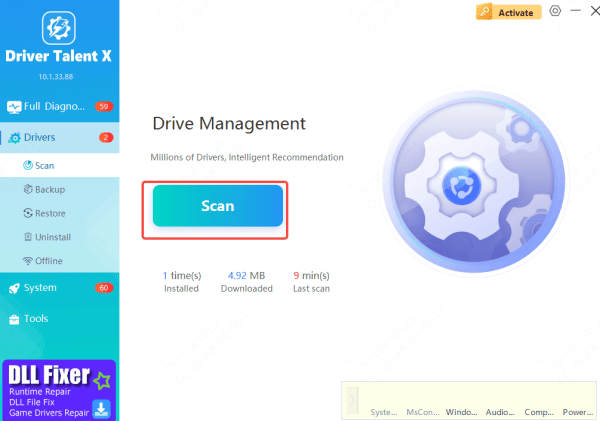
Run a Full Driver Scan
Go to the Drivers section
Click Scan
The program will analyze all system components that affect dual monitor output
This ensures every element responsible for video output is checked
Apply Driver Updates
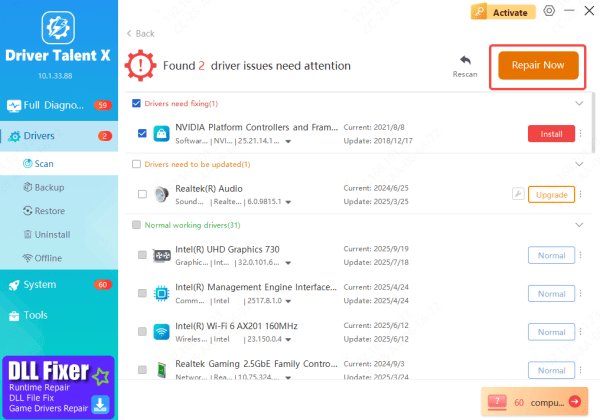
Once scanning is complete, Driver Talent X will show all drivers that require updates or repairs
Select all video-output-related drivers
Click Repair Now or Update
The software will automatically install the latest Lenovo-compatible drivers, improving monitor detection and ensuring stable dual display output through your ThinkPad ports
Restart Your ThinkPad
After installing updates, restart your laptop
Rebooting ensures Windows loads the new drivers correctly, which often resolves issues such as: External monitors not detected, Second monitor showing No Signal, Display flickering or disconnecting,or USB-C display output not functioning
Troubleshooting Dual Monitor Issues
Monitor not detected: Reconnect HDMI/USB-C cables. Restart your ThinkPad. Click Detect in Display Settings. Try a different USB-C port
USB-C monitor not displaying: Confirm the port supports DisplayPort Alt Mode. Replace cable (USB-C cables vary greatly)
Second monitor flickering: Lower refresh rate. Use certified HDMI/DP cables. Avoid low-quality adapters
DisplayLink adapter not working: Install latest DisplayLink driver. Avoid plugging into USB-C power-only ports
Conclusion
Setting up dual monitors on a Lenovo ThinkPad without a docking station is completely achievable using built-in HDMI, USB-C, or Thunderbolt ports, as well as compatible multi-port adapters. By choosing the right cables, configuring Windows display settings, and keeping your graphics and USB-C drivers updated, you can ensure stable, smooth dual-monitor performance. If issues arise, simple troubleshooting—such as checking cables, verifying Alt Mode support, or updating drivers—typically resolves them quickly, allowing you to enjoy an efficient and expanded workspace.









