
If your Fifine microphone is not showing up in Device Manager, it can be a frustrating experience, especially when you rely on it for work, streaming, or communication. This issue can occur due to various reasons, including hardware conflicts, outdated drivers, or system glitches. This guide provides a step-by-step approach to fix the issue and restore your microphone functionality.
Basic Troubleshooting: Check Physical Connections
Before diving into software solutions, it's essential to ensure that the hardware itself is functioning properly:
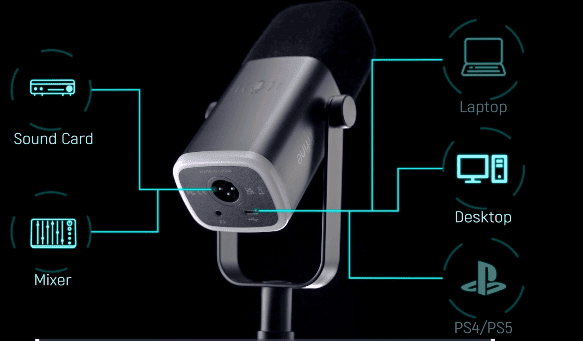
Check USB Connection: Ensure that the microphone is securely connected to the USB port. If the connection is loose, the device might not be detected by your system
Try Different Ports: Switch to another USB port on your laptop or desktop. Some USB ports, especially USB 3.0 or USB-C, may cause compatibility issues with certain devices. Test on both USB 2.0 and 3.0 ports
Test on Another Computer: If possible, test your Fifine microphone on another computer to determine whether the issue lies with the microphone itself or your system
Use a Different USB Cable: If your microphone has a detachable USB cable, try replacing it with another one to rule out cable damage
Check for Windows Updates
An outdated version of Windows can sometimes prevent new devices from being recognized:
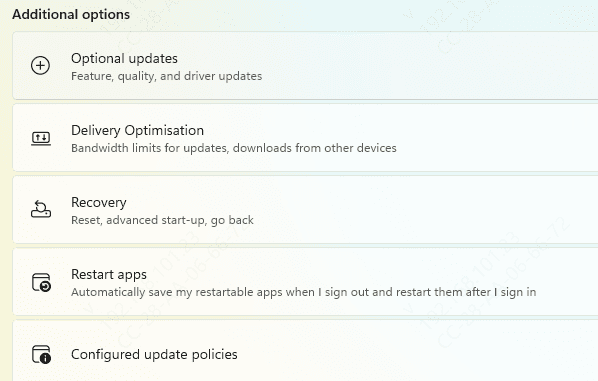
Go to Settings → Windows Update → Check for Updates
If there are any available updates, install them, then restart your computer and check if the microphone driver is now visible
Check Device Manager for Hidden Devices
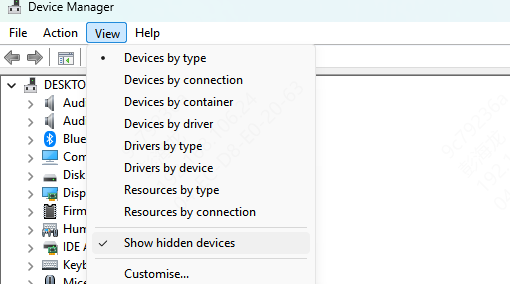
If your microphone isn't showing up in Device Manager, it might be hidden. Follow these steps:
Open Device Manager (Press Windows + X and select Device Manager)
Click View → Show Hidden Devices
Expand the Sound, video and game controllers section and check if the Fifine microphone appears in the list
If the device is hidden, right-click on it and select Uninstall
Restart your computer, and Windows will attempt to reinstall the driver automatically
Update Microphone Driver
Driver Talent X offers a fast, automated way to find and install the correct driver for your Fifine microphone:
Download and Install Driver Talent X
Click the Download button to get the installer
Once the installation is complete, open Driver Talent X
Scan Your System
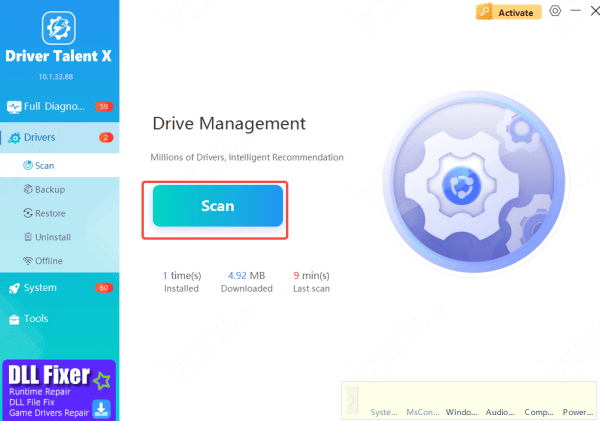
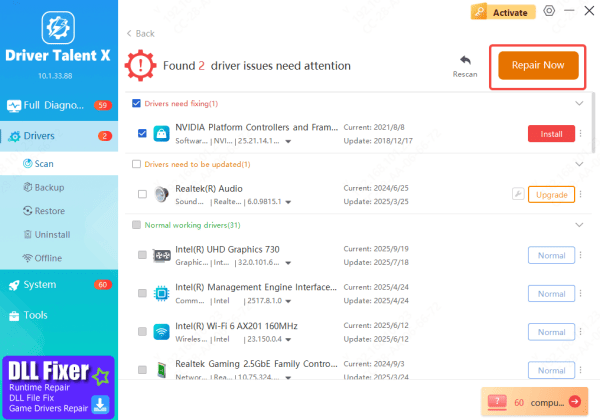
In Driver Talent X, go to Drivers → Scan
The tool will automatically detect missing, outdated, or corrupted drivers, including the microphone driver
Install the Driver
Once the scan is complete, Driver Talent X will display a list of drivers that need attention
Locate the Microphone or Audio Input driver and click Repair Now or Update to install the latest compatible version
Restart Your Computer
After the driver installation, restart your computer to ensure the new driver is applied
Once the system reboots, check if the Fifine microphone is recognized
Check Microphone Privacy Settings
If the microphone is still not showing up in apps like Zoom, Skype, or Teams, you might have a privacy setting issue:
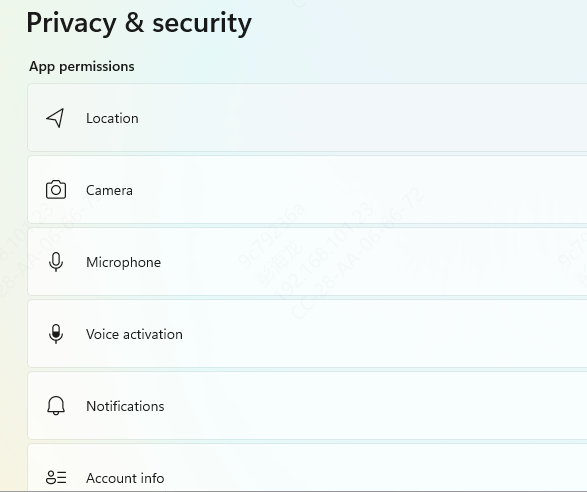
Open Settings → Privacy → Microphone
Ensure that Microphone access for this device is turned on
Scroll down and make sure that access is allowed for apps like Zoom, Skype, or other communication software
Additionally, go to Settings → System → Sound and verify that the Fifine microphone is selected as the input device
Run Windows Troubleshooter
Windows offers a built-in troubleshooting tool that can automatically detect and fix audio-related issues:
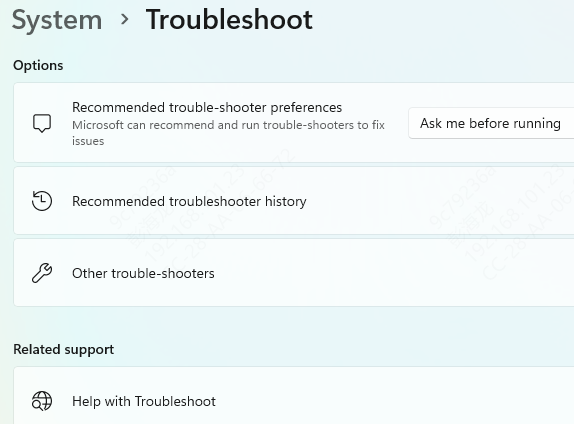
Open Settings → System → Troubleshoot → Other Troubleshooters
Click Recording Audio and then Run the Troubleshooter
Follow the on-screen instructions to let Windows diagnose and fix any issues with the microphone
Contact Fifine Support
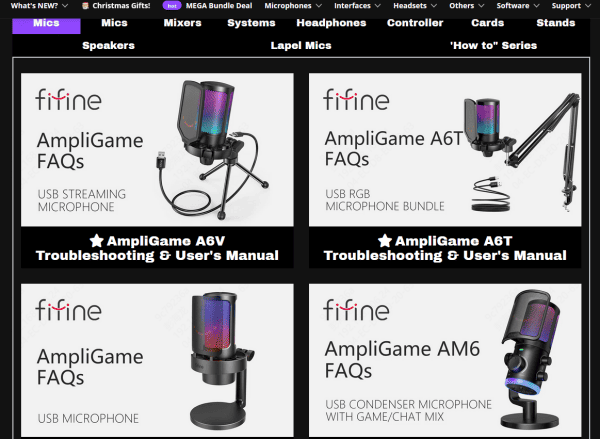
If none of the steps above resolve the issue, it might be time to contact Fifine customer support for further assistance
Provide them with detailed information about your problem, including your troubleshooting steps, operating system version, and microphone model, so they can assist you more effectively
Conclusion
By following this guide, you should be able to troubleshoot and resolve the issue of the Fifine microphone not showing up in Device Manager. Whether the problem stems from driver issues, settings misconfigurations, or software conflicts, these steps offer reliable solutions to get your microphone functioning again.









