
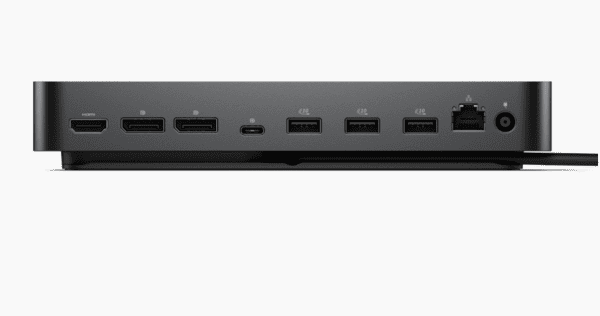
The Dell D6000 docking station is a versatile tool that expands your laptop's connectivity by allowing you to connect multiple displays, USB devices, and network peripherals. However, if the Dell D6000 docking station is not being detected by your system, it can be frustrating, especially when you rely on it for productivity. One of the most common issues is the driver not being detected or recognized by the system, which can lead to functionality problems. This guide will walk you through the steps to fix the "Dell D6000 driver not detected" issue, providing troubleshooting tips and solutions.
Preliminary Troubleshooting Steps
Check the Connection: Ensure that the Dell D6000 is securely connected to your laptop or PC via the USB-C port. If you're using a USB-A to USB-C adapter, check that it's properly connected
Use a Different USB Port: Sometimes, the USB port itself could be faulty
Try connecting the docking station to a different USB port, preferably a USB 3.0/3.1 port for better performance
Power Cycle the Docking Station: Disconnect the Dell D6000 from both the power source and your laptop. Wait for about 10-15 seconds, then reconnect it
Restart Your Computer: A simple restart can sometimes resolve detection issues, especially if the system failed to recognize the docking station upon initial connection
Dell Support Website Download Driver
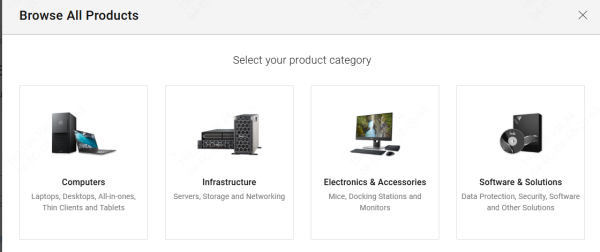
Go to the official Dell Support website
Enter the service tag or model number of your Dell D6000 docking station
Locate the Drivers & Downloads section for your docking station model
Download the latest version of the driver that's compatible with your operating system
Run the installer for the downloaded driver
Follow the on-screen instructions to complete the installation
Once the driver is installed, restart your laptop to finalize the installation and allow the system to detect the docking station
Use Device Manager to Detect the Driver
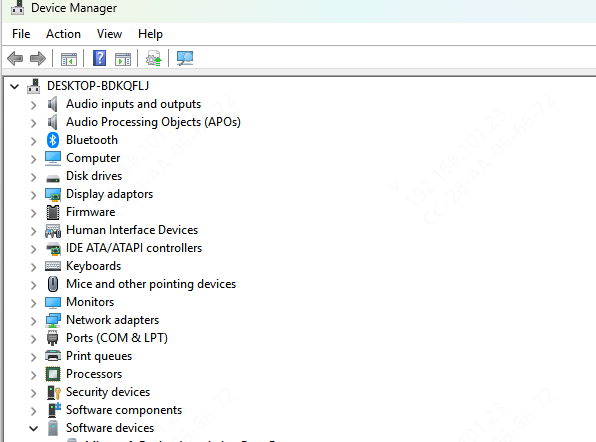
If the driver still isn't detected, you can try manually updating it through Device Manager:
Open Device Manager: Right-click the Start menu and select Device Manager
Locate the Dell D6000: Look for the Dell D6000 under Universal Serial Bus Controllers or Display Adapters
Update Driver: Right-click on the Dell D6000 listing and select Update Driver
Choose Search automatically for updated driver software
Follow the on-screen prompts if a new driver is found
Use Driver Talent X for Automated Driver Updates
For a faster and more reliable solution to fix the "Dell D6000 driver not detected" issue, Driver Talent X can automatically scan, repair, and update all relevant drivers:
Download and Install Driver Talent X
Visit the official website to download Driver Talent X and install it on your system
Launch the Software and Run a Scan
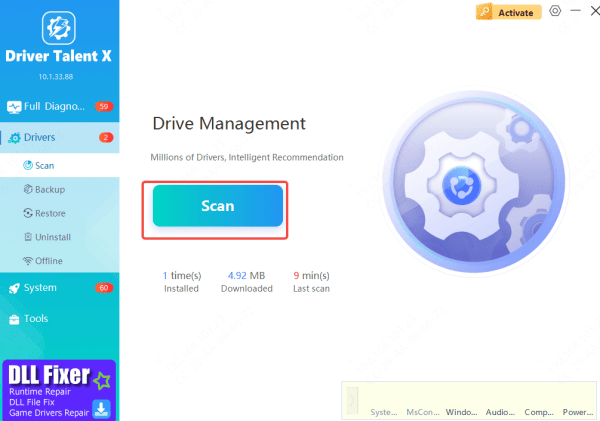
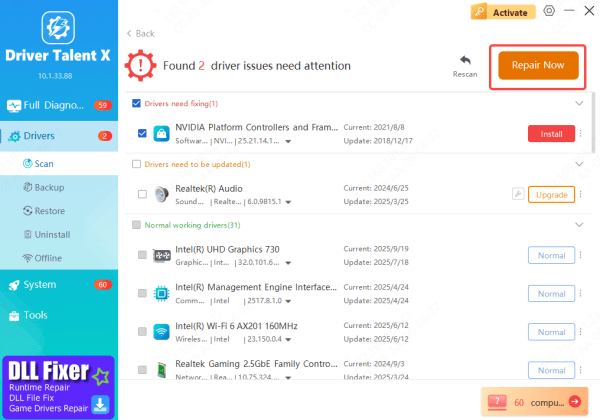
Open Driver Talent X and go to Drivers → Scan
The tool will perform a deep scan to detect outdated, missing, or corrupted drivers on your system, including the drivers for your Dell docking station
Update Drivers
Once the scan is complete, click on Repair Now or Update to allow Driver Talent X to automatically download and install the latest drivers for your Dell D6000 docking station
Restart Your PC and Test
After the driver updates are installed, restart your PC
Test the docking station by connecting it to your system again to verify that the issue has been resolved
By using Driver Talent X, you ensure that your Dell D6000 docking station and other devices are always equipped with the latest, most compatible drivers, preventing future detection issues and ensuring optimal performance.
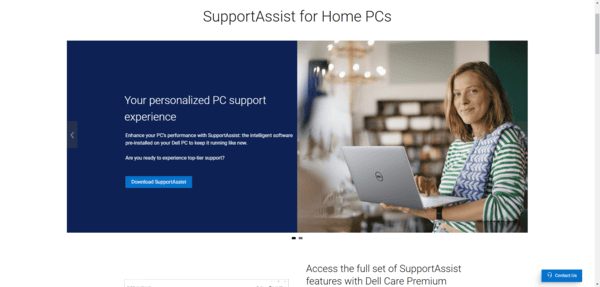
Run the Dell SupportAssist Tool
Dell SupportAssist is an automated tool that scans your system for outdated drivers and firmware, including those for the Dell D6000 docking station:
Download Dell SupportAssist: If you don't already have it installed, download Dell SupportAssist from the official Dell website
Run a System Scan: Open the Dell SupportAssist tool and run a full system scan
Install Available Updates: If any updates are found, allow SupportAssist to automatically download and install the necessary updates
Why Dell D6000 Drivers Might Not Be Detected
Driver Installation Issues: The driver may have been incorrectly installed or is corrupted
Outdated Drivers: Running outdated drivers can cause the docking station to malfunction or fail to be recognized by the system
USB or Cable Connection Issues: Loose connections or faulty cables may interfere with the proper detection of the docking station
Operating System Compatibility: Compatibility issues between the drivers and the version of your operating system may prevent the docking station from being recognized
Conflicting Software: Other device drivers or software could conflict with the Dell D6000, causing the driver not to be detected
Conclusion
Keeping your Dell D6000 drivers updated and ensuring proper installation is essential for ensuring that your docking station functions correctly. By following the steps in this guide, you should be able to resolve any issues related to the driver not being detected. Regular updates and maintenance can help prevent further issues and ensure optimal performance.









