
When your Lenovo docking station fails to detect external monitors, it can interrupt your work and limit your productivity—especially if you rely on multiple screens for multitasking. This problem is usually linked to driver issues, incorrect connections, outdated firmware, or hardware faults. The good news is that most of these issues can be fixed with simple troubleshooting steps. This guide walks you through all the proven methods to restore display output on Lenovo docking stations.
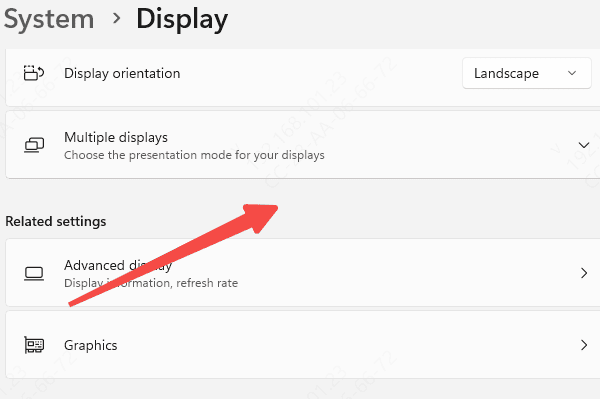
Check Display Settings in Windows
Windows may not automatically extend or detect displays.
Open Display Settings.
Click Detect to force Windows to look for external screens
Review your display mode and switch to Extend, Duplicate, or Second screen only depending on your needs
If a monitor is detected but not displaying correctly, adjust the resolution or refresh rate to match the monitor's supported specifications
Proper display configuration can immediately restore output.
Update Drivers (Critical Step)
Driver issues are one of the most common causes of monitor detection failures. Update your drivers to ensure your system supports external display output. Driver Talent X helps ensure your Lenovo docking station works smoothly by automatically detecting outdated or malfunctioning display-related drivers. Since external monitors rely heavily on graphics, USB-C, Thunderbolt, and chipset drivers, keeping them updated is essential for resolving detection issues.
Download Driver Talent X
Click the Download button to get the installer, then run the setup file to install the program on your PC.
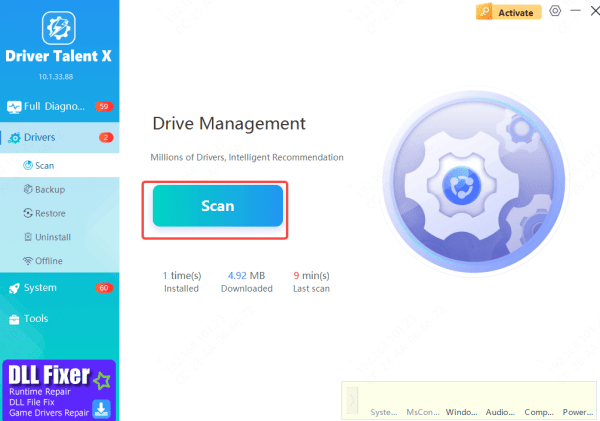
Start a Full Driver Scan
Click Scan, and the tool will examine critical components that affect monitor detection—such as GPU drivers, USB-C/Thunderbolt controllers, and system chipsets.
Apply Required Updates
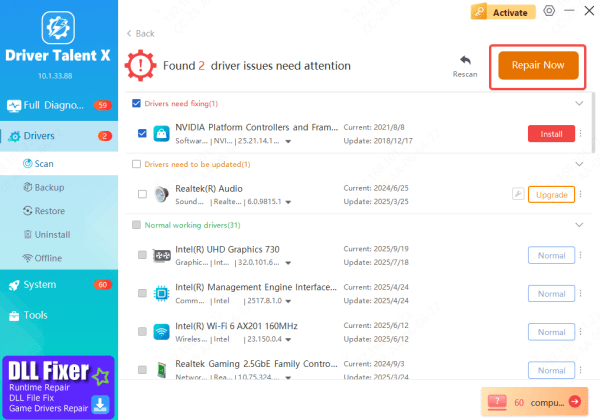
After scanning, Driver Talent X will list all outdated or problematic drivers that may be causing your monitors not to appear. Choose Repair Now or Update, and the software will automatically download and install the correct driver versions optimized for your Lenovo system.
Restart Your Computer
When the updates finish, restart your PC. A reboot ensures Windows loads the new drivers properly and often restores external monitor functionality through the docking station.
Update Docking Station Firmware
Outdated dock firmware may cause displays not to appear or may limit supported monitor configurations.
Visit the Lenovo Support website, search for your docking station model, and download the latest firmware package
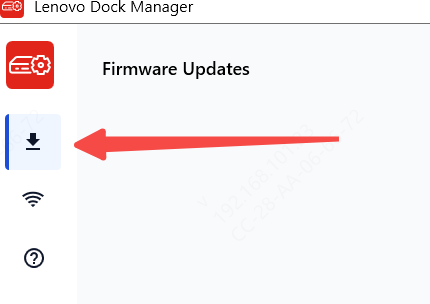
Install updates using Lenovo Dock Manager
During the update, do not disconnect the dock or power supply
Firmware updates often introduce important stability improvements, fix connection issues, and enhance multi-monitor performance.
]
Test Different Ports and Cables
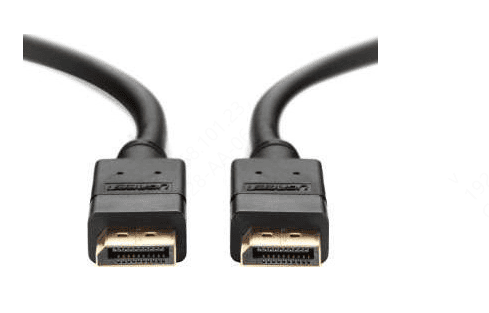
Try other video ports on the dock: Switch the monitor to another HDMI or DisplayPort output on the docking station to see if the issue is limited to one port.
Use a different USB-C or Thunderbolt port on the laptop: If your laptop provides multiple USB-C/Thunderbolt ports, connect the dock to another one to rule out port malfunction
Replace potential faulty cables: Test with a different HDMI or DisplayPort cable. Damaged or low-quality cables can cause flickering, no signal, or intermittent detection
Avoid problematic adapters: If you are using DP-to-HDMI or USB-C video adapters, try replacing them or removing them entirely, as converters often fail or do not support high resolutions
Check for port-specific issues: If the monitor works on one port but not another, the original dock port may be defective and require repair or replacement.
Restart and Reconnect Everything
A simple restart can refresh the dock's connection to your laptop.
Turn off your monitors, unplug the USB-C/Thunderbolt cable from your laptop, and disconnect power from the dock
Wait about 10 seconds, then reconnect the dock's power and restart your laptop
Once Windows fully loads, reconnect the dock
This reset refreshes the dock's internal display controller and often restores video output without further steps.
Conclusion
A Lenovo docking station failing to detect external monitors is usually caused by incorrect settings, outdated drivers, or simple connection issues—and in most cases, it can be resolved with the right troubleshooting steps. By checking Windows display settings, updating system drivers, installing the latest dock firmware, testing different ports and cables, and performing a full restart, you can quickly restore proper monitor detection and get your multi-monitor setup working again. With regular driver maintenance and proper cable connections, your Lenovo docking station will remain stable, reliable, and ready for daily productivity.









