
Intel Bluetooth driver errors on Windows can prevent wireless devices such as headphones, keyboards, mouse, and speakers from connecting or working properly. Common symptoms include Bluetooth not turning on, devices failing to pair, frequent disconnections, or error messages in Device Manager.
In most cases, these problems are caused by outdated, corrupted, or incompatible Bluetooth drivers. This guide provides multiple effective solutions, starting with the fastest and most reliable method: updating drivers using Driver Talent X.
Update Intel Bluetooth Driver with Driver Talent X
Using a dedicated driver management tool helps avoid compatibility issues and failed installations. Driver Talent X automatically detects your Intel wireless hardware and installs the correct Bluetooth driver for your Windows version.
Download and Install:
Click the "Download" button to download the software package.
Install the software on your computer.
Run Scan:
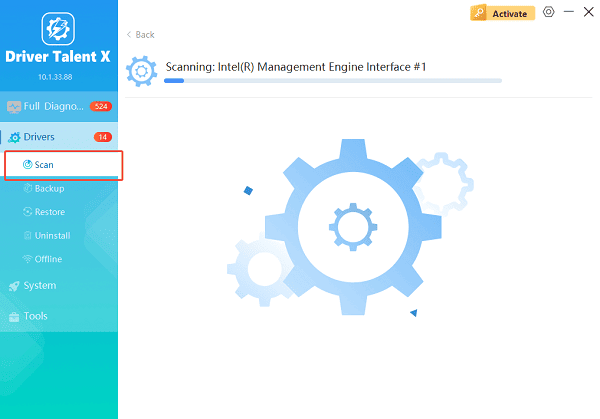
Launch the application and go to "Drivers" > "Scan", click "Scan".
Driver Talent X will check all drivers, including Bluetooth, WiFi, chipset, and USB controllers.
Update Drivers:
After the scan is complete, the software will display a list of all drivers that need attention. Select the necessary Intel Bluetooth driver and click the "Upgrade" or "Repair Now" button.
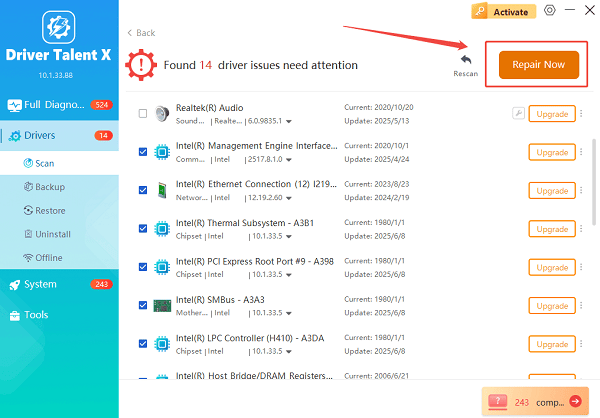
Driver Talent X will download the correct Intel Bluetooth driver version that matches your system.
Restart your PC:
Follow the on-screen prompts to finish the installation process.
Reboot the system to ensure the new Bluetooth driver loads correctly.
Common Causes of Intel Bluetooth Driver Errors
Understanding the causes can help prevent future issues.
Outdated or Corrupted Drivers: Old or damaged Bluetooth drivers may stop working after Windows updates.
Windows Update Conflicts: Some Windows updates replace Bluetooth drivers with generic versions that lack full functionality.
Disabled Bluetooth Services: Required Bluetooth services may be stopped or set to manual startup.
Power Management Settings: Windows power-saving features can disable Bluetooth devices to conserve energy.
Hardware or BIOS Configuration Issues: Bluetooth may be disabled at the BIOS or hardware level on some systems.
Fix 1: Restart Bluetooth Support Services
Bluetooth services must be running for devices to function.
Steps to Restart Bluetooth Services:
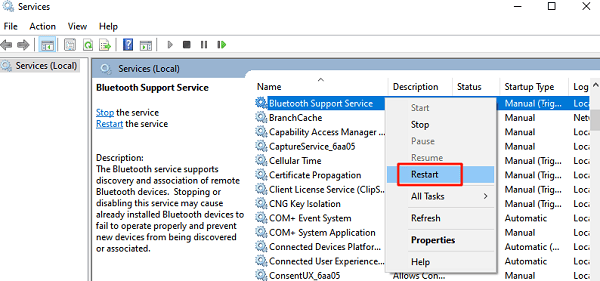
Press Windows + R, type "services.msc", and press Enter.
Locate "Bluetooth Support Service", right-click the service and select "Restart".
Double-click the service and set Startup type to Automatic.
Click Apply and OK.
Fix 2: Reinstall Intel Bluetooth Driver via Device Manager
Reinstalling the driver removes corrupted files.
How to Reinstall the Driver:
Open Device Manager.
Expand "Bluetooth", right-click Intel Bluetooth and select "Uninstall device".
Check "Delete the driver software for this device".
Click "Uninstall" and restart your computer.
After reboot, install the latest driver using Driver Talent X or Windows Update.
Fix 3: Update Windows to the Latest Version
System updates may include Bluetooth fixes.
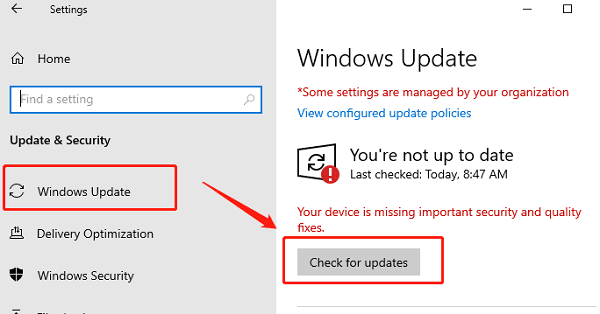
Open Settings > Update & Security.
Go to "Windows Update".
Click "Check for updates".
Install all available updates.
Restart your PC.
Fix 4: Adjust Bluetooth Power Management Settings
Power-saving options can disable Bluetooth unexpectedly.
Steps to Disable Power Saving:
Open Device Manager.
Expand "Bluetooth", right-click Intel Bluetooth and select "Properties".
Go to the "Power Management" tab, uncheck "Allow the computer to turn off this device to save power".
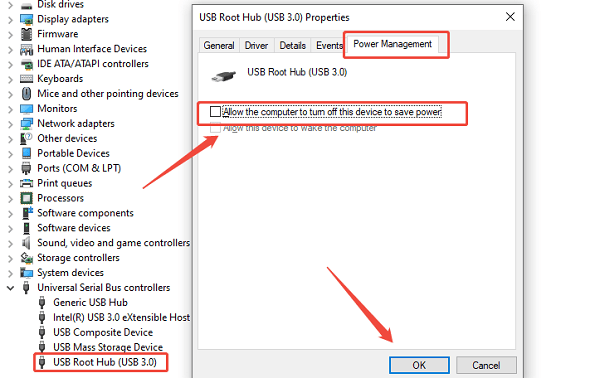
Click "OK".
Fix 5: Enable Bluetooth from BIOS
Some laptops allow Bluetooth to be disabled at the hardware level.
Restart the computer and enter BIOS or UEFI settings.
Locate Wireless or Bluetooth settings.
Ensure Bluetooth is enabled.
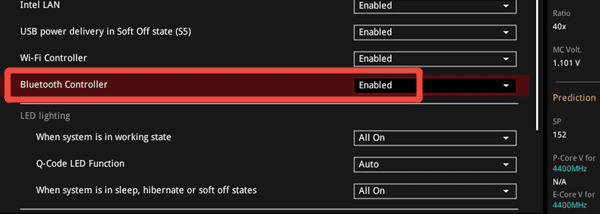
Save changes and exit.
Fix 6: Run Windows Bluetooth Troubleshooter
Windows includes a built-in diagnostic tool.
Open Settings > Update & Security.
Click Troubleshoot > Additional troubleshooters.
Find Bluetooth and click "Run the troubleshooter".
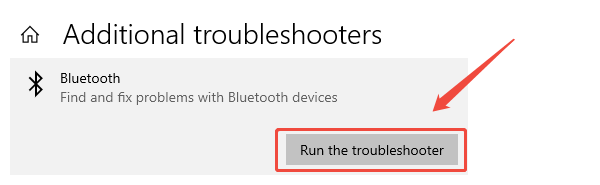
Follow the on-screen instructions.
Conclusion
Intel Bluetooth driver errors on Windows are usually caused by outdated drivers, system conflicts, or incorrect settings. Updating the driver with Driver Talent X should be the first step, as it ensures you install the correct and compatible Intel Bluetooth driver automatically. If issues persist, restarting services, adjusting power settings, reinstalling drivers, and updating Windows can effectively restore Bluetooth functionality and improve wireless device stability.
See also:
How to Fix CoD Vanguard Not Launching on PC
How to Resolve Crashing Issues in Warframe









