If your Lenovo IdeaPad 110 charger stops functioning, it can prevent your laptop from turning on or charging correctly. Common symptoms include the laptop not recognizing the charger, the charging LED remaining off, the battery percentage not rising, or the adapter overheating. These issues may stem from a defective charger, a damaged charging port, loose connections, driver problems, or internal hardware faults. This guide walks you through all the effective troubleshooting steps to pinpoint the problem and restore proper charging on your Lenovo IdeaPad 110.
Method 1: Update Power Drivers Using Driver Talent X
Driver Talent X provides an automated way to detect and fix corrupted, outdated, or missing power-related drivers that may prevent the charger from working properly.
Download and Install Driver Talent X
Click the Download button to obtain the installer, then run the setup file
Follow the on-screen instructions to complete the installation
Run a Full Power Driver Scan
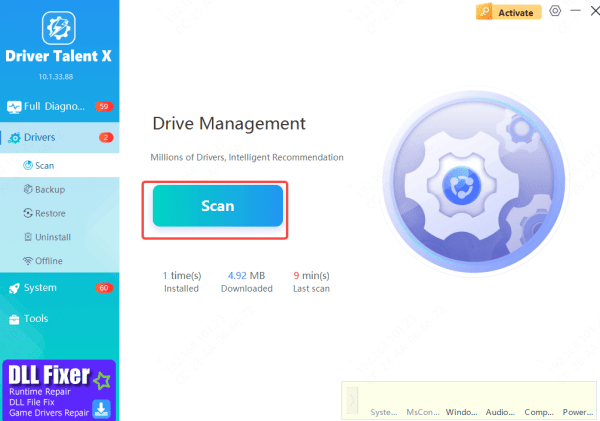
Open Driver Talent X and navigate to Drivers → Scan
The program will analyze all components related to charging stability, including: ACPI-Compliant Control Method Battery, Microsoft AC, Adapter driver, Chipset, power management drivers, and USB controllers that may affect charging
Update Drivers
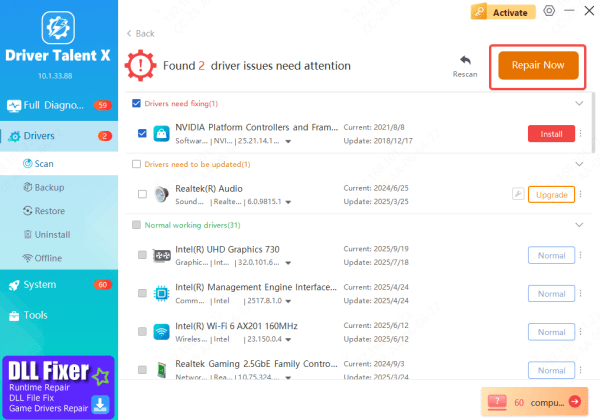
Select all recommended updates
Driver Talent X will automatically install the correct driver versions needed to restore proper charging function
Restart Your Laptop
Once the updates are installed, restart your IdeaPad 110
A fresh reboot ensures Windows loads the corrected power drivers properly
Method 2: Update the BIOS Through Lenovo Support
In some cases, charging problems on the Lenovo IdeaPad 110 are caused by outdated firmware rather than hardware or driver faults. Updating the BIOS can correct power-related bugs, improve battery detection, and fix charging issues that appear after Windows updates or system changes.
Visit the official Lenovo Support website and search for your IdeaPad 110 model
Locate the BIOS / UEFI section and download the most recent firmware package available for your device
Run the downloaded BIOS installer and follow the on-screen instructions carefully. Make sure your laptop is plugged into a working charger during the process to avoid interruptions
Once the update completes, your system will reboot automatically
A fresh BIOS update can often restore proper charging behavior, correct detection errors, and improve overall power stability.
.png "download-bios")
Method 3: Adjust Windows Power and Battery Settings
Some Lenovo models include battery protection modes that limit charging.
Disable battery threshold mode (Lenovo laptops)
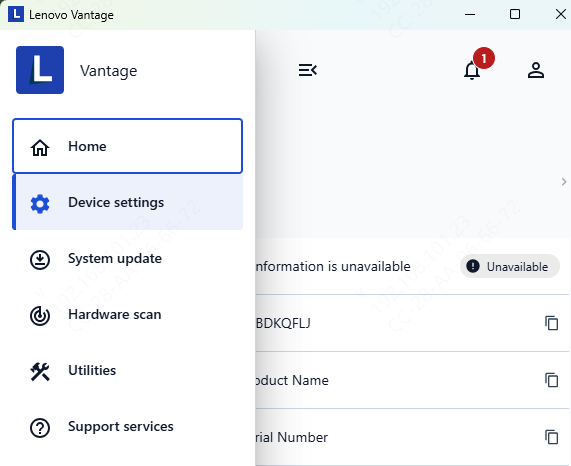
Open Lenovo Vantage
Go to Power Settings
Disable Battery Charge Threshold if enabled
Method 4: Reset Windows power plan
Open Control Panel → Power Options
Select Restore default settings
Disable USB power saving (for USB-C charging)
Open Device Manager
USB Controllers → USB Root Hub → Properties
Uncheck Allow the computer to turn off this device
.png "change-power-plan")
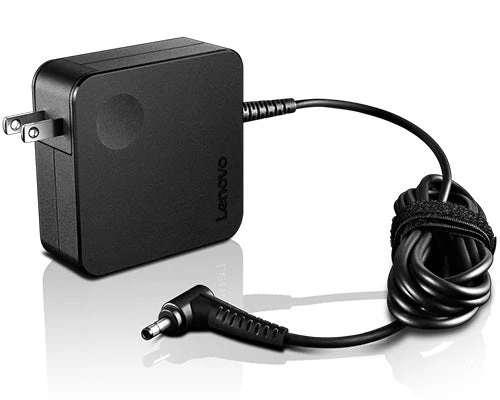
Method 5: Check the Charger for Physical Damage
Begin by inspecting the charger and power cable for any visible signs of damage
Next, test whether the charger is functioning properly
Determine Whether the Issue Is the Laptop or the Charger
Finally, identify the actual source of the problem by checking whether your charger works with another device or testing your laptop with a different charger
Conclusion
Charging issues on the Lenovo IdeaPad 110 can result from driver problems, outdated BIOS, power settings, or hardware faults. By updating drivers, applying BIOS updates, adjusting power settings, and checking the charger and cables, most users can restore normal charging. If the problem persists, professional repair may be needed.









