
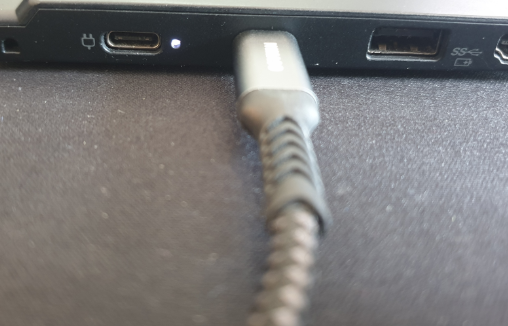
A malfunctioning charging port is one of the most common issues Lenovo laptop users encounter. Symptoms may include the laptop not charging, charging only when the cable is angled, no LED indicator, or Windows showing "Plugged in, not charging." This guide explains all possible solutions, from simple checks to advanced driver and BIOS fixes, and when hardware repair is necessary.
Method 1: Reset Battery
This restores power communication between Windows, the battery, and the charging controller.
Shut down the laptop completely
Unplug the charger
For models with removable batteries: remove the battery for 10–15 seconds
For internal-battery models: hold the Power button for 20–30 seconds to perform an EC (Embedded Controller) reset
Plug the charger back in and restart
This often fixes "not charging" and "plugged in, not charging" issues instantly.
Method 2: Fix Driver Issues Using Driver Talent X
A corrupted chipset, ACPI, or battery driver is difficult to diagnose manually. Driver Talent X scans the system and repairs missing or incompatible power drivers automatically.
Download and Install
Click the "Download" button to get the installation package, then install it on your computer.
Run a System Check
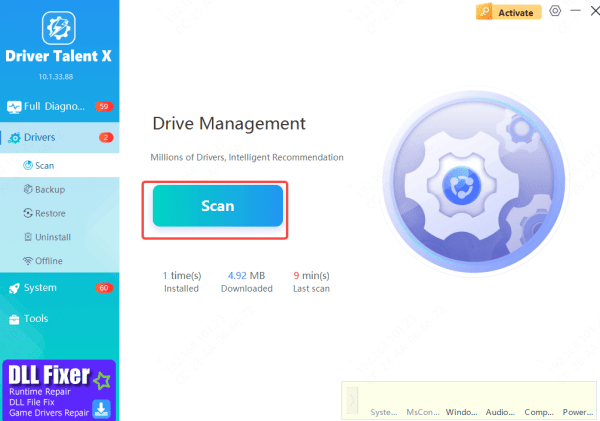
Open the tool and go to "Drivers" > "Scan." Start the scan to let the software analyze all power-related drivers, USB controllers, battery drivers, and system firmware components. Once the scan completes, it will show you any outdated or malfunctioning items that may affect charging.
Update Drivers
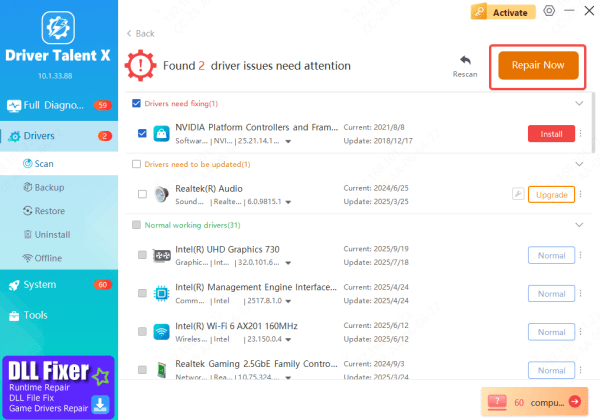
Select all recommended updates, especially for ACPI battery drivers, chipset drivers and power management components, then click "Upgrade" or "Repair Now." Driver Talent X will automatically download and install the correct versions to restore driver-level charging functionality.
Restart Your PC
Reboot your system so the updated drivers can take effect. Many Lenovo charging issues—such as the laptop not detecting the charger or slow charging—are often resolved after refreshing these system components.
Method 3: Update the BIOS via Lenovo Support
A BIOS update fixes hardware-level charging bugs, improves voltage detection, and resolves charging failures after OS upgrades.
Go to Lenovo Support
Download the latest BIOS file for your model
Run the installer
Restart to complete the firmware update

Method 4: Adjust Windows Power and Battery Settings
Some Lenovo models include battery protection modes that limit charging.
Disable battery threshold mode (Lenovo laptops)
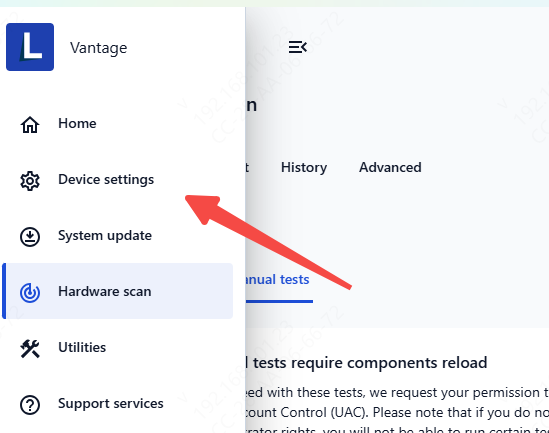
Open Lenovo Vantage
Go to Power Settings
Disable Battery Charge Threshold if enabled
Method 5: Reset Windows power plan
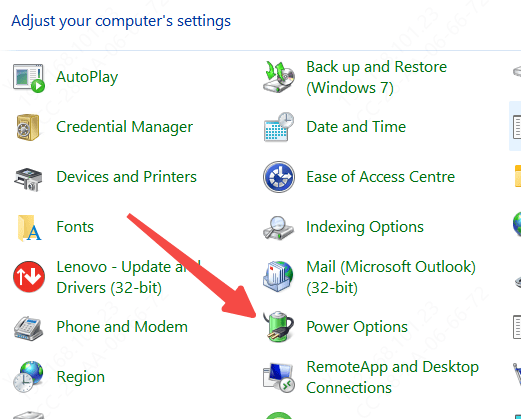
Open Control Panel → Power Options
Select Restore default settings
Disable USB power saving (for USB-C charging)
Open Device Manager
USB Controllers → USB Root Hub → Properties
Uncheck Allow the computer to turn off this device
Method 6: Hardware Fixes
If software fixes don't solve the issue, the charging problem may be caused by physical damage to the hardware.
Start by cleaning the charging port with compressed air to remove dust or debris that may block the connection
Check whether the DC jack feels loose or moves, as a detached internal jack can prevent proper charging. If your Lenovo device supports USB-C charging, test it to confirm whether only the main port is faulty
Also, inspect the charger and cable—bent pins or frayed wires can lead to unstable power delivery. If the port itself is damaged, replacing the DC jack is often necessary to restore normal charging
Conclusion
A non-working Lenovo charging port can result from simple software issues or more serious hardware faults. By following the methods in this guide—starting with power resets, repairing drivers automatically with Driver Talent X, updating the BIOS, and adjusting Windows power settings—you can resolve most charging failures without professional help. If the problem persists after all software troubleshooting, it is likely a physical issue with the charger, cable, or DC jack, requiring repair or replacement. With the right steps, most Lenovo charging problems can be fixed quickly and safely, restoring your laptop's normal charging functionality.









