
If your Lenovo laptop keyboard suddenly becomes unresponsive or locked, it can be frustrating, especially if you rely on your laptop for work or study. This issue can occur due to software glitches, accidental key combinations, Windows updates, accessibility settings, or even hardware problems. This guide provides step-by-step solutions to unlock your Lenovo laptop keyboard and restore full functionality.
Check for Physical Keyboard Lock Keys
Some Lenovo laptops include a keyboard lock feature that can be accidentally activated through key combinations.
Look for the Fn key combinations like Fn + F6 or Fn + Esc, which are commonly used to lock/unlock the keyboard
Press the combination once and test if the keyboard responds
Check for any keyboard lock indicators on your laptop, such as a small LED light near the keyboard
Disable Filter Keys or Sticky Keys
Windows accessibility features like Filter Keys or Sticky Keys can interfere with normal keyboard operation.
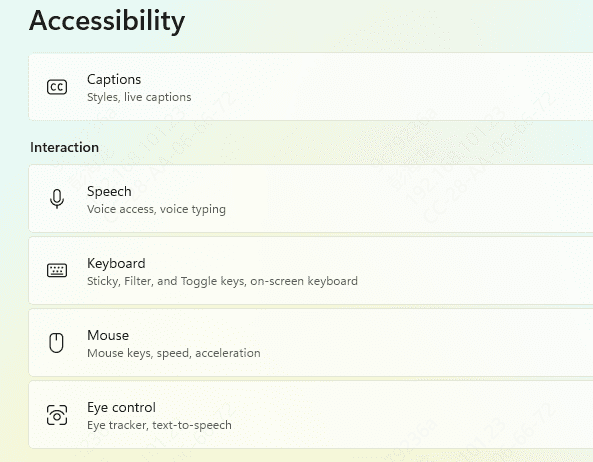
Press Win + I to open Settings
Go to Accessibility → Keyboard
Turn off Sticky Keys, Filter Keys, and Toggle Keys
Test the keyboard again
Update Drivers
Outdated or corrupted drivers are one of the most common causes of a locked Lenovo laptop keyboard. Updating your drivers ensures your system hardware, including the keyboard, chipset, and USB controllers, works correctly and is fully compatible with Windows. Using Driver Talent X simplifies this process by automatically detecting and installing the latest drivers for your device.
Download and Install Driver Talent X
Click the Download button to get the installer
Run the setup file and follow the on-screen prompts to complete the installation on your Lenovo laptop
Run a Full System Scan
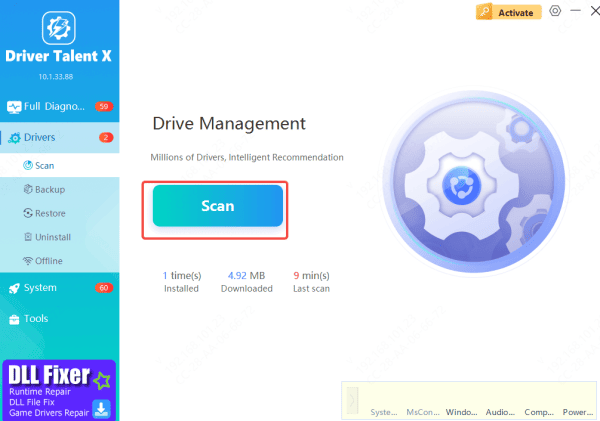
Open Driver Talent X
Navigate to Drivers → Scan and click Scan
The software will check all hardware drivers, including keyboard, chipset, and USB controllers, for outdated, missing, or corrupted versions
Update Drivers
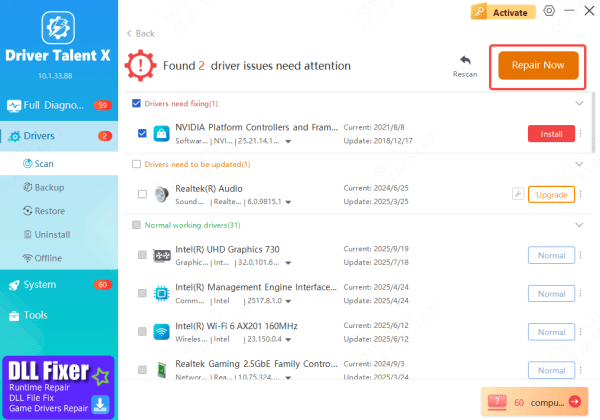
After the scan finishes, Driver Talent X will list all drivers that need attention
Click Repair Now to automatically download and install the latest certified drivers
This process ensures that your keyboard and other system components function correctly
Restart Your Laptop
Reboot your Lenovo laptop to apply all driver updates
With updated drivers, your system is ready for further keyboard troubleshooting, increasing the chances of unlocking and restoring full functionality
Check for Windows Updates or Rollback
Recent or pending updates can sometimes cause the keyboard to stop responding.
Go to Settings → Windows Update → Check for updates and install any pending updates
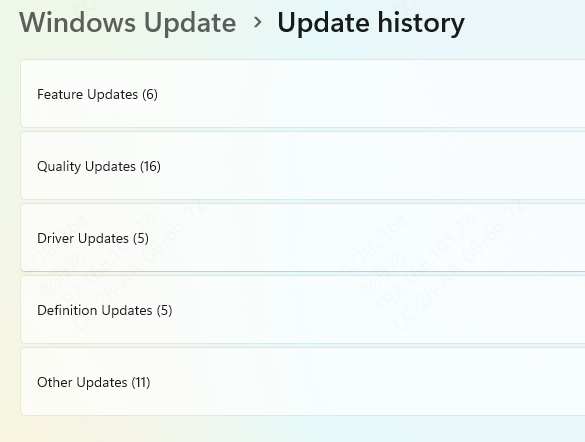
If the keyboard stopped working after a recent update, go to Update history → Uninstall updates and remove the latest update that may have caused the issue
Restart your laptop after uninstalling updates
Check BIOS/UEFI Settings
Some Lenovo laptops allow the keyboard to be disabled in BIOS.
Restart your laptop and press F2, F1, or Del (depending on your model) to enter BIOS/UEFI setup
Navigate to Internal Keyboard or Keyboard/Mouse settings
Ensure the internal keyboard is Enabled
Save changes and reboot the laptop

Use an External Keyboard (Temporary Solution)
If your internal keyboard is still unresponsive, you can connect a USB or Bluetooth external keyboard. This allows you to continue working while troubleshooting the issue.
Conclusion
By systematically checking physical lock keys, disabling accessibility features, updating or reinstalling drivers with tools like Driver Talent X, verifying Windows updates, and ensuring BIOS settings are correct, you can effectively restore full keyboard functionality. Using an external keyboard temporarily also allows uninterrupted work while troubleshooting. Following these steps ensures your Lenovo laptop keyboard returns to normal operation safely and reliably.









