
A common issue for Lenovo laptop users is the keyboard becoming completely unresponsive or behaving erratically immediately following a Windows update or BIOS flash.
This failure is rarely due to hardware damage but is typically caused by a corrupted keyboard driver, a conflict with the Windows update package, or an error in the power management settings.
To restore your keyboard functionality quickly and reliably, this guide provides systematic, step-by-step solutions, starting with the most effective method for ensuring stable input drivers.
Part I: Driver Integrity and System Fixes
The primary cause of a non-functional keyboard after an update is a failure in the Human Interface Device (HID) driver that controls keyboard input, or a conflict with the core system chipset drivers.
Method 1: Automated Driver Update with Driver Talent X
Manually troubleshooting and updating the various HID, chipset, and ACPI drivers can be complex. A specialized utility automates this process, ensuring that the necessary input drivers are perfectly compatible with your Lenovo hardware and the latest Windows build.
Preparation:
Use an external working mouse or the on-screen keyboard (search for "On-Screen Keyboard" in the Windows search bar) to navigate.
Download and install the Driver Talent X application onto your Lenovo laptop.
Run Scan:
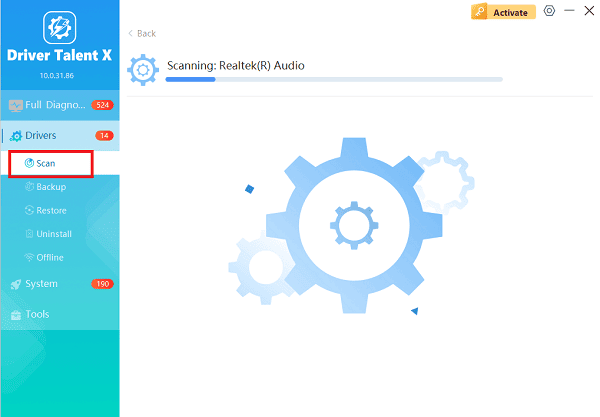
Launch the application and go to "Drivers" > "Scan", click "Scan".
The software will perform a deep analysis of your system, focusing on peripheral and controller drivers.
Install the Update:
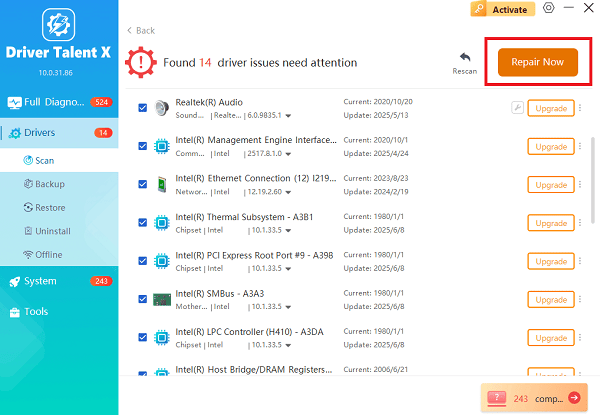
After the scan is complete, the software will display a list of all drivers that need attention.
Select the necessary drivers and click the "Repair Now" button. Driver Talent X will download the latest, certified versions, often resolving the lock issue instantly.
Finalize:
Once the installation is complete, restart your computer. The new drivers should load correctly, and your keyboard should be functional.
Method 2: Reinstall Keyboard Driver via Device Manager
This method forces Windows to forget the existing problematic driver installation and load a fresh, default copy, which is often enough to resolve post-update conflicts.
Press Windows Key + X and select "Device Manager".
Expand the "Keyboards" category.
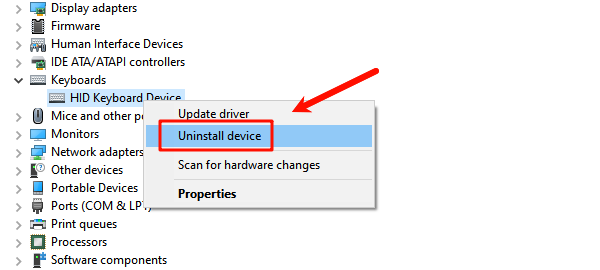
Right-click on your keyboard entry (often labeled as "Standard PS/2 Keyboard" or "HID Keyboard Device").
Select "Uninstall device". Do NOT check the box to delete the driver software.
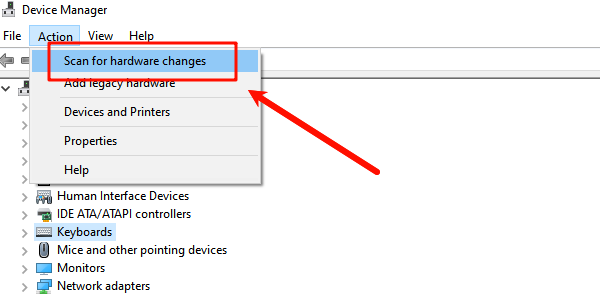
In the Device Manager menu, click "Action" > "Scan for hardware changes". Windows will automatically detect the uninstalled device and load a fresh default driver.
Restart the laptop to confirm the fix.
Part II: Lenovo Hardware and Power Checks
These steps address physical lock mechanisms or residual power glitches common on Lenovo hardware.
Method 1: Perform a Power Drain (Hard Reset)
Residual electrical charge (flea power) can sometimes confuse the laptop's Embedded Controller (EC), which manages the keyboard. A hard reset clears this state.
Disconnect Everything: Power down the laptop completely. Unplug the AC adapter and remove the battery if your model has a removable battery (for sealed batteries, skip battery removal).
Hold Power Button: Press and hold the laptop's main power button for 30 seconds. This drains all residual charge from the system components.
Test: Reconnect the AC adapter (and battery). Power the laptop back on and test the keyboard.
Method 2: Toggle Filter Keys and Accessibility Settings
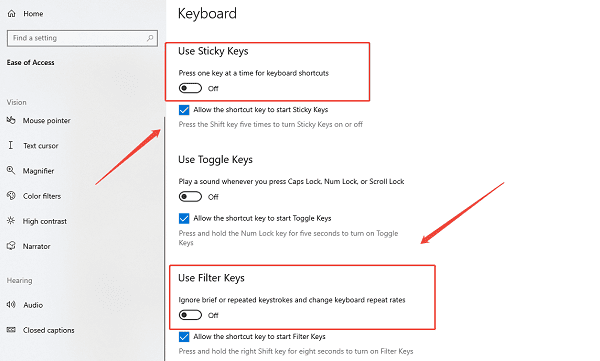
Windows Accessibility settings can sometimes be toggled on by the update process, causing the keyboard to ignore normal presses.
Press Windows Key + I to open Settings.
Go to "Accessibility" (or Ease of Access on older Windows versions).
Navigate to the "Keyboard" section.
Ensure both "Filter Keys" and "Sticky Keys" toggle switches are set to "Off". Filter Keys, in particular, ignores quick or repeated keystrokes, making the keyboard seem unresponsive.
Part III: System Firmware and BIOS
If the keyboard failure followed a BIOS update or a major system update, the system firmware may need attention.
Roll Back the Windows Update
If the keyboard worked perfectly before a specific Windows update, removing that update may resolve the conflict.
Press Windows Key + I to open Settings.
Go to "Update & Security" (Windows 10) or "Windows Update" (Windows 11).
Click "View update history".
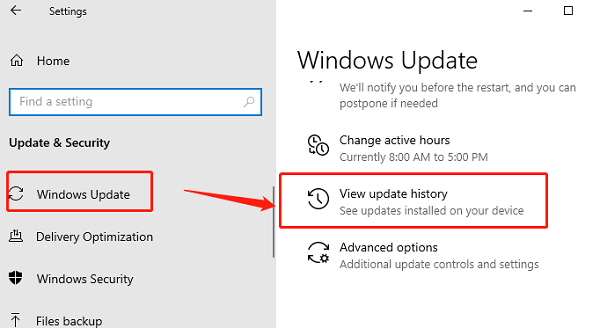
Select "Uninstall updates" and choose the most recent update installed just before the keyboard failure.
Uninstall and restart your PC.
Conclusion
A Lenovo laptop keyboard failing after an update is a highly fixable issue rooted in driver conflicts. The most reliable solution is to first ensure that your HID and chipset drivers are perfectly stable with Driver Talent X.
By combining a clean driver installation with a Power Drain and checking that Filter Keys are disabled, you can systematically eliminate common failure points and restore full keyboard functionality.
See also:
Elden Ring: Nightreign Highlights and System Requirements Overview
[Fixed] 'xinput1_3.dll Was Not Found' Error on Windows









