
If your Lenovo laptop powers on but the screen remains black, it can be alarming—especially when you hear the fan running or see indicator lights, but nothing appears on the display. This issue is fairly common and can be caused by display settings, driver corruption, hardware connection problems, BIOS errors, or power-related issues. This guide walks you through all proven solutions step by step to help you identify and fix the problem.
Perform Basic Display Checks
Sometimes the laptop is actually on, but the display isn't visible.
Increase brightness using Fn + brightness keys
Press Win + Ctrl + Shift + B to reset the graphics driver
Disconnect all external devices (USB drives, monitors, docks)
Force a restart by holding the Power button for 10–15 seconds
If the screen remains black, move on to deeper troubleshooting.
Check for External Display Conflicts
Your Lenovo laptop may be outputting video to another display.
Connect your laptop to an external monitor or TV via HDMI
Power on the laptop
Press Win + P and select Duplicate or Second screen only
If the external monitor works, the issue may be related to the laptop's internal display or display cable.
.png "check-cable")
Perform a Power Reset (Hard Reset)
A hard reset can clear residual power that may prevent proper startup.
Turn off the laptop
Disconnect the charger and all accessories
If the battery is removable, remove it
Hold the Power button for 20 seconds
Reconnect the charger (and battery if removed)
Power on the laptop
This often resolves black screen issues caused by power conflicts.
Boot into Safe Mode
If the screen is black due to driver or Windows issues, Safe Mode can help.
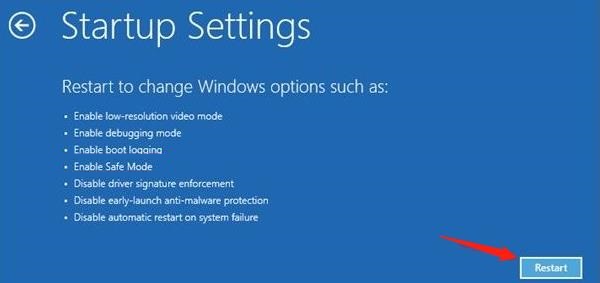
Power on and force shutdown the laptop 3 times to trigger Windows Recovery
Go to Advanced options → Troubleshoot → Startup Settings
Select Enable Safe Mode with Networking
If the display works in Safe Mode, the problem is likely driver-related
Update All System Drivers Using Driver Talent X
Outdated or corrupted graphics drivers are one of the most common reasons a Lenovo laptop turns on but shows a black screen. If the GPU, display adapter, chipset, or system firmware drivers fail to load correctly, Windows may boot without sending a video signal to the screen. Updating all critical system drivers can often resolve this issue without hardware repair.
Step 1: Download and Install Driver Talent X
Click the Download button to get the installer
Run the setup file and follow the on-screen instructions to complete installation
If your screen is black, try booting into Safe Mode with Networking or use an external monitor temporarily
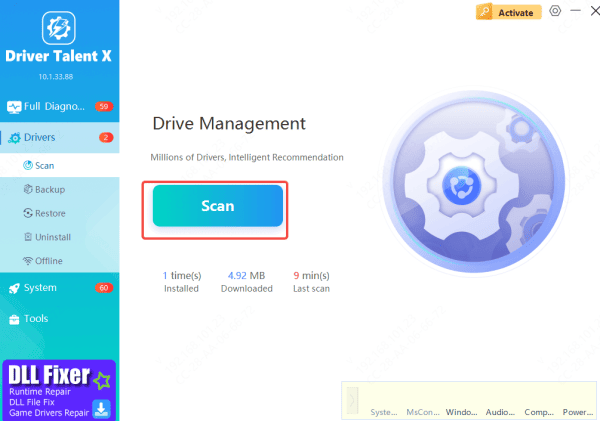
Step 2: Scan Your Lenovo Laptop
Launch Driver Talent X after installation
Go to Drivers → Scan, then click Scan
The program will examine all essential components, including: Graphics drivers (Intel / NVIDIA / AMD), Display adapters, Chipset and motherboard drivers, Power and firmware-related components
Step 3: Update or Repair Drivers
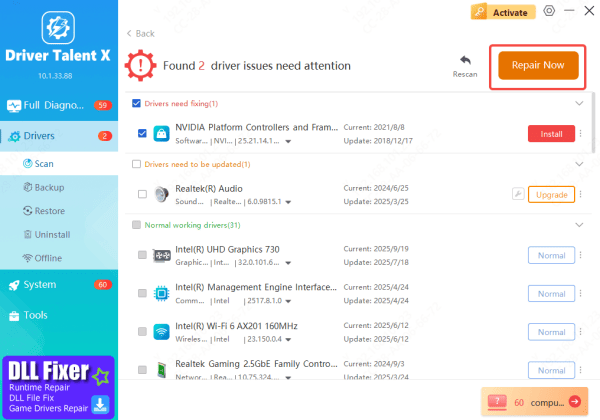
Once the scan finishes, Driver Talent X will list outdated, missing, or corrupted drivers
Select all recommended drivers related to graphics and system stability.
Click Repair Now or Upgrade
The tool will remove conflicting driver files and perform a clean installation of the latest certified drivers designed for your Lenovo laptop
Step 4: Restart Your Laptop
After updates are complete, restart your system
A reboot allows Windows to load the new drivers correctly and often restores normal display output
Updating system drivers frequently resolves black screen issues caused by driver corruption, incompatible updates, or GPU communication failures—making this one of the most effective software-level fixes before considering hardware replacement
Roll Back or Repair Windows Updates
Some Windows updates can cause display failures
Boot into Windows Recovery Environment
Go to Troubleshoot → Advanced options
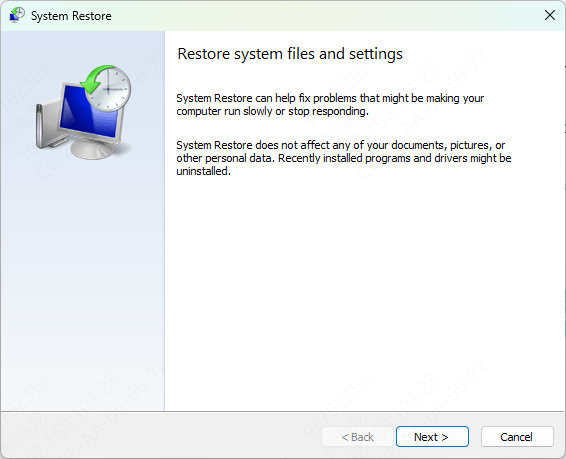
Select Uninstall Updates or System Restore
Roll back to a point when the screen worked normally
Reset BIOS / Check BIOS Settings
Incorrect BIOS settings or failed firmware updates can prevent display output.
Restart the laptop
Press F2, F1, or Del to enter BIOS
Choose Load Default Settings
Save and exit
If possible, update the BIOS using Lenovo's official tools once the system is stable.

Check Hardware Components
If none of the software fixes work, the issue may be hardware-related.
Potential hardware causes include:
Loose or faulty RAM
Damaged display cable
Failed GPU
Defective LCD panel
If you are not comfortable opening the laptop, it's best to contact Lenovo Support or visit an authorized repair center.
Common Causes of a Black Screen on Lenovo Laptops
Incorrect display output or brightness settings
Corrupted or outdated graphics drivers
Failed Windows updates
External monitor or cable conflicts
BIOS or firmware errors
Faulty RAM, GPU, or display hardware
Conclusion
A Lenovo laptop that turns on but shows a black screen is usually caused by display settings, driver problems, Windows updates, or power issues—and most cases can be fixed without replacing hardware. Start with simple checks, perform a power reset, update graphics drivers, and reset BIOS settings before assuming hardware failure. If the problem persists after all troubleshooting steps, professional repair or warranty support may be required.









