If the touchpad on your Lenovo laptop is not working properly on Windows 11, you're not alone. Many users report issues such as the touchpad not responding, gestures not working, the touchpad missing from settings, or the device not appearing in Device Manager. This guide walks you through all effective methods to fix Lenovo touchpad driver issues on Windows 11, from basic checks to advanced driver and system solutions.
Check Basic Touchpad Enable Settings
Use Keyboard Shortcut
Many Lenovo laptops allow the touchpad to be turned off accidentally.
Press Fn + F6, Fn + F8, or the key with a touchpad icon
Test if the touchpad starts responding
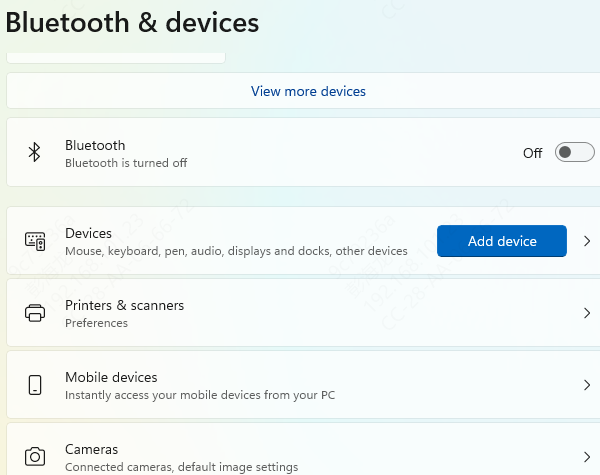
Check Windows 11 Touchpad Settings
Go to Settings → Bluetooth & devices → Touchpad
Make sure Touchpad is set to On
Adjust sensitivity and enable gestures
Update Lenovo Touchpad Driver Automatically
Manually managing touchpad, chipset, and input drivers can be complicated. An automated driver tool like Driver Talent X ensures all drivers are fully compatible with Windows 11 and Lenovo hardware.
Download and Install
Download Driver Talent X and complete the installation
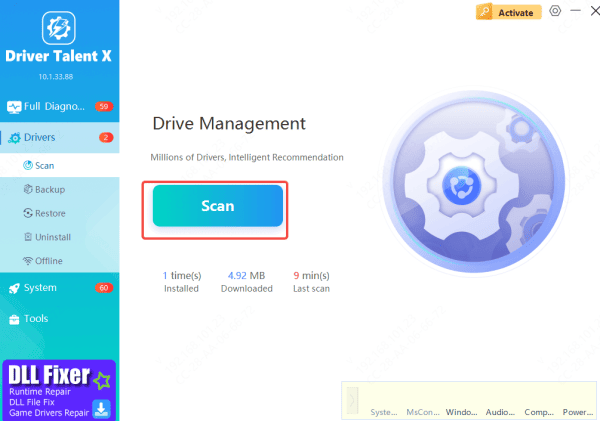
Run a Driver Scan
Open the program
Go to Drivers → Scan
The tool checks touchpad, HID, chipset, and controller drivers
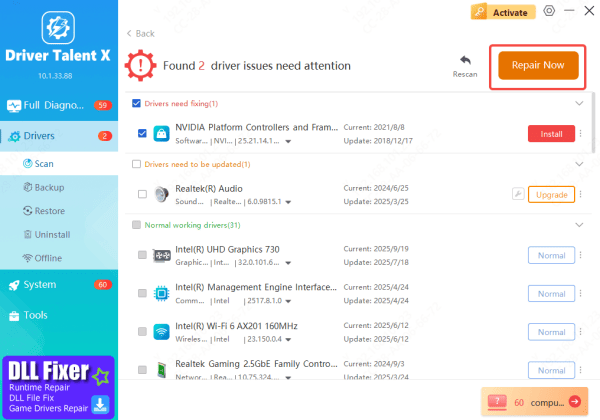
Update Drivers
Select all relevant drivers
Click Repair Now or Update
The software installs the latest certified Lenovo-compatible drivers
Restart Your Laptop
Reboot to apply changes and reload updated drivers
This method often resolves touchpad driver issues immediately
Reinstall the Touchpad Driver Manually
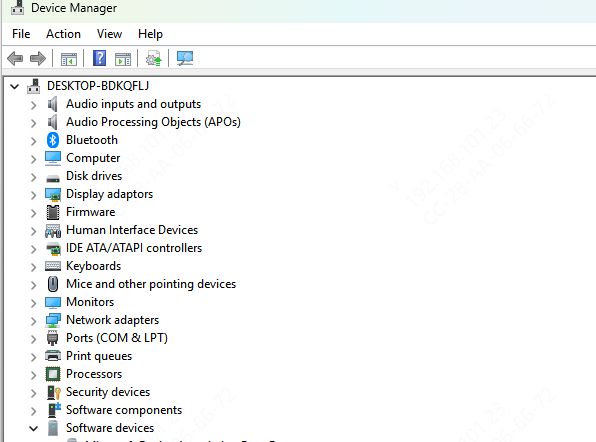
Press Win + X → Device Manager
Expand Mice and other pointing devices or Human Interface Devices
Right-click the Lenovo touchpad device → Uninstall device
Check Delete the driver software for this device
Restart your laptop
Windows 11 will automatically install a fresh generic touchpad driver
Install Touchpad Driver from Lenovo Support
To ensure full gesture and precision support:
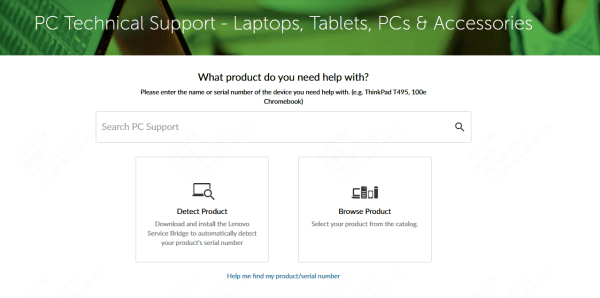
Visit Lenovo Support
Enter your laptop model or serial number
Go to Drivers & Software
Select Windows 11 as the OS
Download and install the latest Touchpad / TrackPad / UltraNav driver
Restart your system
Check BIOS Touchpad Settings
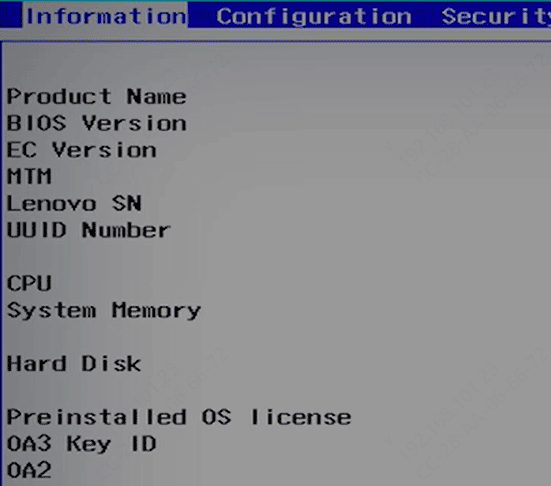
The touchpad can be disabled in BIOS after updates or resets.
Restart your laptop
Press F2, F1, or Del to enter BIOS
Locate Internal Pointing Device / Touchpad
Ensure it is set to Enabled
Save changes and reboot
Check Windows Updates
Pending or recent updates can affect input devices.
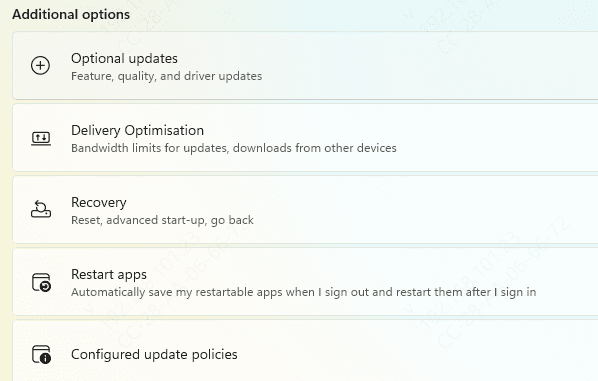
Go to Settings → Windows Update
Click Check for updates
Install all available updates and restart
If the issue started after an update:
Go to Update history → Uninstall updates
Remove the most recent update and restart
Run Windows Troubleshooters
Windows 11 includes basic troubleshooting tools.
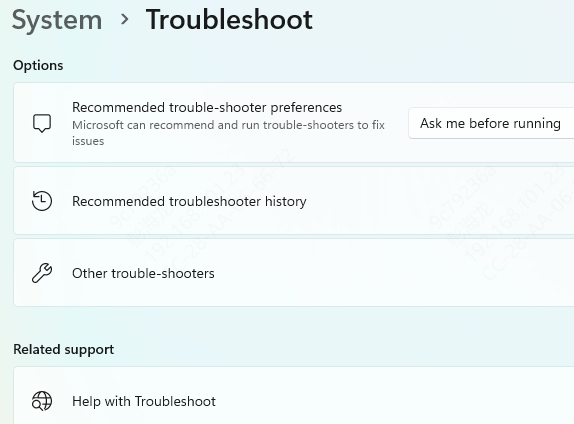
Go to Settings → System → Troubleshoot → Other troubleshooters
Run:
Hardware and Devices
Keyboard (may affect touchpad firmware)
Test with an External Mouse
If the touchpad still doesn't work:
Connect a USB or Bluetooth mouse
If the mouse works, the issue is likely driver- or touchpad-specific
If neither works, hardware repair may be required
When to Suspect Hardware Failure
If none of the solutions work, the touchpad may be physically damaged due to:
Liquid spills
Internal cable disconnection
Wear and tear
In this case, contact Lenovo Support or visit an authorized service center.
Causes of Lenovo Touchpad Driver Not Working
Several factors can cause touchpad driver problems on Windows 11:
Outdated, missing, or corrupted touchpad drivers
Touchpad accidentally disabled via keyboard shortcut
Incorrect Windows 11 touchpad settings
Incompatible Windows updates
BIOS or firmware settings disabling the touchpad
Conflicts with mouse, chipset, or HID drivers
Conclusion
A Lenovo touchpad driver not working on Windows 11 is usually a software-related issue that can be fixed by enabling settings, updating or reinstalling drivers, checking BIOS options, and keeping Windows up to date. Using an automated driver tool like Driver Talent X simplifies the process and reduces compatibility risks. By following the in this guide, most users can fully restore touchpad functionality without professional repair.









